Bodymovin: how to export Lottie from After Effects in 7 steps
How to export a Lottie file from After Effects with Bodymovin: install it, prepare the comp, pick the right panel settings, render, test, shrink and hand off.

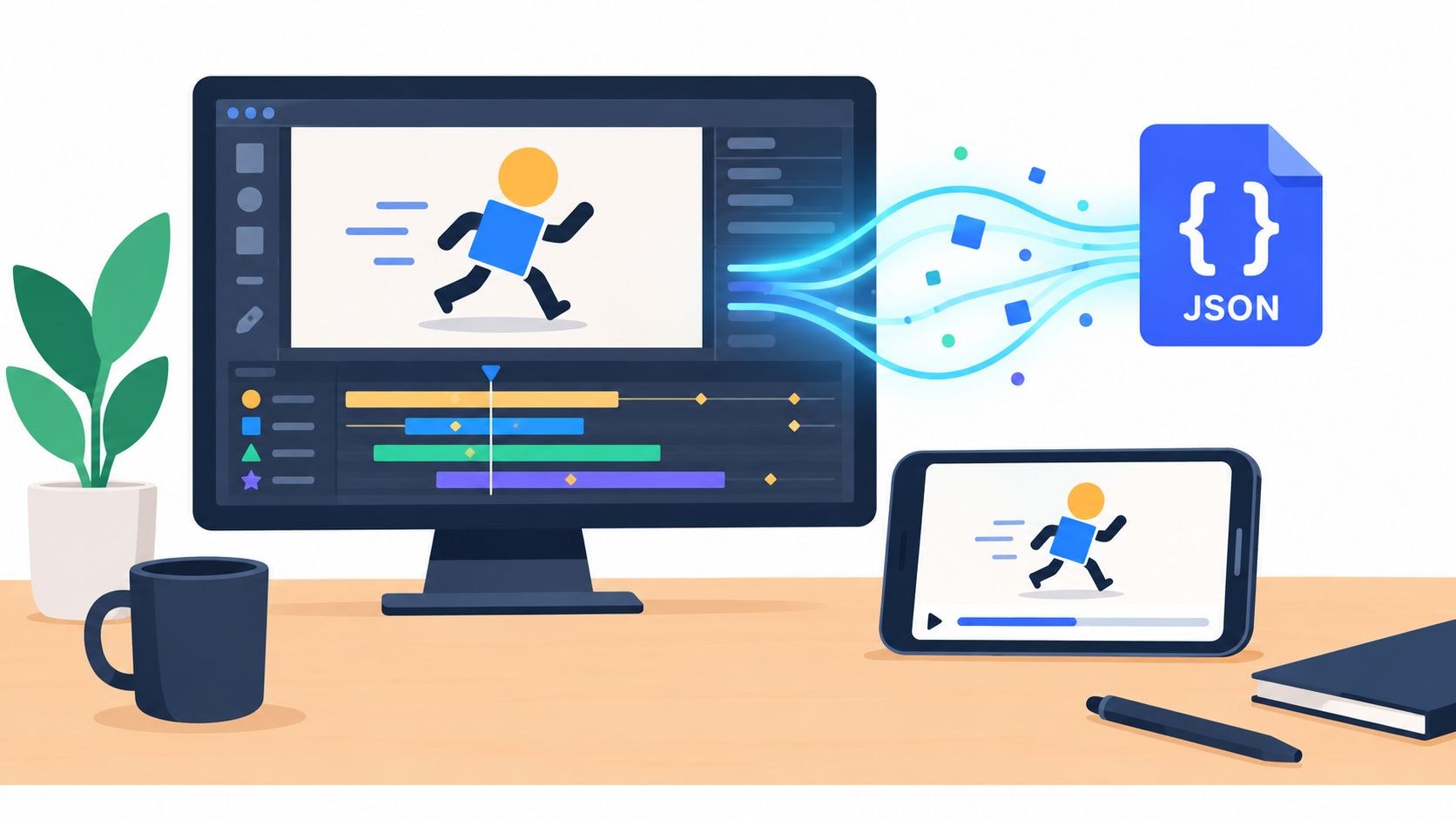
Bodymovin is an After Effects extension that exports a composition as a Lottie JSON file, which a Lottie player then draws live in a website or an app. To use it, install the extension, build the comp with features Lottie supports, open Window, Extensions, Bodymovin, pick the composition and a destination folder, and click Render.
Clicking Render is the easy bit. At Moonb, the Lottie handoffs I see go wrong usually went wrong weeks earlier, when somebody put a tint effect on an animation meant for a phone or forgot to package a font.
What Bodymovin does
Airbnb’s Lottie documentation describes Bodymovin as “an After Effects plugin created by Hernan Torrisi that exports After effects files as json and includes a javascript web player.” Airbnb’s team built on it to carry the format to Android, iOS, React Native and Windows. For the concept itself (what the JSON holds, and how Lottie stacks up against GIF, MP4 and SVG), read what a Lottie animation is first.
The web player is busy. The lottie-web package on npm was downloaded 6,289,141 times in the week of October 4 to 10, 2026, by npm’s own download counter.
Keep one line from the plugin’s aescripts page in mind through every step that follows: “it supports a subset of After Effects features.” Your preview window will happily play effects the player never draws, so look them up before you animate.
How to export Lottie from After Effects in 7 steps
1. Install Bodymovin or the LottieFiles plugin
The lottie-web README lists six ways to install the extension and recommends one: download it from aescripts. There it’s sold as “Name Your Own Price” with a suggested $20. Individuals can pay any amount; businesses and teams must pay the suggested price for a valid license. Adobe’s add-on store is option two. Options three to five all use the .zxp file in the repo’s build/extension folder: through the aescripts ZXP installer, copied by hand into Adobe’s CEP extensions folder, or installed with Adobe’s own manual steps. Option six is Homebrew.
Almost everybody misses the next setting. On a Mac, go to After Effects, Preferences, Scripting & Expressions and check “Allow Scripts to Write Files and Access Network” (on Windows it’s under Edit, Preferences). The README lists it right after installation, and the setting’s name says what the panel needs: it writes files to disk.
Check the dates, too. The newest version in aescripts’ version history is 5.12.1, from June 12, 2023, and its compatibility list runs from After Effects CC 2014 through After Effects 2025. On anything newer, export a tiny test comp before building the real one.
The other route is LottieFiles for After Effects, from Adobe Exchange, aescripts or as a ZXP. LottieFiles says it “implements all the Lottie generation features of Bodymovin” and adds an instant preview, testing on phones and a feature checker. It exports Lottie JSON, optimized JSON, dotLottie, optimized dotLottie and Telegram stickers (TGS), and it needs a LottieFiles account. Its page lists version 4.11.0, from July 27, 2026. On a new machine today I’d install this one, account and all, for the feature checker alone.
LottieFiles put the two plugins side by side in a video that runs under three minutes.
2. Prepare the composition
Airbnb’s After Effects guide for Lottie is short, so read all of it once, and go back through it before the first keyframe.
- Convert Illustrator, EPS, SVG or PDF artwork to shape layers (Layer, Create Shapes from Vector Layer), then delete the original asset so it doesn’t ship in the export. Vector layers you leave unconverted come out as images.
- Export at 1x. Work at whatever size you like, but the exported comp should match the asset’s size, because the players turn pixel values into points on iOS and dp on Android.
- Lock the frame rate before animating. Change it later and, in the guide’s words, keyframes can “get weird.”
- Parent similar layers instead of duplicating their keyframes, and save path animation for the shots that need it, since each animated vertex adds to the JSON.
- A null that controls other layers stays visible, with its opacity at 0%. Hide it and it won’t come through in the JSON.
- No negative layer stretching. The README names it as something that breaks the data.
The same guide tells you what to keep out of the comp: effects from the Effects menu, layer styles like drop shadow or color overlay, blending modes such as Multiply or Screen, and luma mattes. The platform-by-platform version is in the table further down.
3. Pick the panel settings
Click the gear icon next to a composition in the Bodymovin panel to open its settings. Labels match the bodymovin-extension source; the recommendations are mine. There’s no renderer setting. The developer chooses SVG, Canvas or HTML when they load the file in the player.
| Setting | What it does | Recommended value |
|---|---|---|
| Glyphs | Converts text to shapes | On for web and Android. Glyphs don’t play on iOS, so for iOS leave it off and have the developer load the font |
| Hidden / Guides | Exports hidden or guide layers | Off, unless an expression points at one of those layers |
| Extra Comps | Exports comps outside the main tree that expressions point to | Off, unless an expression needs it |
| Convert expressions to keyframes | Bakes expressions into keyframes, which “can increase file size significantly” | On for any file headed to iOS, Android or Windows, where expressions don’t play |
| Trim unused keyframes and layers | Removes layers and keyframes beyond the work area | On |
| Skip default properties | Leaves default values out of the JSON to save size | On, if your developers run current iOS, Android and web players |
| Pretty print JSON | Exports readable, indented JSON | Off for delivery; the panel itself warns the file “gets significantly larger” |
| Original Asset Names | Names exported images after the project’s assets | On, so the images folder makes sense to a developer |
| Include in json | Encodes raster images inside the JSON | On for a one-file handoff, off if the app hosts its own images |
| Enable compression | Sets a 0 to 100 compression ratio for image layers | Use it when raster images have to stay, and check them at full size |
| Split | Splits the comp into several JSON files every X seconds | Off for UI pieces; a long scene might need it |
| Demo (export mode) | Exports an HTML file for a local preview | Handy for a quick look in a browser |
| Standalone (export mode) | Puts the player and the animation in one JS file | For a single animation on a page, such as a banner |
4. Render the JSON
Open Window, Extensions, Bodymovin. Every composition in the project shows up in the panel. Select one, choose a destination folder and click Render. The panel writes the JSON there, and if the comp had image or Illustrator layers, an images folder lands beside it.
Choose that folder with some care. The README warns against overwriting an existing images folder in the same location, which is exactly what happens when three versions of the same loader all go to Downloads.
Hernan Torrisi recorded his own walkthrough, linked from the README. It dates from 2017, so expect an older version of the panel, but it covers the export and then loading the result into a web page.
5. Check it in a viewer, then on the real platform
Drop the JSON into our free Lottie viewer first. It plays Lottie and dotLottie, scrubs frame by frame and shows file size, frame rate and colors, so a missing layer or an odd jump is obvious in seconds.
A browser only tells you how the web player draws the file. Airbnb’s guide has you test next on the platform you’re shipping to, with the Lottie preview apps for Android and iOS. Don’t skip it. Each player supports a different set of features, and a tint effect that looks right in the browser does nothing on Android or iOS.
6. Shrink it
When a Lottie file reaches me heavy, it’s usually raster images inside the JSON, or path animation where a transform would do. The other regular is a wiggle that left a keyframe on every frame, which is why Airbnb’s guide calls out Autotrace and the wiggler by name.
Fix those in After Effects and re-export with Trim unused keyframes and Skip default properties on. Then run the file through our Lottie editor, which compresses it and can swap colors, change the speed or trim it before you download JSON or dotLottie. If you’d rather stay inside After Effects, the LottieFiles plugin’s optimized JSON and dotLottie exports do a similar job.
7. Hand it off
Send the JSON, the images folder if there is one, the frame size you exported at, and a short note saying which renderer you tested (SVG, Canvas or HTML on the web), whether it loops and how text is handled, because none of that is obvious from the JSON alone.
If marketing then wants the same animation for a social post or a deck, Lottie to MP4 converts it. It can also give you a GIF, or a WebM that keeps the background transparent.
Which After Effects features export to Lottie
Airbnb keeps a supported features table listing every feature against every player: Android, iOS (two rendering engines), Windows, and the web player’s SVG, Canvas and HTML renderers. LottieFiles keeps its own version at lottiefiles.com/supported-features, with a column for its dotLottie player. Below is my summary. Before you build around anything borderline, check the original row.
| After Effects feature | Plays on | Doesn’t play on |
|---|---|---|
| Shape, ellipse, rectangle, rounded rectangle, group | Every player | None |
| Polystar | Android, iOS, web | Windows |
| Fills and strokes, including gradients and dashes | Every player | None |
| Position, scale, rotation, anchor point, opacity, parenting | Every player | None |
| Auto Orient | Web | Android, iOS, Windows |
| Masks: add and subtract | Every player | None |
| Masks: intersect | Android, iOS | Windows, web |
| Masks: lighten, darken, difference, feather | None | Every player |
| Alpha matte | Every player | None |
| Luma matte | Web with the SVG renderer, per the plugin’s aescripts page (Airbnb marks web unknown) | Android, iOS, Windows |
| Merge paths | Android, Windows | iOS, web |
| Fill, stroke, tint and tritone effects | Web | Android, iOS, Windows |
| Drop shadow | Android 4.1 and later, iOS | Windows (unconfirmed on web) |
| Gaussian blur | Android 4.1 and later | iOS, Windows (unconfirmed on web) |
| Text with fonts | Android, iOS, web | Windows |
| Text as glyphs | Android, web | iOS, Windows |
| Expressions | Web | Android, iOS, Windows |
| Images and precomps | Every player | None |
| Time remap | Android, iOS, web | Windows |
The lottie-web README adds that image sequences, video and audio are not supported, and the panel’s own “Include video and audio assets” option carries the note “This is not yet supported by players.” Footage and sound go in a separate file.
If the animation has to run in a phone app, I’d build it from shape layers, transforms, simple masks and alpha mattes, and treat everything else in that table as something to test first, layer effects and expressions especially.
Common Bodymovin export problems and fixes
- Blank export. Nearly always a feature the player can’t draw, or a layer that never made it into the JSON (a hidden null is the classic). Airbnb suggests switching layers on one by one, or in small groups from the bottom of the stack, and testing until the broken one shows itself. Then look at that layer’s effects and layer styles.
- Missing images. Either the images folder didn’t travel with the JSON or a later export overwrote it. Send the folder, or turn on Include in json so the images live inside the file. Better yet, convert vector artwork to shape layers and there are no images to lose.
- Wrong fonts. With Glyphs off, the player needs the font file or a CSS class to draw the text. Turn Glyphs on for web and Android; on iOS the developer loads the font. According to the features table, the Windows player draws no text whatsoever.
- Huge file. Hunt in the step 6 order (raster images, then wiggler or Autotrace keyframes, then path animation), turn off Pretty print JSON, switch on the size settings from step 3, and compress the result in the Lottie editor.
- Works in the viewer, broken in the app. That’s step 5 biting: tint and friends draw on the web and nowhere else. Test in the target player and go back to the table.
Making Lottie without After Effects
Three browser tools export Lottie directly, no After Effects license needed.
Jitter is a web-based motion design tool, pitched as usable even if you have no motion design experience. Designs come in through its Figma plugin; you can start from presets or keyframe by hand, and the output can be Lottie, GIF or video. According to its pricing page, the free tier includes Lottie export at 720p and 30fps with three workspace files, and the paid tiers remove the Jitter watermark. It’s where I’d send a product designer animating UI pieces from Figma, though on a real project the three workspace files fill up fast (drafts don’t count toward them).
Lottielab is a browser editor built entirely around Lottie, with real-time collaboration, Figma import and import of large files from After Effects. It also takes Lottie uploads, which is the interesting part for this post: a team can keep editing old Bodymovin exports without anyone reopening the AE project. Its free tier has no file cap and takes Lottie and SVG uploads, but only exports GIF and MP4. Lottie export is a Pro feature.
LottieFiles makes Lottie Creator, a full web-based animation tool. It adds state machines for interactive files, and its export menu covers Lottie JSON and dotLottie as well as GIF, MOV, MP4 and WebM. Its page calls it free to use with as many files as you want, but free users can only export five animations. If your files already live on LottieFiles, start there.
| Tool | What it is | Best for | Free tier (checked October 12, 2026) | One limit |
|---|---|---|---|---|
| Bodymovin | After Effects extension | Motion designers already in After Effects | Name your own price for individuals | Needs After Effects, exports only what the players support |
| Jitter | Browser motion design tool | Animating Figma designs | Lottie export at 720p, 30fps, three workspace files | Watermark removal and more files need a paid tier |
| Lottielab | Browser Lottie editor | Product teams editing Lottie together | No file cap, GIF and MP4 export | Lottie export needs Pro |
| Lottie Creator | Browser animation tool from LottieFiles | Teams already using LottieFiles | Free to use, five exports | The five-export cap |
If the logo or icon already exists as an SVG, skip the animation tool entirely. LottieFiles’ walkthrough builds a logo in Figma, exports it as an SVG and animates it in their SVG to Lottie tool.
Our own SVG to Lottie converter does it in one step: upload the SVG, pick an entrance animation (draw on, pop or fade), download JSON or dotLottie. And if a finished file is all you need, our list of free Lottie animation sites checks the license on each one.
On the broader tool question, our roundup of After Effects alternatives compares fourteen of them on price and Lottie export, these animation tools for non-designers start simpler still, and the Lottie resources list collects the sites and tools I’d bookmark.
Frequently asked questions
No. Bodymovin is the After Effects extension that writes the animation out as JSON; Lottie is the family of players (lottie-web plus the Android, iOS and React Native libraries) that reads the JSON and draws it in a site or an app. The names get used loosely because the format came out of Bodymovin. When a file breaks, though, it helps to know whether the export or the player is at fault.
For individuals, close to it. aescripts sells it as Name Your Own Price with a suggested $20, and individuals can pay any amount, while businesses and teams must pay the suggested price for a valid license. The extension file also sits in the public lottie-web repository on GitHub under build/extension, and the README there lists the other ways to install it.
Go with the LottieFiles plugin if you want phone previews, a feature checker, dotLottie or optimized JSON exports and a LottieFiles workspace for your files; it needs a LottieFiles account. Bodymovin is the original exporter and needs no LottieFiles account. Its latest aescripts release, 5.12.1, is from June 2023 and lists compatibility up to After Effects 2025, so on a newer version, test a small comp before the real one.