Video marketing and SEO: a practical guide
How video helps a page get found in Google and YouTube: watch pages, VideoObject markup, hosting and page speed, transcripts, thumbnails, measurement, and a checklist for your own pages.


At Moonb, a lot of the video I help produce ends up embedded on product and service pages. After launch, the question that comes back is nearly always some version of “why isn’t the video showing up in Google?” Usually the edit is fine. The page around it is the problem. The player only loads after a click, or the thumbnail URL keeps changing, or the page was never one Google treats as a home for a video in the first place.
So most of what gets called video marketing and SEO is really work on the page, and that’s where this guide spends its time, roughly in the order I’d go through a live URL.
Start with the page Google will index
Google’s video SEO best practices set the baseline. Google finds a video through a <video>, <embed>, <iframe> or <object> element, and if JavaScript injects the player, the player has to appear in the rendered HTML in the URL Inspection tool. The docs put it bluntly: “Don’t rely on user actions (such as swiping, clicking, or typing) to load the video.”
Most marketing pages trip on the indexing requirements that come next. The watch page has to be indexed. The video has to be embedded on a watch page, not hidden behind other elements, with a valid thumbnail at a stable URL. Clients are most surprised by this line from the same list: “The indexed watch page must be performing well in Search before its video can be considered for indexing.”
Watch pages versus money pages
Google defines a watch page as a page whose “main purpose is to show users a single video.” A video landing page qualifies. A product page with a 360 video doesn’t, and neither does a blog post reviewing an embedded video, because in both the video complements the rest of the content.
This is what bites anyone putting a demo on a feature page. The Search Console Video indexing report lists “Video isn’t on a watch page” as a reason a video wasn’t indexed, and the example it gives is “A product details page with a complementary video”. The feature page can still rank as a normal text result, and Google’s docs say a non-watch page can also show up in Google Images with a video badge. It just won’t get the video result treatment.
So I make teams decide, video by video:
- For a video result in Google (thumbnail in results, Video mode, key moments), the video needs its own watch page with a unique title and description. Embed it on the feature page as well; Google says having the same video on both is fine.
- If the video is there to help the feature page convert, embed it and stop worrying about video indexing for that URL. That page wins or loses on its text either way.
Google also indexes only one video per page, according to the same report documentation. If a page carries five clips of equal weight, I’d rather pick the one that matters and make it obvious than leave Google to guess.
Google Search Central has an older talk on how it indexes videos and where they show up, with chapters on VideoObject markup, thumbnails, sitemaps and making video files fetchable. It’s a few years old, so check the details against the current docs.
VideoObject markup and rich results
Structured data tells Google which file, thumbnail and title belong together. Its video structured data documentation requires three VideoObject properties: name, thumbnailUrl and uploadDate. Recommended ones include description, duration (in ISO 8601, so PT1M30S for a 90 second cut), contentUrl and embedUrl.
Those last two get mixed up all the time. contentUrl is the video file itself, and Google calls it “the most effective way for Google to fetch your video content files.” embedUrl is the player, usually the src of the iframe; for a YouTube embed, that’s the YouTube embed URL. Neither should be the URL of the page the video sits on.
The rules in Google’s video docs that I see broken most often:
- Unique text in
nameanddescriptionfor every video on the site. One boilerplate description pasted across a whole library defeats the purpose. - If the thumbnail appears in more than one place (sitemap, structured data, the
posterattribute, Open Graph), use the same URL in all of them. - Leave out
expiresunless the video really expires. Google warns that a date accidentally set in the past drops the video from video results. - Markup only makes a page eligible. Google says it “doesn’t guarantee that adding markup will result in a specific video feature in Search results.”
Key moments, the chapter links under a video result, come about in two ways. For video embedded on your own site, you either mark segments with Clip structured data or use SeekToAction to tell Google how timestamps work in your URLs, so it can link to points itself. For video hosted on YouTube, Google reads the timestamps and labels in the YouTube description. Previews and key moments both need Google to fetch the actual video bytes, so with a third party player, check that the host allows it.
A second talk from the same Search Central series, posted in November 2021, walks through key moments and both markup options.
Once the markup is in, test the URL in the Rich Results Test and the URL Inspection tool, and check that what the markup describes matches what a visitor actually sees in the player.
Hosting choices and page speed
Where the file lives decides how fast the page is and how much of it you control, and every option comes with upkeep. I’d pick the setup your team will still maintain on a normal week.
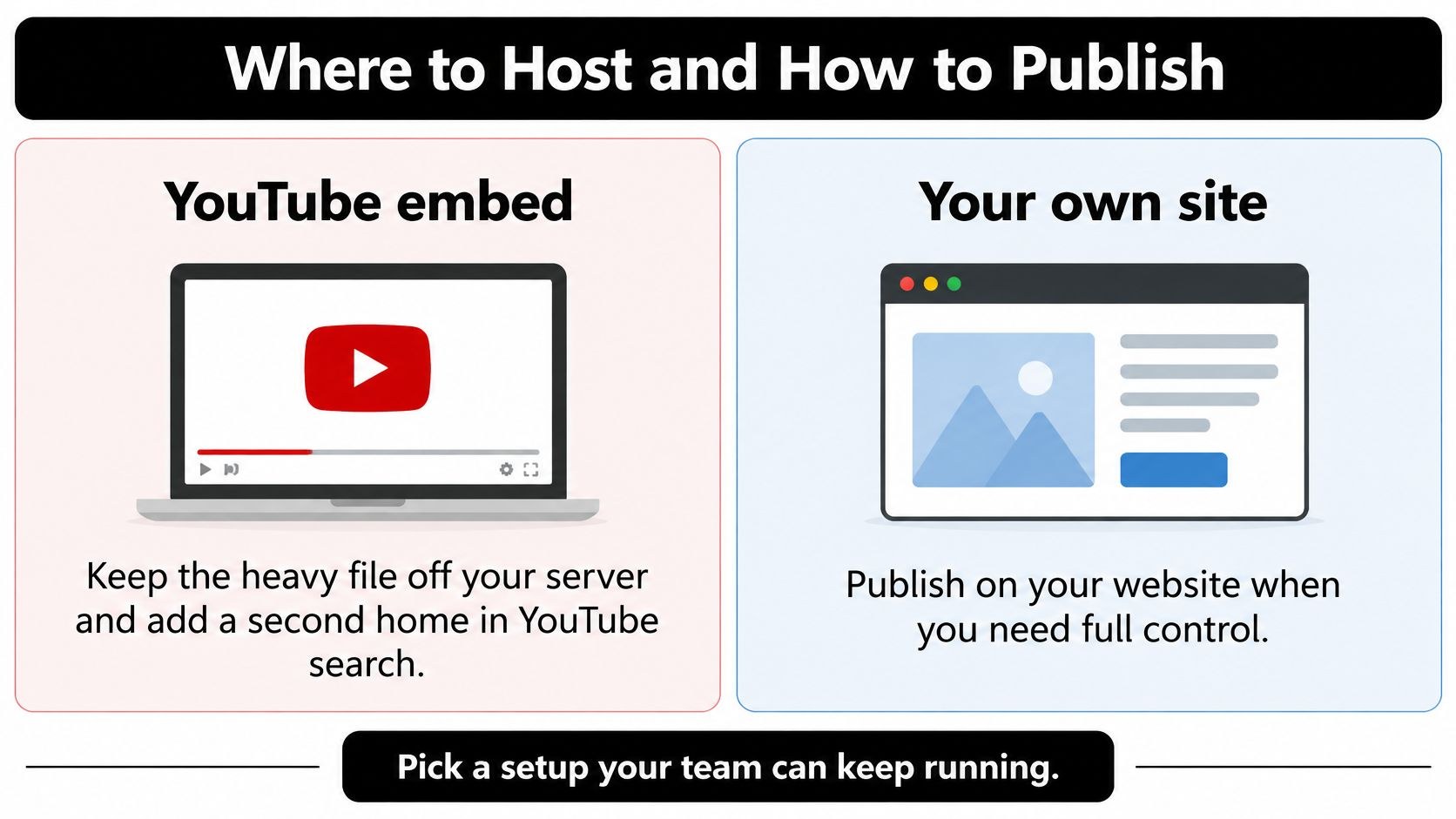
A YouTube embed keeps the heavy file off your server and gives the video a second home in YouTube search. Google’s docs say that when you embed a third party player from YouTube, Vimeo or Facebook, it “may index the video both on your web page and on the third-party platform’s equivalent page,” and both can appear in video features. But YouTube owns its watch page and the related videos, so a viewer who finds you there may well click on someone else next.
Self-hosting gives you a stable file URL for contentUrl and no third party branding. It also puts the bytes on your server, and Google says both the page host and the streaming server “must have enough server resources to support crawling.” A large MP4 above the fold slows the first view as well, so compress it, give it a poster image, and skip autoplay.
A hosted marketing player sits in between: a branded player and engagement data, paid for with another script on the page. I only recommend one when someone on the team will actually open that data every week.
Facades and the click problem
YouTube embeds, and most platform embeds, load a lot of code before anyone presses play. The Chrome team’s guide to lazy loading third-party resources with facades describes the usual fix: show a static element that looks like the player, and swap in the real embed when the visitor clicks. It recommends open source facades such as lite-youtube-embed. (The Lighthouse audit itself was removed in Lighthouse 13, but the technique still stands.)
Performance guides tend to leave out the conflict. Google’s Video indexing report has a failure reason called “Cannot determine video position and size,” which it says typically happens when the page shows an image of the player “that must be clicked to start playback.” That describes a facade. So I split the two by page type. Facades go where the video supports the text, on blog posts and on feature pages that aren’t watch pages anyway. A dedicated watch page you want indexed as a video gets the real player at its real size.
| Setup | Speed effect | Control | Best fit |
|---|---|---|---|
| YouTube embed | Heavy third party code unless you use a facade | YouTube owns its watch page and related videos | Most marketing and product pages |
| YouTube embed behind a facade | Light until the click | Same as above | Pages where the video is supporting content |
| Self-hosted file | Can slow the first view if the file is large | You own the file URL and the page | Short clips on a fast template, dedicated watch pages |
| Hosted marketing player | Extra script weight, file off your server | Branded player and engagement data | Teams that review retention every week |
Part of why the hosting choice matters more now is that a finished cut rarely stays on one page. Plenty of it ends up in paid placements, where budgets keep climbing: in its April 2025 digital video ad spend release, IAB reported for the U.S. market: “Digital video ad spend rose 18% in 2024 to $64 billion,” with $72 billion projected for 2025. None of that is organic search. But when the same file runs in ads, on social and on your site, I want its name and thumbnail to match everywhere, and that’s far easier when one host holds the master. If you haven’t settled on a host yet, our roundup of video hosting platforms compares the options.
Transcripts and captions
Search systems can’t watch your demo, and plenty of people watch with the sound off. Captions and an on-page transcript give both of them the words, including the product names and numbers someone might search for.
For your own HTML5 player, captions go in a <track> element, which uses the WebVTT format (.vtt files), per MDN’s reference. YouTube accepts several caption formats, SubRip (.srt) and WebVTT among them. Put a readable transcript on the page near the player too, as normal HTML text. A PDF download or a collapsed tab is harder going for people and crawlers alike.
I treat auto captions as a first draft, and so does YouTube. Its help page on automatic captioning says they “might misrepresent the spoken content due to mispronunciations, accents, dialects, or background noise” and tells creators to always review them. Product names and acronyms are where they slip, which is unlucky, because those are the words people search for. Check them by hand, and every figure with them.
Then edit the transcript against the final cut. If legal pulled a claim from the voiceover, it comes out of the transcript. If a feature got renamed between script and export, the transcript uses the new name. On long videos I break the transcript up with subheadings that match the chapters, so a reader can jump to the step they need.
Thumbnails and click-through
The thumbnail does most of the click work in both Google and YouTube. Google’s requirements are technical. A thumbnail has to be at least 60x30 pixels (“larger preferred”), in a supported format such as JPEG, PNG or WebP, at a stable URL Googlebot can fetch, and not mostly transparent; the docs set that line at 80% of pixels with an alpha value above 250. A CDN that rotates thumbnail URLs can stop a video from being indexed.
YouTube’s custom thumbnail guidance asks for 16:9 on regular videos, a minimum width of 640 pixels, and recommends 3840 x 2160. Make one thumbnail per video with one subject, either the product screen where the task happens or the person doing it. Then shrink it to results size and see if it still reads. A few words of text that agree with the title help, as long as the video actually delivers on them.
YouTube’s A/B test for titles and thumbnails catches people out. You can test up to three versions, and the winner is the one “with the highest watch time,” judged on watch time share. A thumbnail that pulls clicks and then loses viewers early won’t win it. For what to put in the frame and how to run the test, our guide to optimizing video thumbnails goes into detail.
Keep a template for the frame (brand font, safe area, background treatment) and change the subject every time. Google’s report documentation is direct about it: “Do not use the same thumbnail for different videos.”
YouTube search and Google search reward different things
The same cut can rank in both places, for different reasons. YouTube’s page on how its search works names three elements: relevance, engagement and quality. Relevance looks at how well “the title, tags, description, and video content match your search query.” Engagement uses signals “such as the watch time of a particular video for a particular query.” Results can also be personalized by a viewer’s search and watch history.
Google Search starts from the page. It wants an indexed watch page, a player it can find without a click, metadata that matches the file and a thumbnail at a stable URL. YouTube watch time isn’t anywhere on that list.
What I do in practice is keep one master cut and write two sets of signals for it. On YouTube, that’s a title and description written for how people search there, with timestamps for chapters. On the site, it’s a watch page with its own unique title, VideoObject markup and transcript. Channel strategy is a bigger subject. Our guide to video production for YouTube covers that side, and digital video marketing covers distribution beyond search.
Embedding video on money pages
On a money page the video should help a visitor decide, and a badly placed embed makes that harder. These are the things I push for.
- Headline and direct answer first, player close by. When a page built around one video isn’t recognized as a watch page, Google’s report docs suggest moving the video container higher in the HTML.
- Copy that still answers the query if the player fails to load or the visitor never presses play.
- One canonical page per important video. Three near duplicate URLs carrying the same demo split signals for no gain.
- One job per embed, whether that’s explaining a step or proving a claim. A 60 to 90 second cut beside the feature copy usually beats a long overview.
Our video landing page patterns show layouts that keep the player prominent without pushing the answer down.
What to measure after the video is live
Views are the number everyone reports, and for search they’re close to useless, since a play count can’t show whether search found the page or whether anyone moved closer to a demo. For the search side, Google’s docs point to three Search Console tools.
- The Video indexing report shows how many indexed pages contain an indexed video, and why the rest weren’t indexed. Its help page lists the reasons, from “Video isn’t on a watch page” to thumbnail errors such as “Thumbnail blocked by robots.txt.”
- The video rich result report flags problems in your VideoObject markup.
- The Performance report, filtered by the Videos search appearance, shows impressions and clicks for video results.
Search Console can’t tell you how many unique videos Google has indexed, only how many pages contain one. Embed the same video on several pages and the chart totals won’t match your library count.
| Metric | Question it answers | Where to read it |
|---|---|---|
| Pages with an indexed video | Can Google treat this as a video result | Search Console Video indexing report |
| Markup errors | Is the VideoObject data valid | Search Console video rich result report, Rich Results Test |
| Impressions and clicks for video results | Do searches surface the video | Search Console Performance, Videos search appearance |
| Click-through rate | Do the title and thumbnail earn the click | YouTube Studio, Search Console Performance |
| Watch time and retention | Does the edit hold attention | YouTube Studio or your player’s analytics |
| Engaged sessions and conversions on the URL | Does the page work with the embed | Your web analytics |
When impressions grow and clicks don’t, I look at the title and thumbnail before anything else, change one element, and watch the same query again. A retention drop in the first seconds usually means the opening doesn’t pay off the title. For tying these numbers to pipeline, see our breakdown of video marketing ROI.
A checklist to run against one live page
Pick one page that already gets impressions or demo clicks and run these ten checks, in order.
| # | Check | Pass test |
|---|---|---|
| 1 | Page is indexable | No noindex, not blocked by robots.txt, shows as indexed in URL Inspection |
| 2 | Player loads without a click | URL Inspection screenshot of the live page shows the player |
| 3 | Watch page decision made | Either a dedicated watch page exists, or you accept text-result only for this URL |
| 4 | Unique title and description | Not copied from another video on the site |
| 5 | VideoObject markup | name, thumbnailUrl and uploadDate present; description and duration match the file |
| 6 | File or player URL | contentUrl points to the file bytes, or embedUrl to the player, never to the page |
| 7 | Thumbnail | One per video, stable URL, same URL in every metadata source |
| 8 | Transcript and captions | Transcript on the page as text, captions reviewed against the final cut |
| 9 | Speed | No autoplaying large file above the fold; heavy embeds deferred where indexing isn’t the goal |
| 10 | Measurement | Video indexing report checked, Videos search appearance filter saved in Performance |
If several people review the page, their notes need to point at the exact spot on the live URL. PinDrop lets reviewers click the spot on a page that’s wrong and comment on it, and each pin records the route, viewport, element and a screenshot. That’s a lot easier to act on than “fix the video” dropped into a chat thread.
Once the page passes, plan the next video from the query. Our video marketing strategy guide covers mapping video types to each stage of the buyer journey.
What video does not fix
Video can’t create demand for a query nobody searches, and it won’t save copy that answers the wrong question. Since Google wants the watch page to be “performing well in Search” before it considers the video, a video on a weak page waits on that page.
So before anyone books a shoot, I look at the page. If the query is wrong or the page is thin, that’s the job, and filming can wait until it’s rewritten. Otherwise I’d fix whatever is technically broken and get on with the next useful video.
Frequently asked questions
Not on its own. Google ranks the page on its text and usefulness, and it only considers a video for video results when the video sits on an indexed watch page that already performs well in Search. A demo on a product page can still help visitors convert, and the page can show up as a normal text result. It usually won't get a video thumbnail in results, though.
Most teams should do both. Upload the master to YouTube for YouTube search, then embed it on a page you own that has its own unique title, description, transcript and VideoObject markup; Google can index the video on your page and on YouTube's. Self-host when you want a dedicated watch page with a file URL you control, and only if the template is fast enough to carry the file.
Open the Video indexing report in Search Console. It shows indexed pages that contain an indexed video, and for every page whose video wasn't indexed it gives the reason, such as no watch page or a thumbnail blocked by robots.txt. For a single URL, run URL Inspection on the live page and make sure the player appears in the screenshot without anyone clicking.