12 best tools for animated mockups (free and paid)
Twelve animated mockup tools checked on their own sites: 3D device apps, 2D motion editors and template libraries, with free tier, platform and export formats for each.

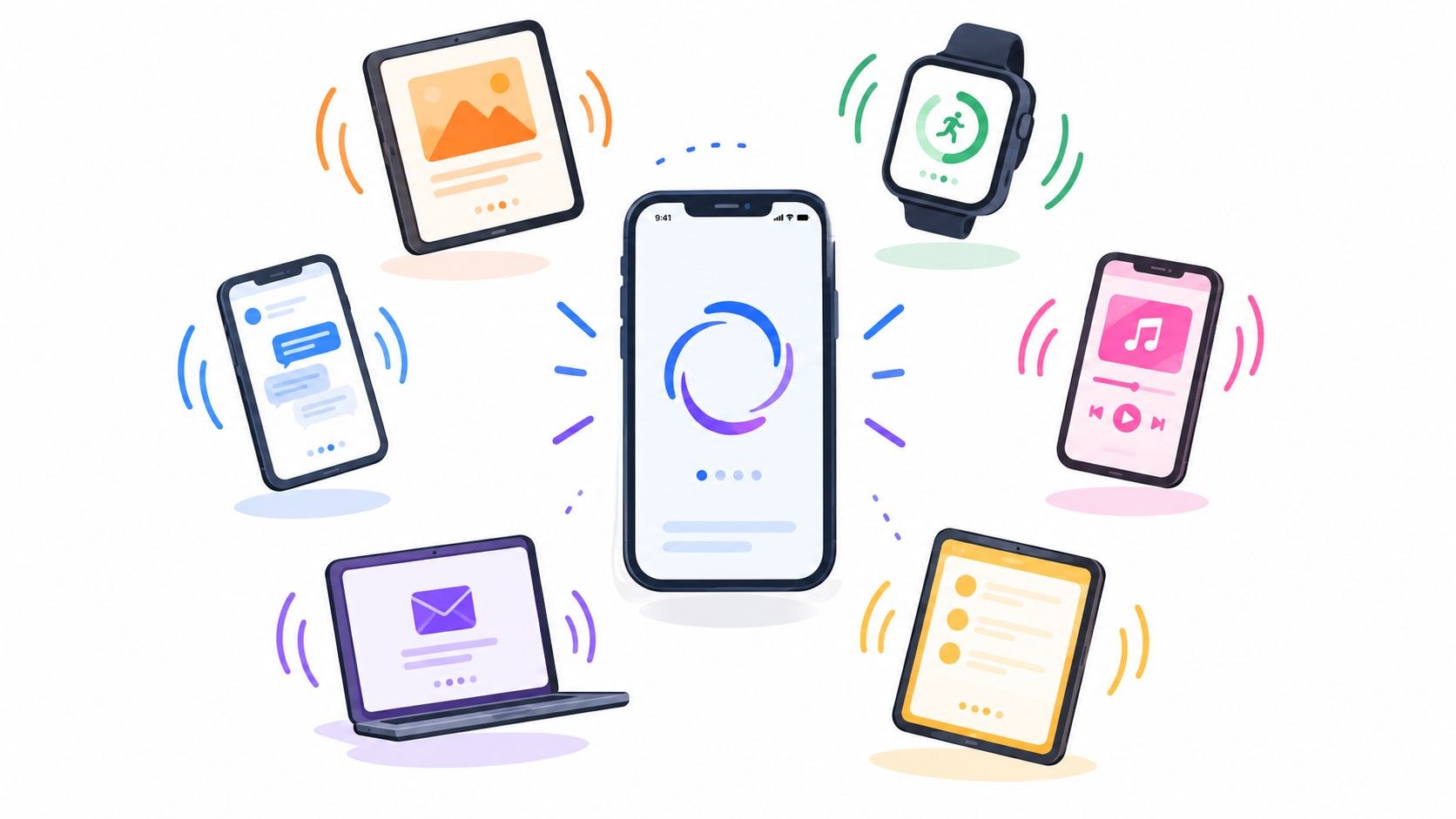
An animated mockup is a short video of your app or website playing on a device screen, usually with the device or the camera moving. To start free, Jitter and Lottielab give you editable 2D device templates in the browser, while Mockpose and Screen Stage put a screenshot on a 3D phone with nothing to install. Rotato is the Mac app I’d pay for when the clip has to look like a product keynote.
I founded Moonb, and most launch weeks at the studio bring at least one request for “the phone, slowly turning, with the new screen on it.” It has to work on the landing page and in the sales deck that same week, and somebody always wants a vertical cut for social on top. So I went through twelve tools that make this kind of clip, looking for the dull details that end up deciding it: what each one costs, what the free tier lets you export (often less than the homepage suggests), where it runs and which file you get at the end.
The twelve tools side by side
Prices and export limits below are what each tool listed in October 2026, on its pricing page or, failing that, its product page.
| # | Tool | 2D or 3D | Browser or desktop | Free tier | Exports |
|---|---|---|---|---|---|
| 1 | Rotato | 3D | Mac app; web version in public beta | Free to start, no credit card; paid tiers are one-time payments | H.264, HEVC, ProRes 4444, PNG frames, up to 8K |
| 2 | Screen Stage | 3D | Browser (free) and Mac app | Free browser version, watermarked | PNG, MP4, WebM in the browser; Mac app adds 4K video, GIF, alpha PNG, 8K stills |
| 3 | Mockpose | 3D | Browser | Free editor, watermark, up to 720p | MP4 (H.264), WebM, PNG; transparent ProRes 4444 on premium |
| 4 | DeviceFrames | 3D | Browser | Free static images with attribution; video from $19/month | PNG, JPG, MP4, WebM, up to 4K |
| 5 | Previewed | 2D and 3D | Browser | Free 2D images at 720p; video from a $9.99 one-time pack | JPEG, PNG, MP4 |
| 6 | AppLaunchFlow | 3D | Browser | Build and preview free; downloads need a paid pass | MP4, WebM, PNG sequence |
| 7 | Jitter | Mostly 2D | Browser | Free: 720p, 30fps, watermark, 3 workspace files | Video, GIF, Lottie; ProRes and WebM on Pro |
| 8 | Lottielab | 2D | Browser | Free, unlimited files | GIF and MP4 free; Lottie, HD and 4K on Pro |
| 9 | Artboard Studio | Mockup scenes for images and video | Browser, plus Figma and Adobe Express plugins | Free to start; Pro $19/month billed yearly | PNG, JPEG, WebP, MP4, WebM |
| 10 | Placeit | Pre-rendered video templates | Browser | Free account and a free-template section; paid membership for the full library | MP4 (video), PNG (stills) |
| 11 | Canva Mockups | 2D, plus 3D phone mockups | Browser and Canva's apps | Free for up to 2,500 mockups | MP4 and GIF, plus JPG, PNG, PDF |
| 12 | ls.graphics animated mockups | 3D renders in After Effects | Desktop (After Effects CC2018+) | Free mockup section (PSD, Figma, online editor); animated packs $32 to $49 each, or the $12/month Pro membership ("full access to all resources") | Whatever After Effects renders |
3D device mockup tools
Six tools that put your screenshot or screen recording on a modeled device and fly a camera around it. Four of them live only in the browser; Screen Stage has a free browser version plus a Mac app, and Rotato is a Mac app first, with a web version in beta.
1. Rotato
More on Rotato
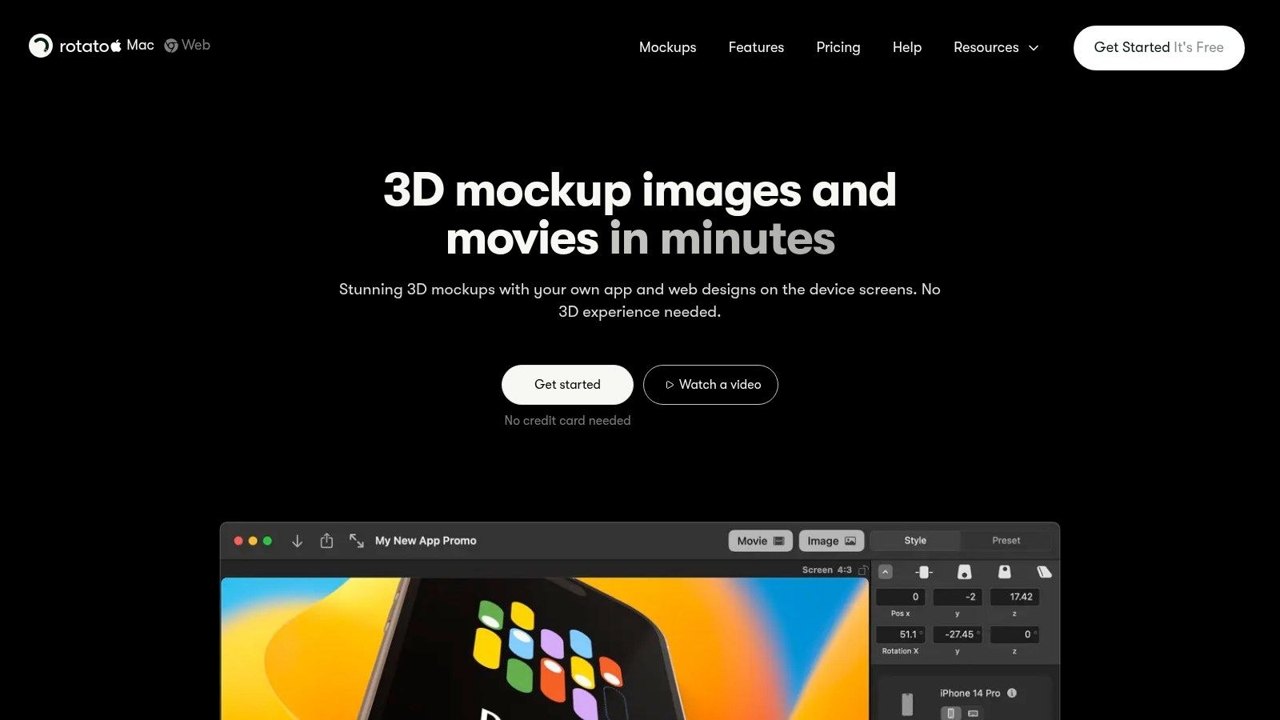
Rotato takes 50+ image and video formats, has a Figma plugin, and ships with more than 30 device models built for it by 3D artists. Its pricing page splits the paid versions into Basic (phone mockups only, no templates, six months of updates), Standard (every device, multi-device scenes, 18 premium video templates) and Premium (100 premium video templates, plus 50+ more in the in-app gallery), each a single payment with a year of new devices on the two upper tiers. Export options listed across those tiers include H.264, HEVC, ProRes 4444, PNG frame sequences, a web export and resolutions up to 8K. The animation timeline, App Store image export, custom backgrounds and reflections, and camera lens control are all on the feature list.
If the clip is going on a homepage, this is the one I’d pay for. Drop in a screen recording, pick a device, set a few keyframes on the timeline, and what comes out looks like it was cut from a product event. The web beta helps with the one person on every team who doesn’t own a Mac.
Rotato’s own tutorial shows the web editor’s timeline, with more than one animation block set on a single device.
2. Screen Stage
More on Screen Stage
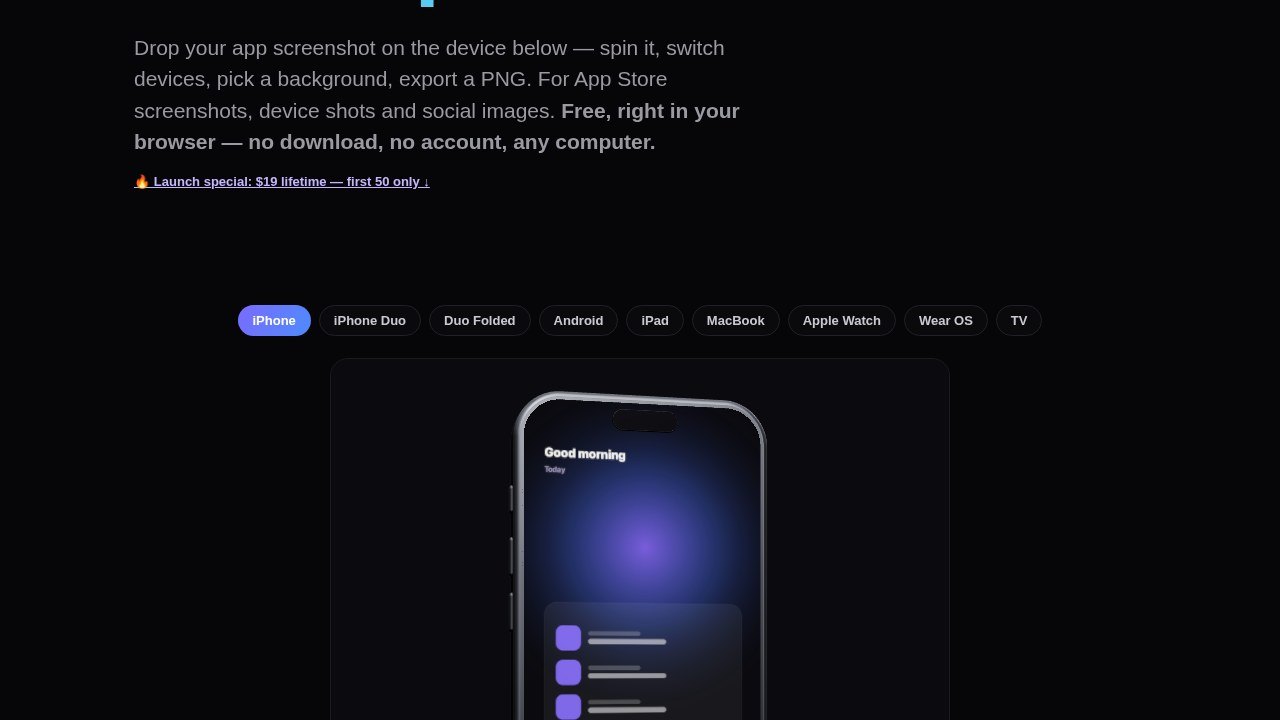
The browser version lets you drop a screenshot on an iPhone, Android, iPad, MacBook, Apple Watch, Wear OS or TV model, spin it, pick a background, and export a PNG or record an MP4 or WebM, with a watermark until you enter a license key. The Mac app is built on a custom Metal engine. It captures a live window, the Xcode simulator or a game onto the device, follows your cursor with the camera, and sends the scene to OBS through Syphon, opaque or transparent. Its export list covers every App Store screenshot size, H.264 video at 4K60 and 4K120, looping GIFs, alpha PNGs and stills up to 8K. All plans include every feature; Studio adds five Macs and a commercial license for client work.
For a quick social post, the free browser version is plenty. The Mac app is why Screen Stage made my list, though: during a live demo the 3D phone shows your real app running while you use it, so a webinar or a launch stream starts to look like a keynote. If you never demo live, I’m not convinced the app pays for itself.
3. Mockpose
More on Mockpose
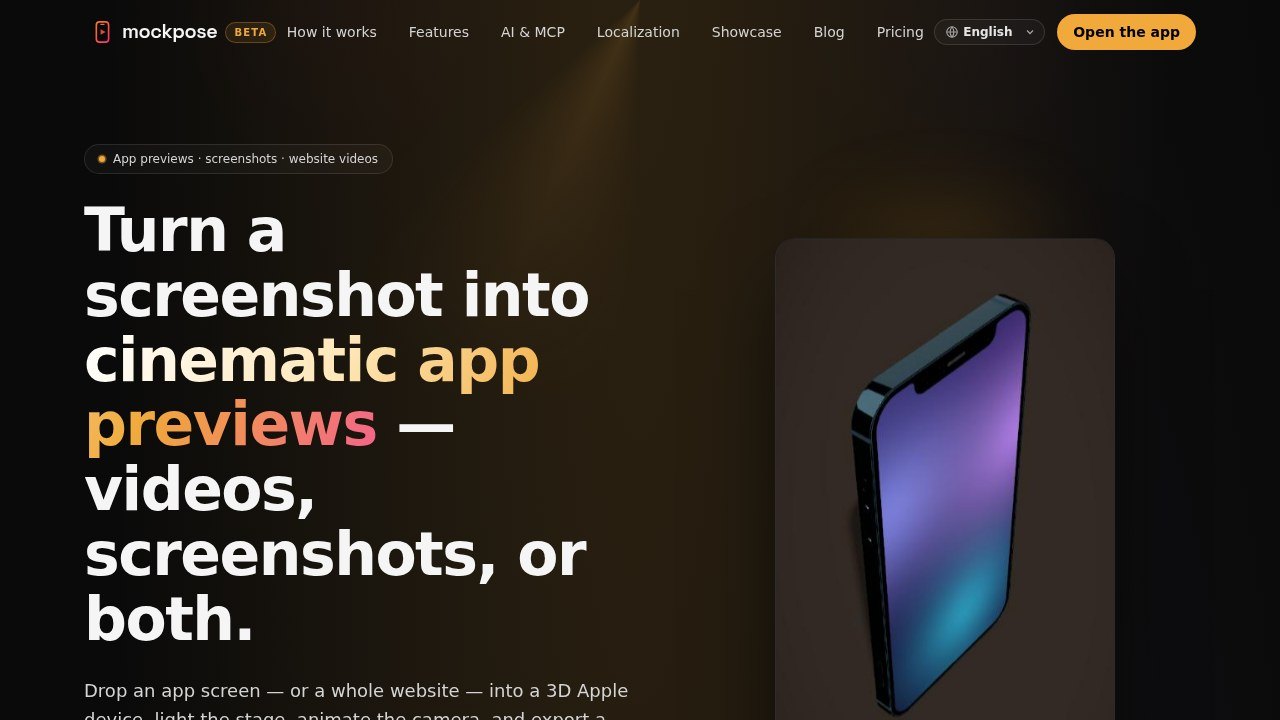
Mockpose drops an app screen or a whole website onto an iPhone, iPad, MacBook, iMac or Apple Watch, lets you light the scene and animate the camera, then exports MP4 (H.264) or WebM video, PNG screenshots, or composite screenshots that stack several frames into one image. Presets cover App Store and Google Play sizes, 9:16 stories, square and landscape, or you set your own resolution and frame rate. The 3D scene renders and the video encodes in your browser, so screenshots stay on your machine; only transparent video goes to its servers. Premium adds full resolution, cloud storage, AI scene generation, an MCP server and per-language localization of on-screen text.
My starting point when the device has to sit over a colored background in Figma or Keynote. Only transparent video is a premium feature, so you get the device as a transparent PNG and drop it on your layout with no cutting out. Everything free comes out at 720p with the watermark on it. I treat that as a test drive and pay before anything goes public.
4. DeviceFrames
More on DeviceFrames
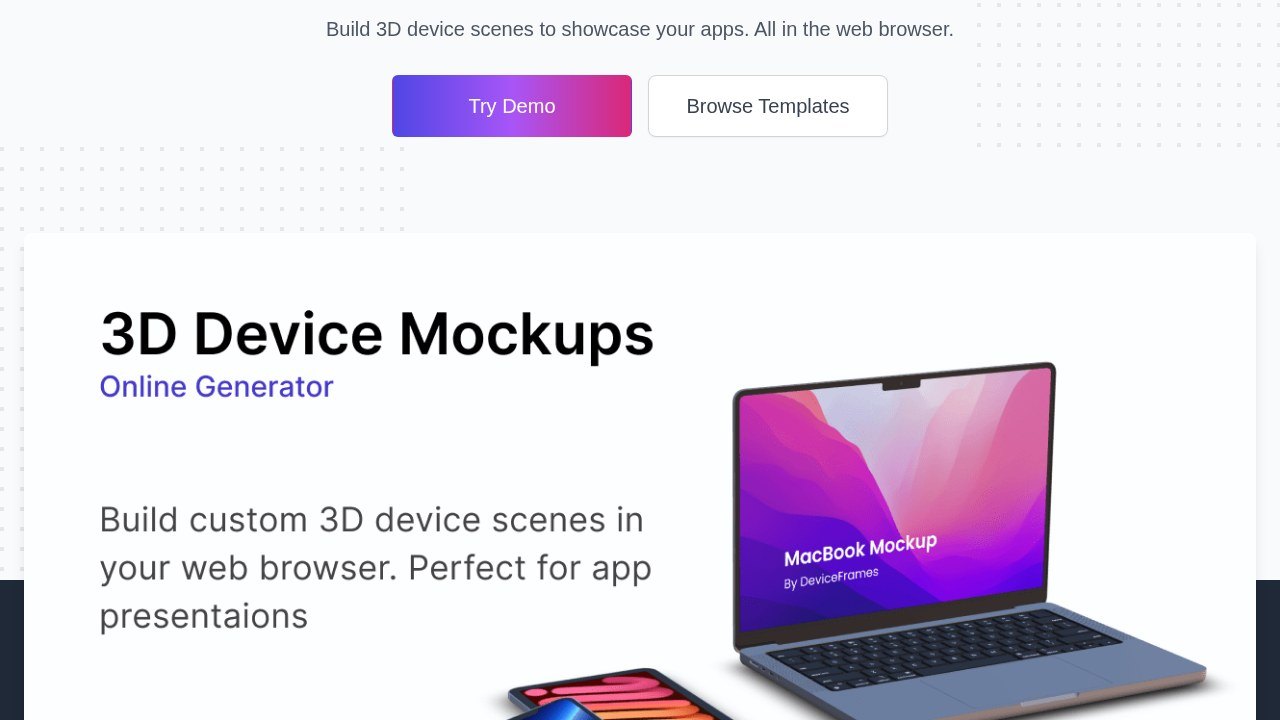
DeviceFrames builds 3D scenes of iOS and Android phones, tablets and laptops in the browser (its homepage names devices from the iPhone 14 to recent Pixels and Samsungs). You drag, resize and rotate devices, upload a screen image or video, set lighting and depth of field, and add keyframes to animate the devices into a short clip. Renders export at up to 4K as PNG, JPG, WebM or MP4. The Community tier is free forever but limited to static renders with attribution; Standard removes attribution and adds video exports, transparent backgrounds and the template gallery, and Extended adds a license for derivative work you charge end users for. Paying yearly saves 35% on both paid tiers.
It sits between a template library and a proper 3D app, and for plenty of teams that middle is the right place to be. For the purpose of this article, though, the free tier is a problem: stills only. If you want motion, you are paying for the $19 tier from your first export.
5. Previewed
More on Previewed
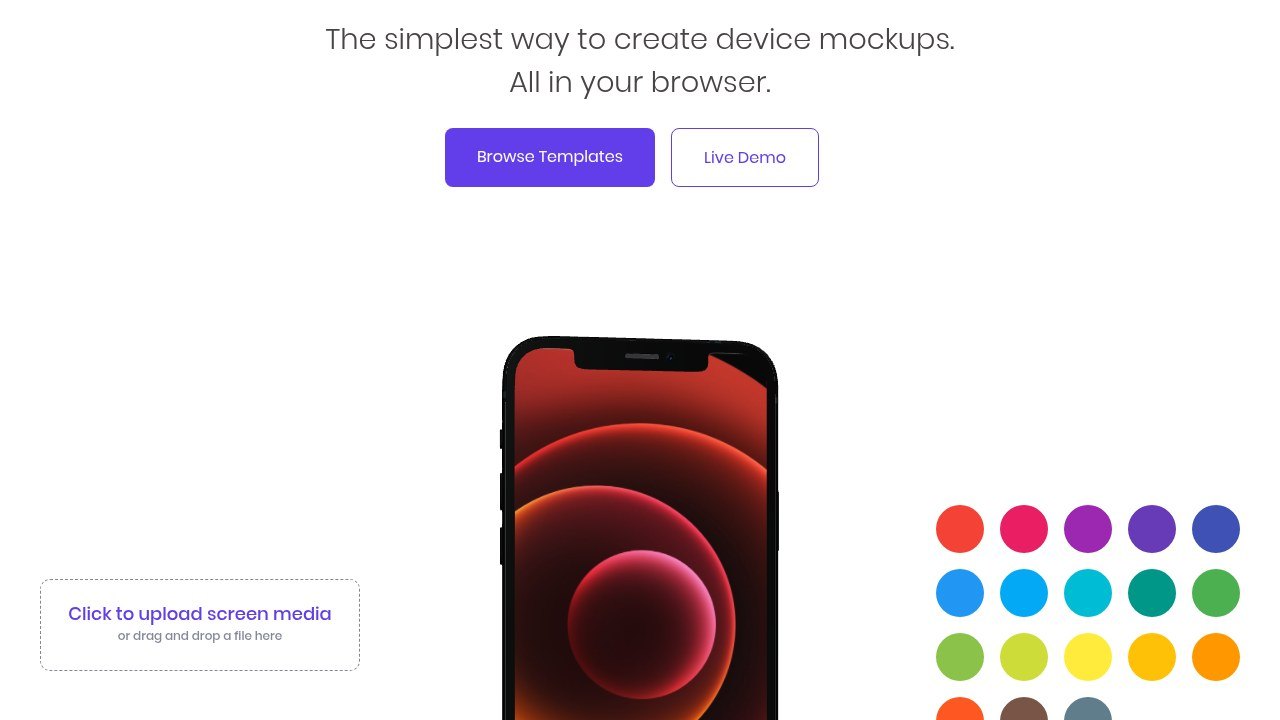
Previewed covers three kinds of output: flat 2D images for Google Play and the App Store, 3D snapshots for banners, and 3D animations for blog and social posts. Device options include iPhones, Android phones, tablets, laptops and monitors, with custom colors, fonts, images and alpha transparency. Exports come out as JPEG, PNG or MP4, saved templates are backed up in the cloud, and teams can share mockup groups. Pricing mixes a free tier, a one-time Plus pack (10 exports at 1080p and up, 3D and 30fps video) and a yearly Pro plan with unlimited exports, 60fps video and priority support.
I like the Plus pack for one specific situation: a single launch that needs ten good assets, then nothing for months. You pay once and forget about it. Teams who ship every month will spend less per clip on Pro, or on another tool here.
6. AppLaunchFlow
More on AppLaunchFlow
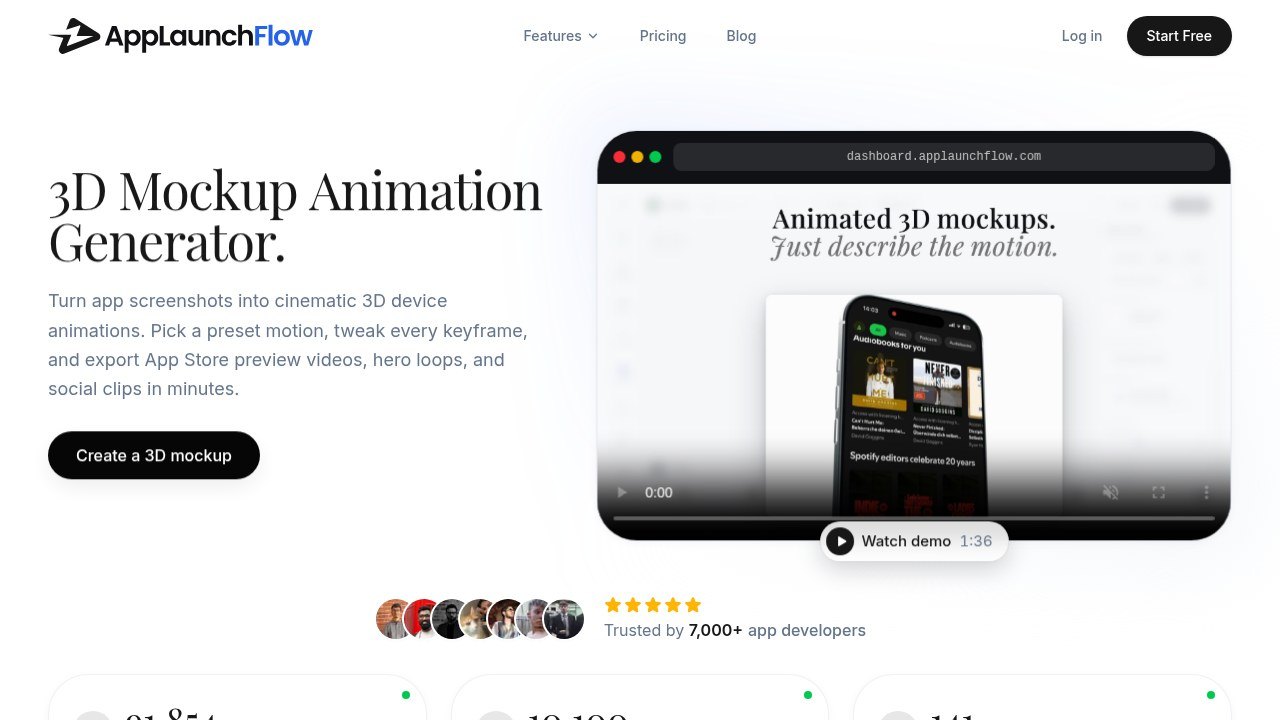
The Mockup Animator is one of eight tools in AppLaunchFlow, next to a store screenshot editor, social graphics, promo videos, an app icon generator, ASO copy, a hosted landing page and keyword tracking. You drop in a screenshot, pick one of four presets (cinematic swing, spin reveal, drop and zoom, punch zoom) and export MP4, WebM or a PNG sequence at 1:1, 4:3, 16:9 or 9:16. The Free tier gives one app workspace and lets you build and review every asset, but store-resolution files are not downloadable. The Launch Pass is a one-time €9 payment for seven days of every export tool on one app, and it is credited toward a first Unlimited month if you upgrade.
Think of AppLaunchFlow as a launch kit that happens to include a mockup animator. A solo developer with one app could use the seven-day pass to get the whole store listing done in a week, which is a good use of nine euros. For the moving phone alone, Rotato or Mockpose give you more say over the camera.
2D motion editors with device templates
Two general animation editors in the browser that happen to ship good device templates. Most of their templates are flat: screens slide, scroll and stack inside a frame. At small sizes, in a feed or inside another interface, I find that reads cleaner than a spinning 3D phone.
7. Jitter
More on Jitter
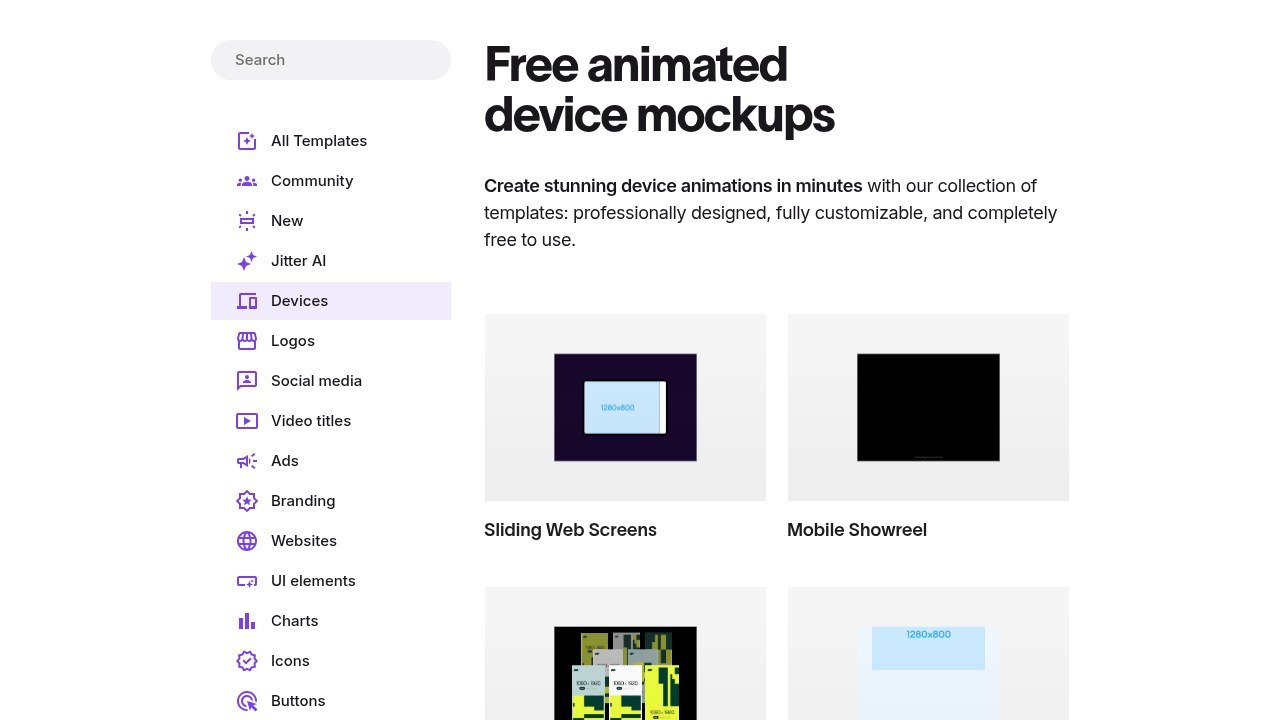
Jitter's device template library covers smartphones, tablets and laptops, with titles like Sliding Web Screens, Mobile Showreel, Cascading Screens and several push-notification layouts. You open a template, hit Duplicate and swap in your own screens, and scenes from different templates can be copied into one file. On Free you get unlimited drafts and three workspace files, and exports (video, GIF or Lottie) stop at 720p and 30fps. Pro adds unlimited files, 1080p at 60fps, ProRes and WebM, and removes the watermark; Max adds 4K at 120fps, transparent and frame-by-frame export, and brand kits. Figma import is on every tier.
The free one I’d hand a product designer. Its templates already move the way interfaces move (taps, scrolls, screens sliding in), so once your frames are in, it looks like your product and not like somebody’s template. There is one Rotating Smartphones template that turns phones in 3D space, but if you want to direct a camera around a modeled device, the first group does that better. I broke down twelve real examples of this kind of motion in my UI animation examples.
The step most mockups need is getting a screen recording inside the frame, and Jitter’s basics lesson on adding and animating videos covers it.
8. Lottielab
More on Lottielab
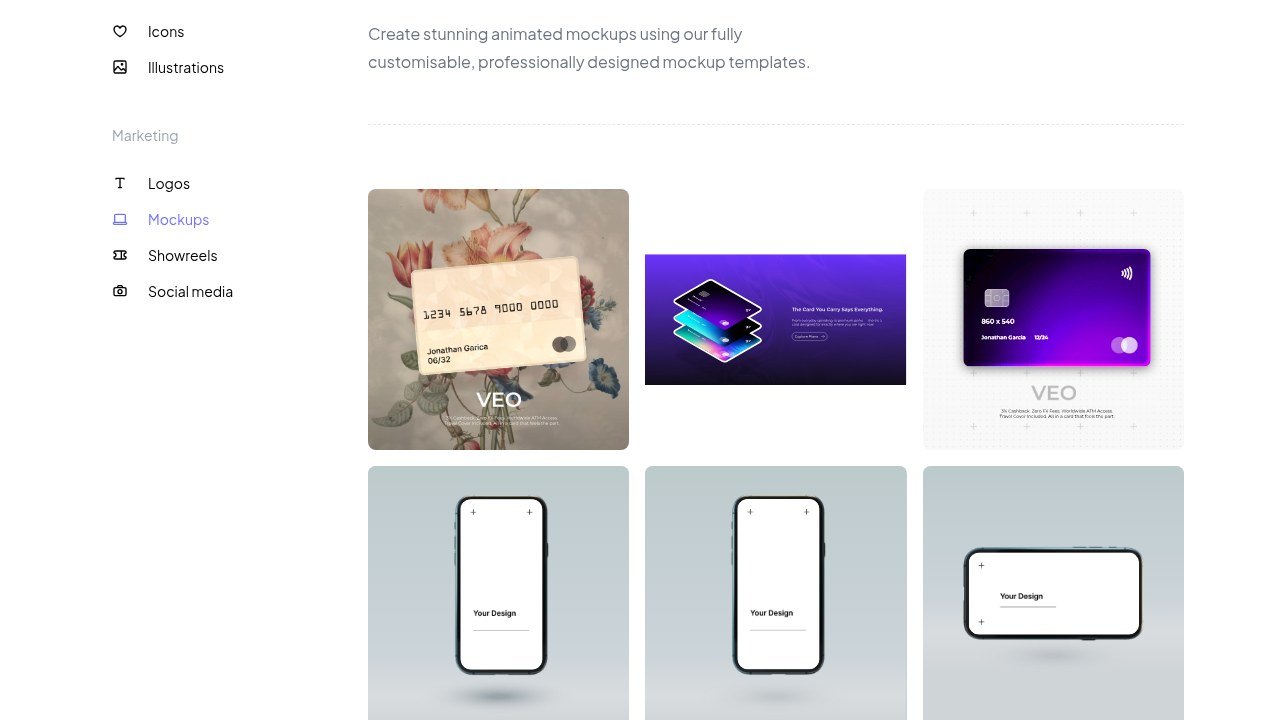
Lottielab's mockup templates include floating phones (drop in, vertical, horizontal), phone-in-hand shots on three backgrounds, phone carousels (vertical, horizontal, radial), billboards and animated payment cards. On the Free tier you can make unlimited files, upload Lottie and SVG, import from Figma, and export GIF or MP4. Exporting Lottie itself needs Pro, as do HD and 4K video, a shared team library, comments, file size optimization and CDN hosting. The same site also lists converters from Lottie to GIF, MP4 or WebM.
Pick Lottielab if the same mockup will also run on your site as a light animation. Lottie is vector, so it stays sharp at whatever size the layout asks for. For a social clip alone, the free MP4 does the job, and our list of free Lottie animation sites has ready-made loaders and icons to put around it.
Mockup and template libraries
With the last four you start from a ready-made scene, say a phone on a desk or a laptop in a dark room, and drop your screen or recording in. Whatever moves is either baked into the template or playing on the screen. You give up control and skip most of the setup.
9. Artboard Studio
More on Artboard Studio
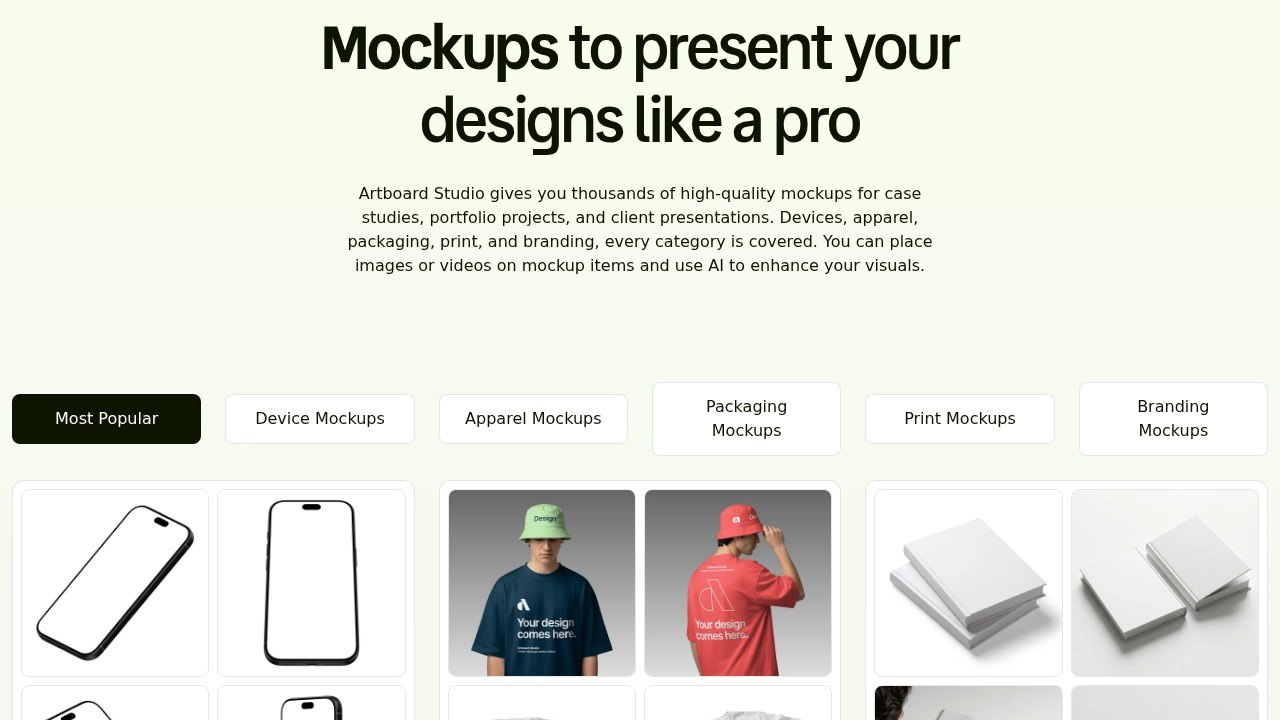
Artboard Studio is an online mockup generator and editor. Its device category covers iPhone, Android, laptop, iPad, desktop and watch, alongside apparel, packaging, print and branding scenes. You place images or videos on mockup items and export images as PNG, JPEG or WebP and videos as MP4 or WebM. A newer version of the app adds video rendering and an AI mockup generator that builds a scene from a text prompt, while older accounts and projects stay available in a legacy version. Pro includes unlimited image and video exports; the homepage does not spell out the free tier's export limits.
Artboard Studio is still going, with a newer app running next to the legacy one. Where I’d reach for it is a case study page, when one scene style has to hold a phone next to packaging and print. For a launch clip where the camera circles the phone, I’d still start in the first group.
10. Placeit
More on Placeit
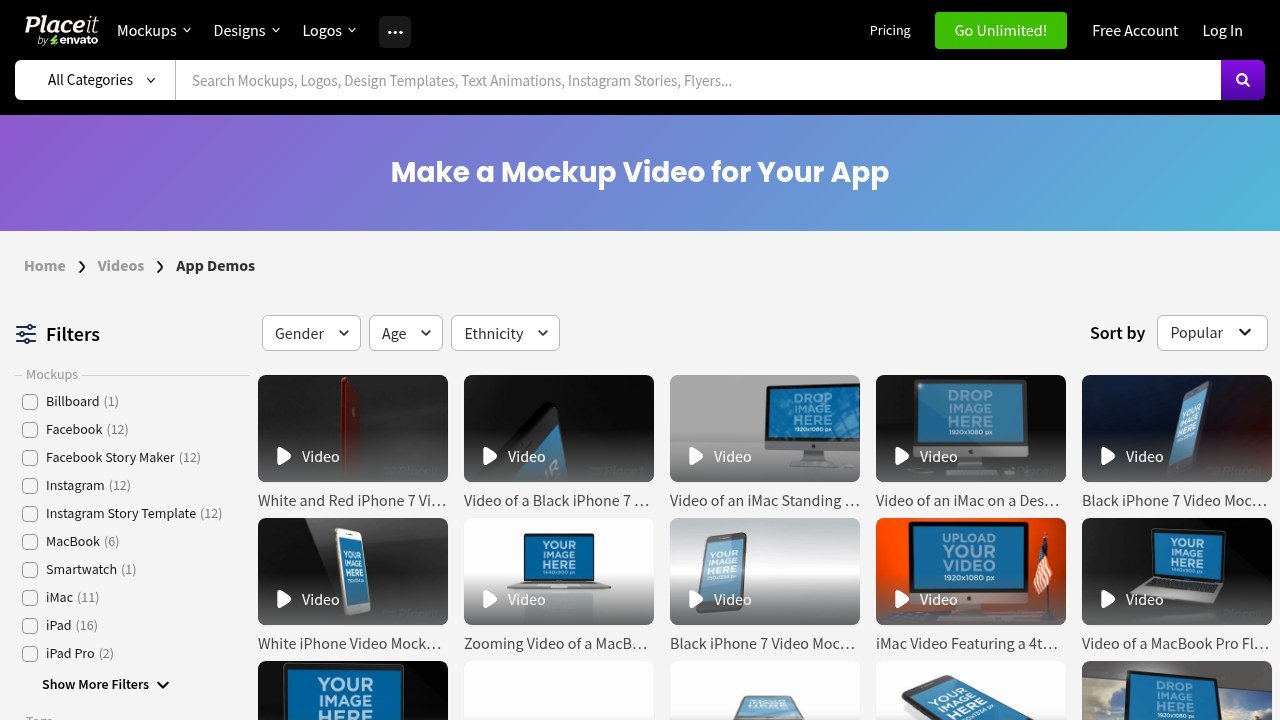
Placeit by Envato is a browser-based template generator for mockups, videos, logos and designs. The "Make a Mockup Video for Your App" category lists device videos you can filter by device (iPhone, iPad, iPad Pro, MacBook, iMac, smartwatch), orientation, with or without people, and indoor or outdoor settings. Videos download as MP4 and stills as PNG. Its pricing FAQ says a commercial license is included in downloads, and the membership has a one-month minimum once you have downloaded a template.
If you need a phone in somebody’s hand for a paid social test by this afternoon, nothing on this list is faster. Look at which device the template uses before you download, because a home button and thick bezels around a brand-new app make the whole ad look dated.
11. Canva Mockups
More on Canva Mockups
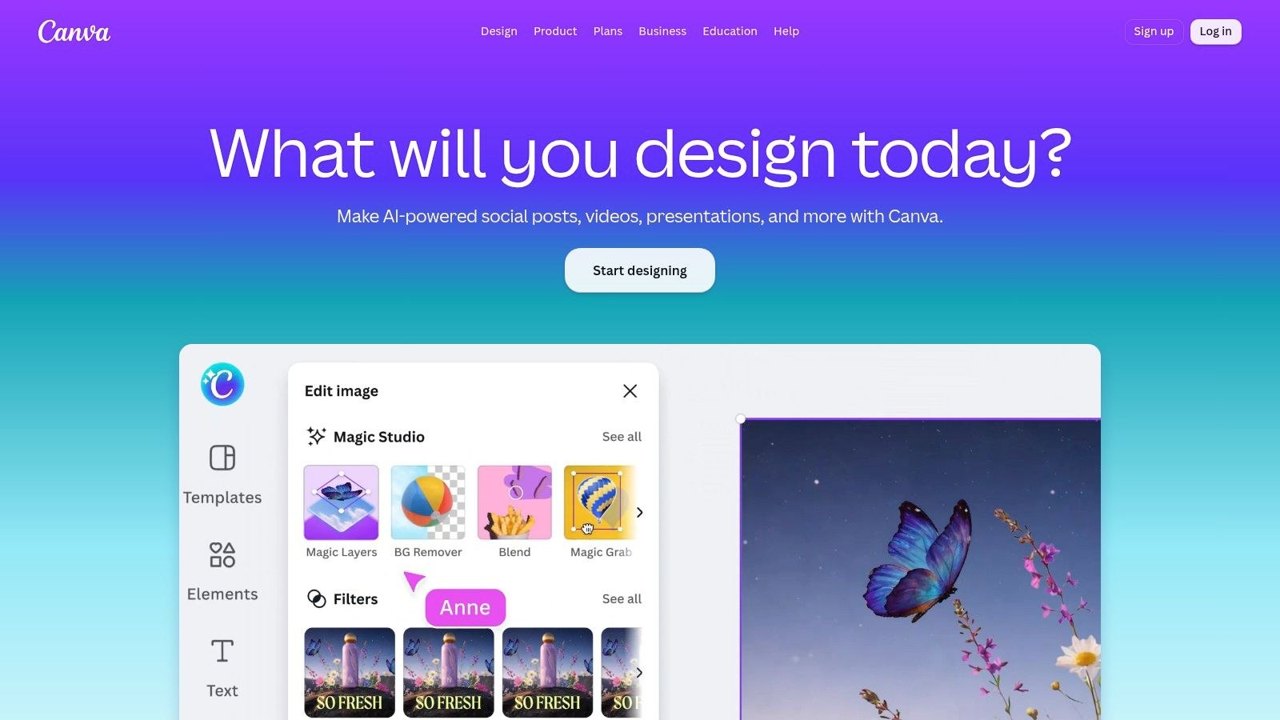
Canva Mockups covers print-ready mockups through to video mockups, and its AI can turn a branded photo into a custom mockup template by finding surfaces to place a product on. Device mockups sit under Elements, then Mockups, then Smartphones. Canva's FAQ says free users can create and use up to 2,500 mockups and download the free ones without watermarks, and that generated mockup images are royalty-free for personal and commercial projects (you may not resell them as mockups). Finished designs download as MP4 video or GIF, with a transparent-background option for GIFs, and as JPG, PNG, PDF or PPTX.
Canva is the answer when the people editing the mockup aren’t designers. A week after launch, someone in sales can swap the screen recording without asking anybody. The motion is basic, fine for a deck or an internal update and a bit thin for a homepage. The brand kit and template habits that keep those edits on brand are in my guide to using Canva like a pro.
12. ls.graphics animated mockups
More on ls.graphics
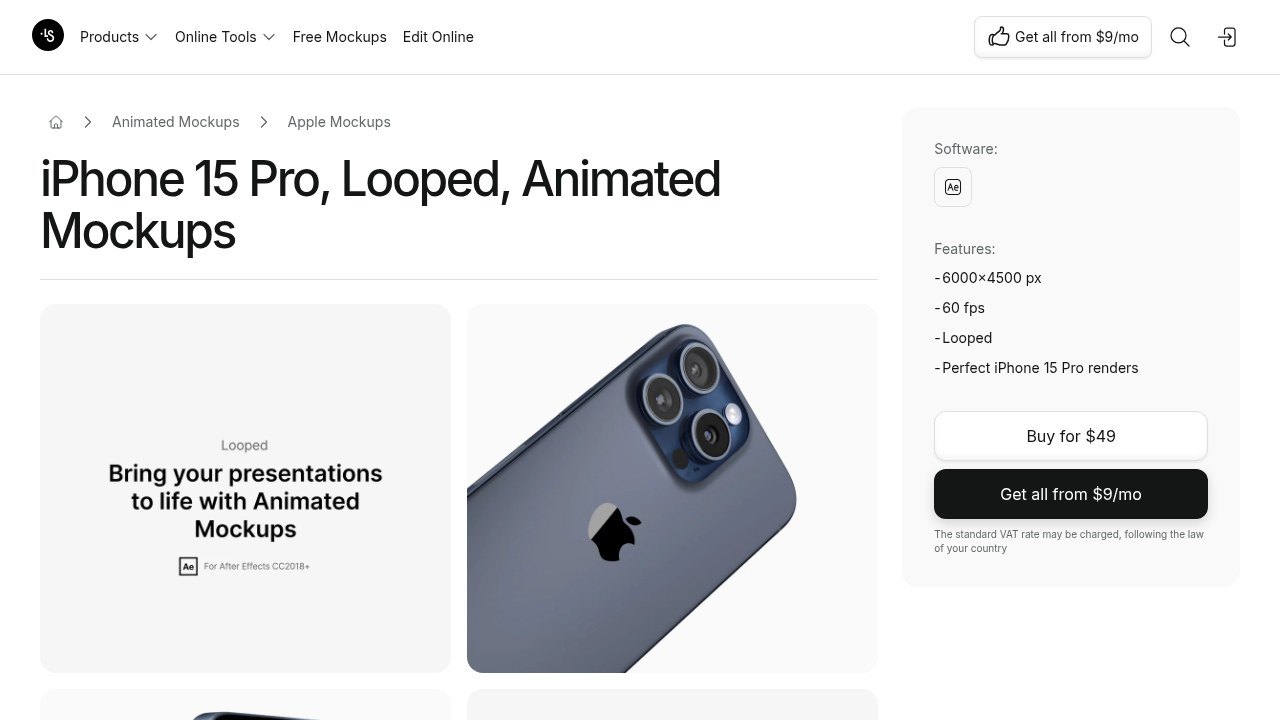
ls.graphics sells device mockups for graphic and UI designers, including longscroll mockups, isolated devices and an animated mockups section. The animated packs are After Effects projects: the iPhone 15 Pro pack has eight looped animations at 60fps, and the shop also lists looped MacBook Air M2, MacBook Pro, iPhone 13 Pro and iPhone 12 packs. The site also runs an in-browser mockup editor with access from $9 a month, a Figma plugin, and mckp.live, which makes interactive embeddable mockups that can also export as video.
The most work on this list, and only worth it if you already spend your days in After Effects. You open the project, replace the screen comp and render. The device looks filmed, and you still have every After Effects tool for type and transitions on top. Without After Effects, skip this one; our After Effects alternatives roundup covers what to use in its place.
Make an animated mockup in 10 minutes
Any of the browser tools above will do. Jitter and Mockpose are the easiest to try, since both export video on the free tier.
- Record the screen before anything else: 5 to 8 seconds of the real app doing one thing, like a tap or a scroll, at the device’s native resolution and with notifications off.
- Pick the device your audience holds, an iPhone for a consumer app or a laptop for a B2B dashboard, and make it a current model.
- Drop the recording on the screen and choose one move, a slow push-in or a short turn. Two moves in eight seconds is usually one too many.
- Set the background last. A brand color or a soft gradient works on social; for a website hero, export a transparent still or a clean background that matches the page.
- If you want the device over a photo or a styled backdrop, export it with a transparent background and stack it in an image editor. MyImageUpscaler’s roundup of apps for layering pictures compares ten of them, from Photoshop and Affinity Photo to Photopea and GIMP.
- Export in the size the placement needs (9:16 for stories and Reels, 16:9 for a website or deck), then watch it where it will actually run before it goes out. For most of these clips that means on a phone, with the sound off.
App store previews follow stricter rules
Don’t upload the turning phone as your App Store app preview. Apple’s guidance says app previews use “footage captured on device,” that “App previews must show only content within the app itself,” and that you shouldn’t “film people interacting with a device.” Each preview can be up to 30 seconds long, with up to three per language, and they autoplay muted on the product page and in search results, per Apple’s App Previews page.
My mockups go on the website and in the deck. App Store Connect gets a clean screen recording with captions. One more line from Apple is worth applying everywhere: transitions shouldn’t imply functionality the app doesn’t have, so if a screen in your mockup is still a concept, say so on it.
A mockup only ever shows one screen moving nicely. Once the launch needs a whole workflow explained, with a voiceover over real data, it’s a product demo video production job; our app demo video examples show what that looks like when it’s done well.
Frequently asked questions
Yes, as long as you check what the free tier exports before you build anything. Jitter, Lottielab, Mockpose, Canva and Screen Stage's browser version all give you video for free, usually at 720p or with a watermark. DeviceFrames and Previewed only export stills on their free tiers, and AppLaunchFlow lets you preview but not download until you buy its Launch Pass or the Unlimited tier. If you need motion today, start with Jitter, Lottielab, Mockpose, Canva or Screen Stage.
Not really. Apple's guidance says app previews use footage captured on device, must show only content within the app itself, and should not show people handling a device. Each one runs up to 30 seconds, with up to three per language. Put the spinning phone on your website, in decks and on social, and give App Store Connect a clean screen recording with captions.
An MP4, plus a WebM copy if your tool makes one, played muted and looped. When the device has to sit over a colored section or a photo, you want a transparent background: Mockpose gives you transparent PNG stills (and ProRes 4444 video on premium), and Jitter's Max tier exports with transparency. For a small UI loop inside the page I'd use a Lottie file from Jitter or Lottielab Pro, since it stays sharp at any size.