17 Tools For Making Educational Videos, Ranked By Use
I run a creative studio, and here are 17 tools for making educational videos I actually rate, sorted by screen recording, AI avatars, animation, and course authoring.

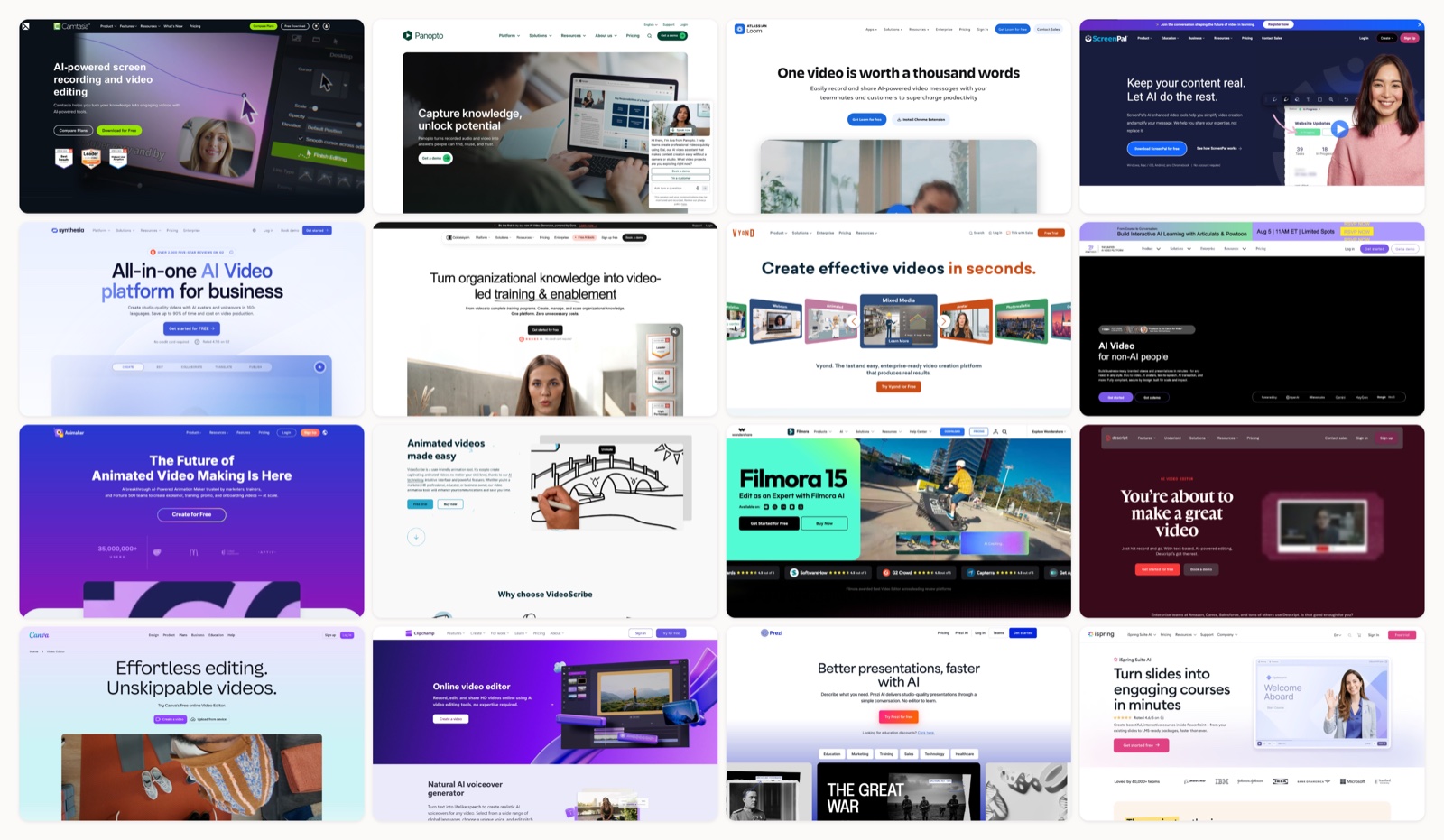
I run a creative studio, so most weeks I am on the other side of this question. Companies come to us when a video needs to be directed, when the brand has to hold, when it will run in front of a lot of people. But a huge amount of educational video does not need any of that. A software walkthrough for 40 internal users. A lesson recap. A how-to for the help center. Those want a tool and an afternoon, not a production.
So I keep a running list of what I would actually reach for. I have used most of these on real projects, watched clients use the rest, and formed opinions I am happy to defend. The trick is matching the tool to the format, because a screen recorder and an animation studio and a course authoring suite are three completely different animals that all get filed under “make an educational video.”
96% of people have watched an explainer video to learn more about a product, which is exactly why this category is so crowded. Below are 17 tools worth your time, grouped loosely by what they are for.
How I compared these
I sorted them by job, not by brand. A tool that records your screen well is not competing with a tool that builds animated characters, even though a blog post might list them side by side. For each one I looked at what format it produces (screen capture, AI avatar, animation, edited footage, or a full course), how steep the learning curve is, and who it actually fits. I ignored pricing tiers because they change every quarter, and I ignored feature checklists because everyone claims everything. What matters is whether the output looks like something a learner will actually finish.
1. Camtasia
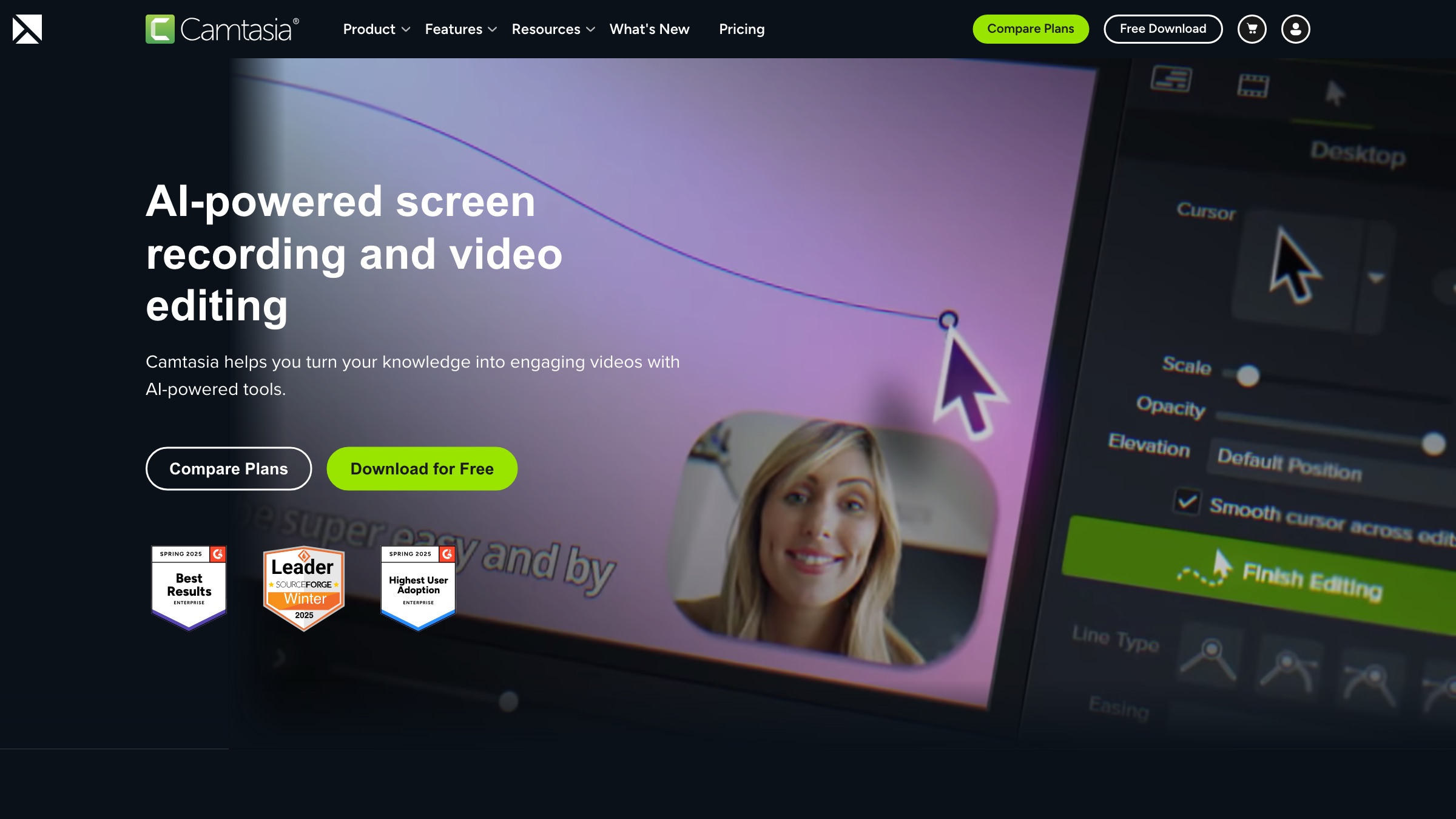
Camtasia is the old reliable of screen recording plus editing in one desktop app. You capture your screen, then pull the recording into a proper timeline with callouts, zoom-and-pan, cursor effects, and quiz interactions. It is not the fastest thing to learn and the license is a real purchase rather than a login, but for polished software tutorials and training modules it still holds up better than most.
Best for: Detailed software tutorials where you want editing control, not just a raw screen capture.
2. Panopto
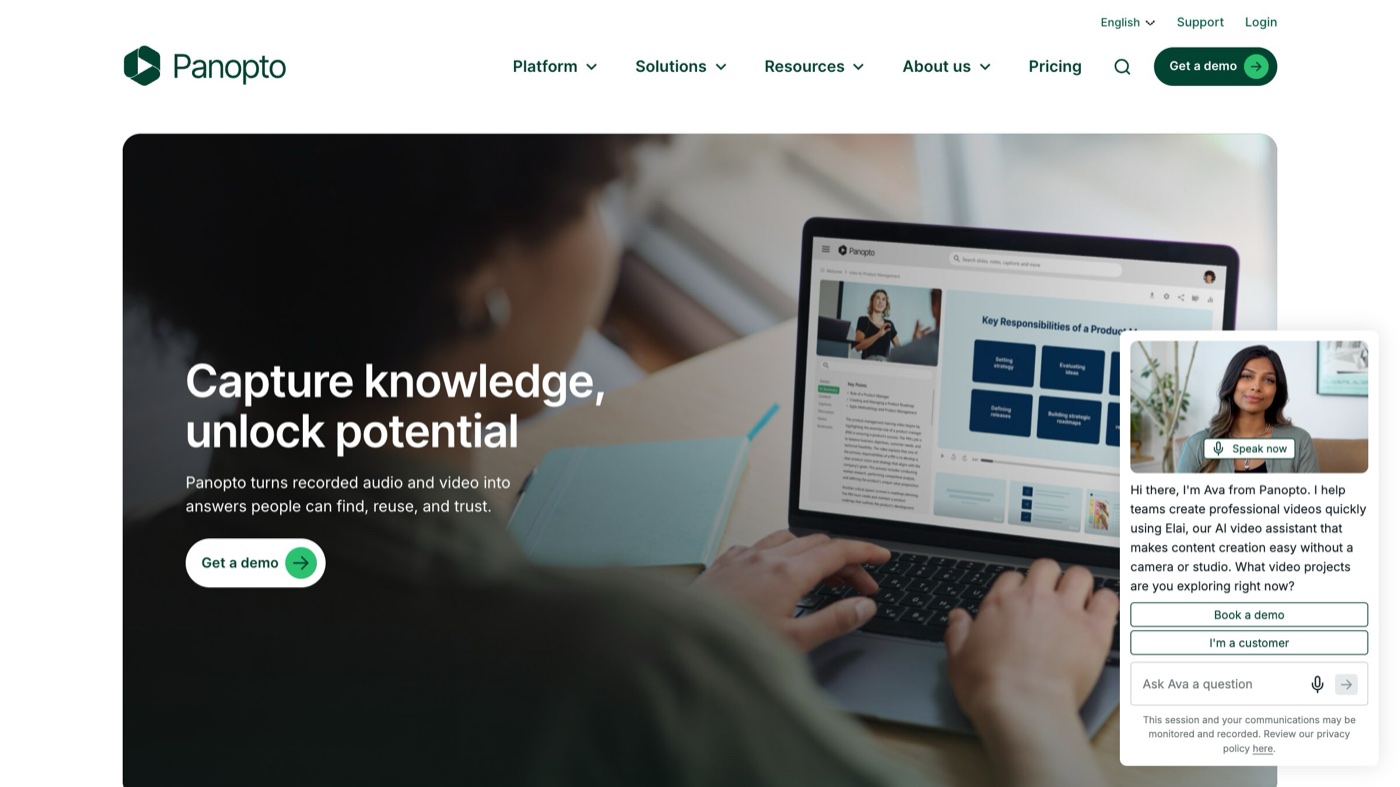
Panopto is less an editor and more a video platform built for universities and large training teams. It captures lectures, slides, and webcam together, then hosts everything with search inside the video, captions, and LMS integration. If one person is making one video, this is overkill. If a whole department needs to record, store, and find hundreds of lessons, it starts to make sense.
Best for: Schools and enterprise L&D teams that need lecture capture plus hosting at scale.
3. Loom
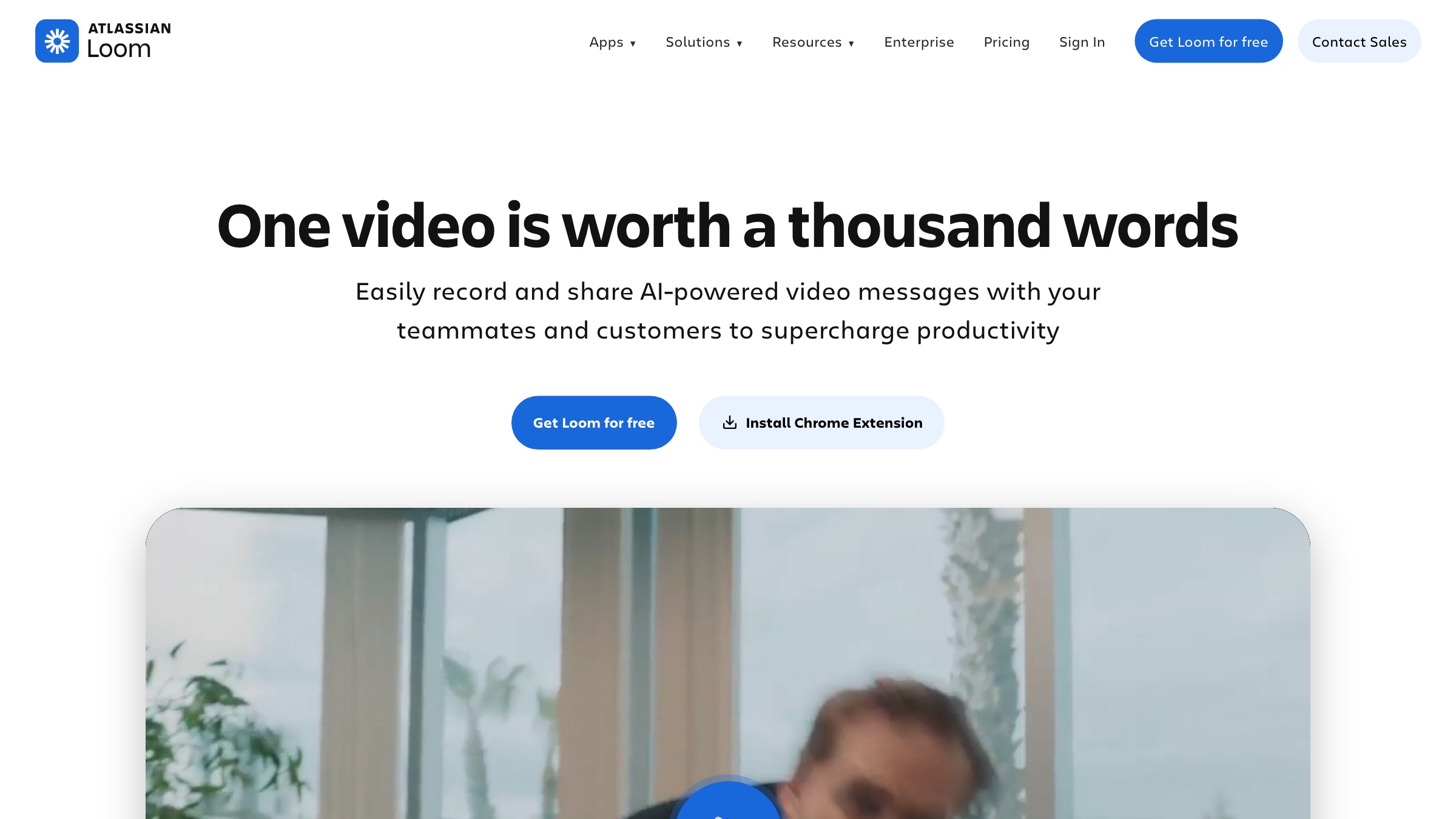
Loom is the tool I recommend most often to people who are overthinking this. You hit record, talk over your screen and webcam, and it gives you a shareable link before you have finished your coffee. Editing is light, so do not expect broadcast polish, but for a quick “here is how this works” it removes every excuse to not just make the thing.
Best for: Fast, informal walkthroughs and async explanations you can send like a message.
4. ScreenPal
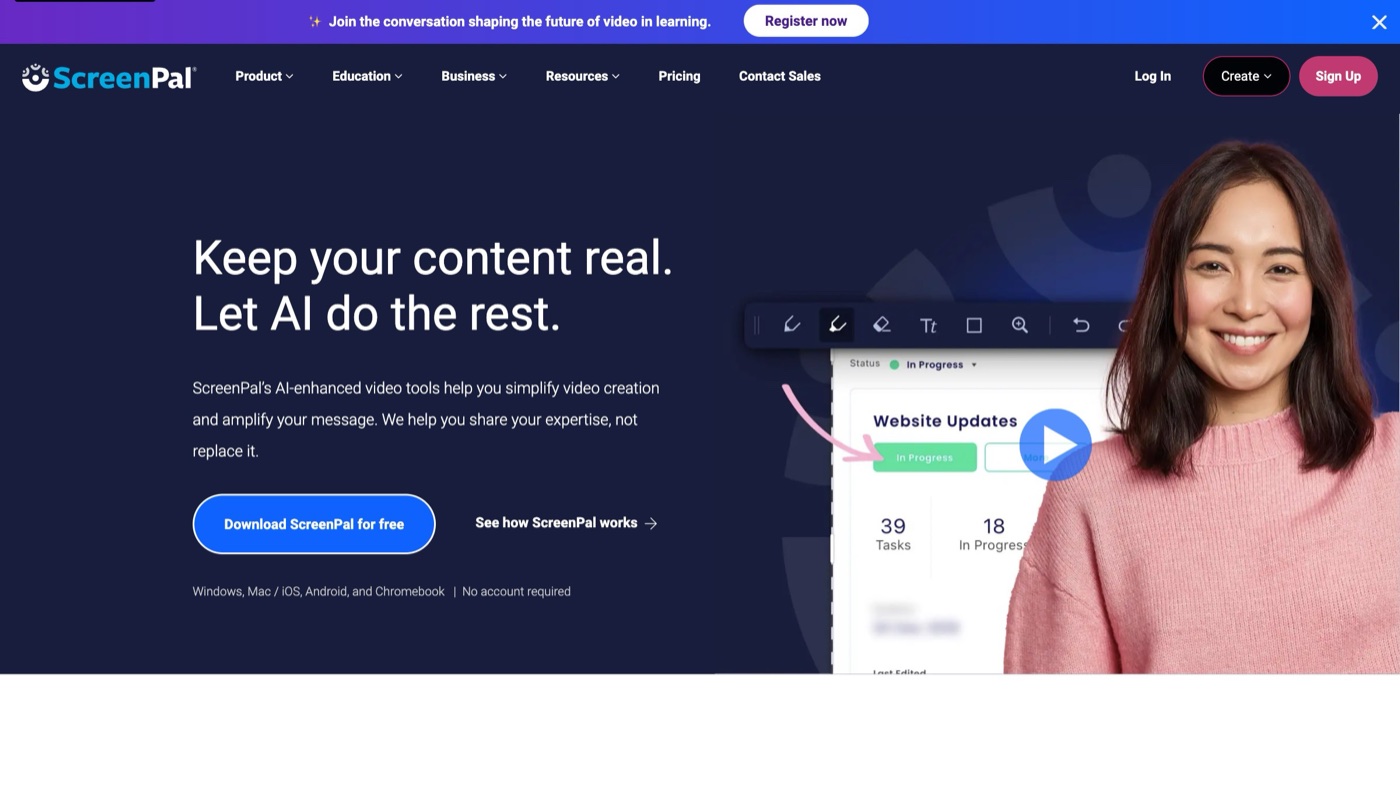
ScreenPal, the tool formerly called Screencast-O-Matic, sits between Loom and Camtasia. It records your screen and webcam, gives you a friendly editor with captions and stock assets, and stays approachable enough that teachers use it constantly. It will not win awards for advanced editing, but the ramp from install to finished lesson is short.
Best for: Educators and blended-learning setups that want more editing than Loom without the Camtasia learning curve.
5. Synthesia
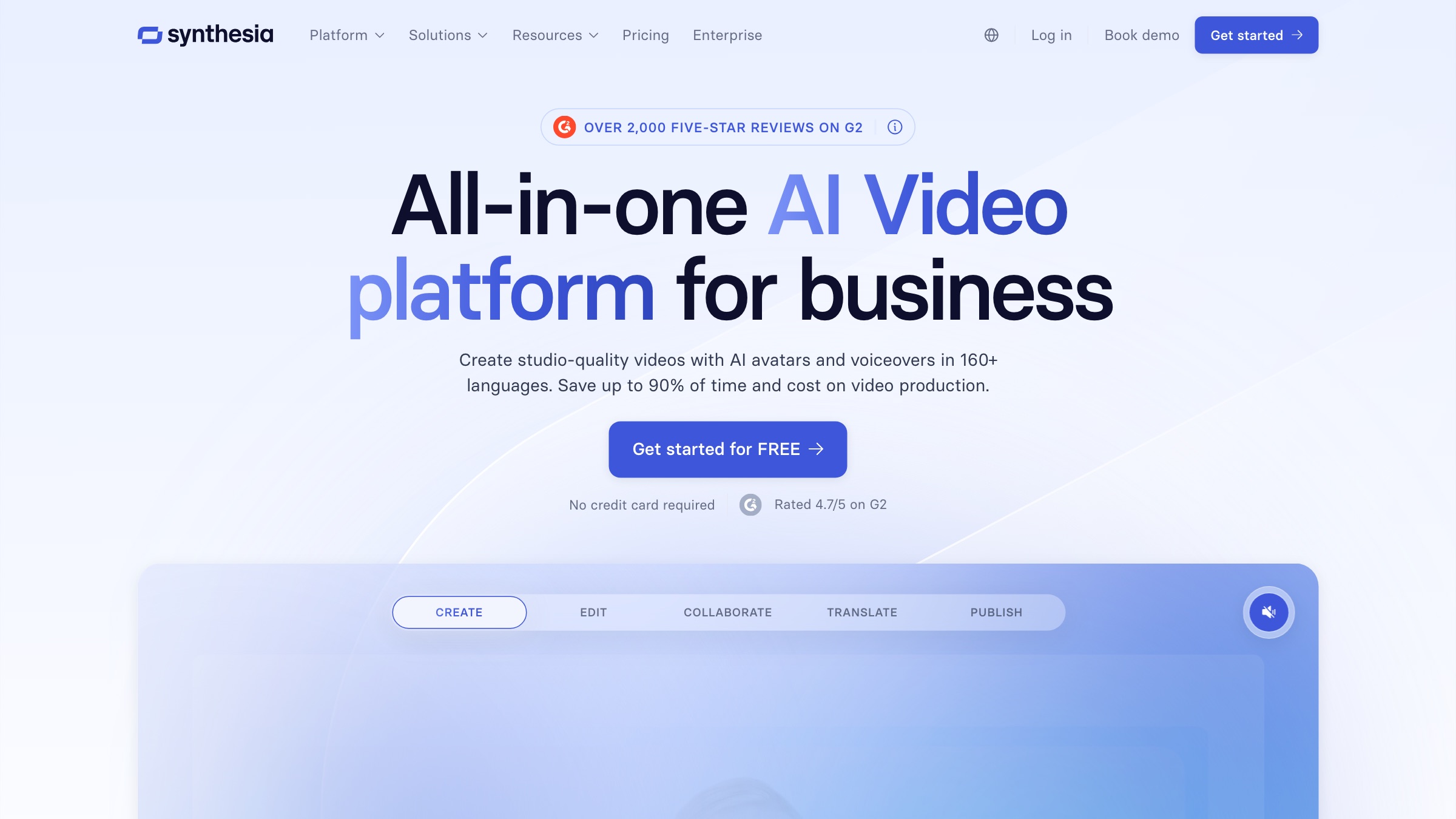
Synthesia turns a script into a video of an AI presenter reading it, in a lot of languages, with no camera involved. For standardized training that has to be updated often and localized across regions, it solves a real logistics problem. The tradeoff I keep running into is that avatar delivery still reads as slightly synthetic, so I would use it for internal compliance modules long before I put it in front of prospects.
Best for: Standardized, frequently-updated training that needs many language versions fast.
6. Colossyan
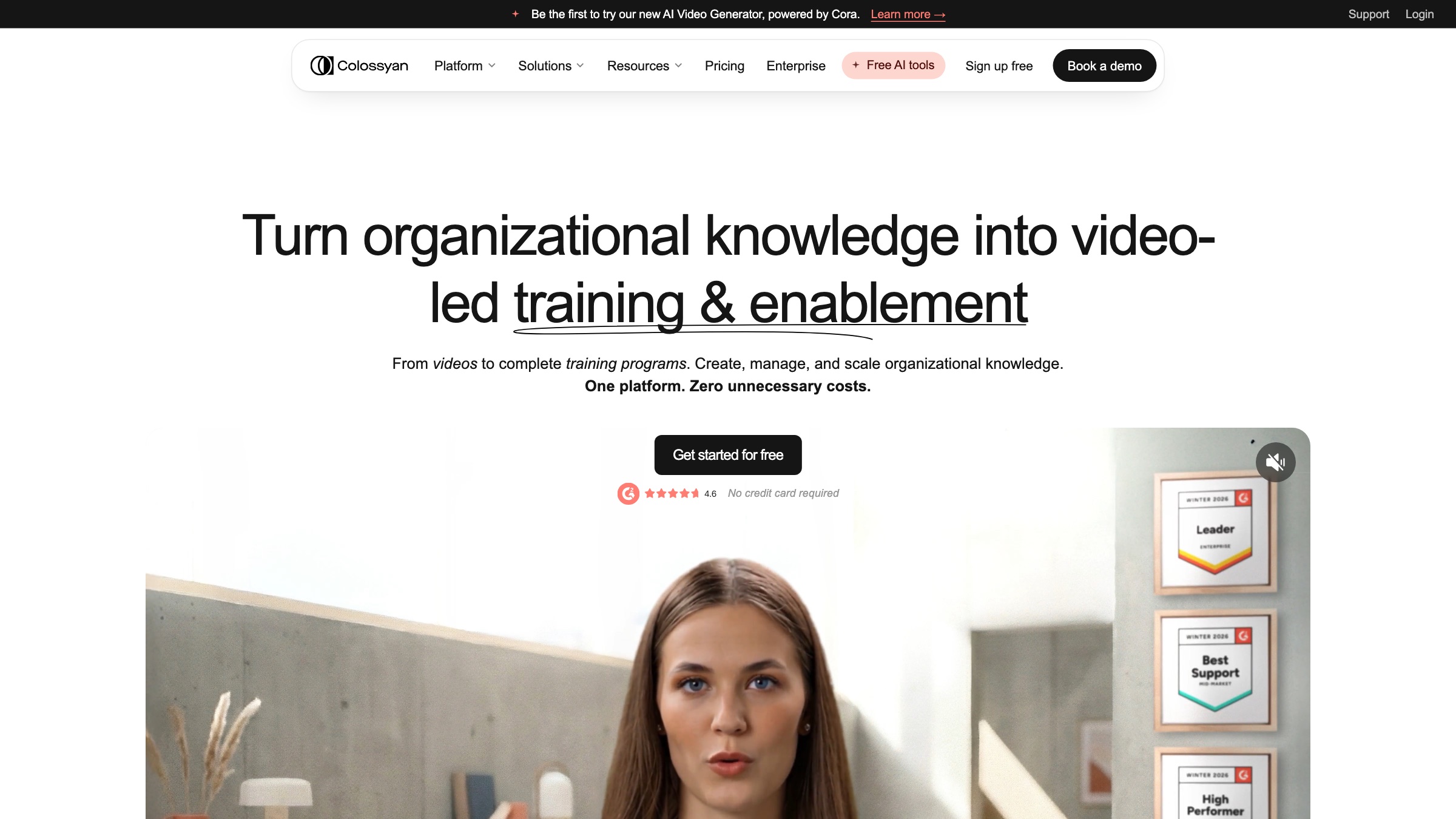
Colossyan plays in the same AI-avatar space as Synthesia, with a lean toward workplace learning. It builds talking-presenter videos from text, adds interactive branching and quizzes, and can convert documents or slides into a first draft. If your comparison comes down to these two, trial both with your actual script, because avatar quality and editing feel are the whole decision.
Best for: L&D teams that want AI-presenter videos with built-in interactivity and assessments.
7. Vyond
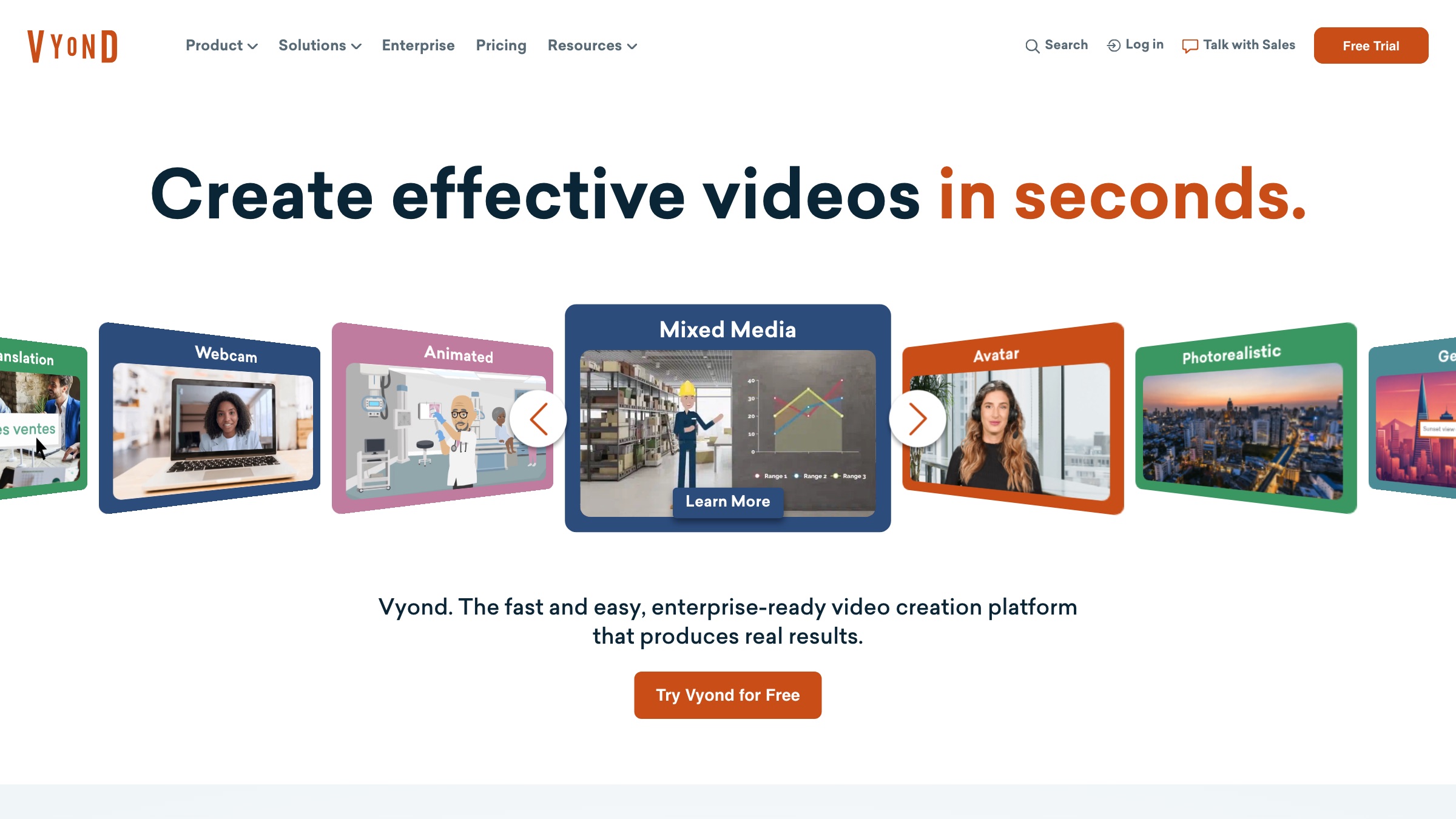
Vyond is where you go when you want animated characters and scenes without hiring an animator. It has a deep library of characters, props, and business settings, plus lip-sync and camera moves, so you can tell a little story instead of just narrating slides. The output has a recognizable house style, which is fine for internal work and less ideal if brand distinctiveness matters to you.
Best for: Scenario-based training and explainers that benefit from characters acting things out.
8. Powtoon
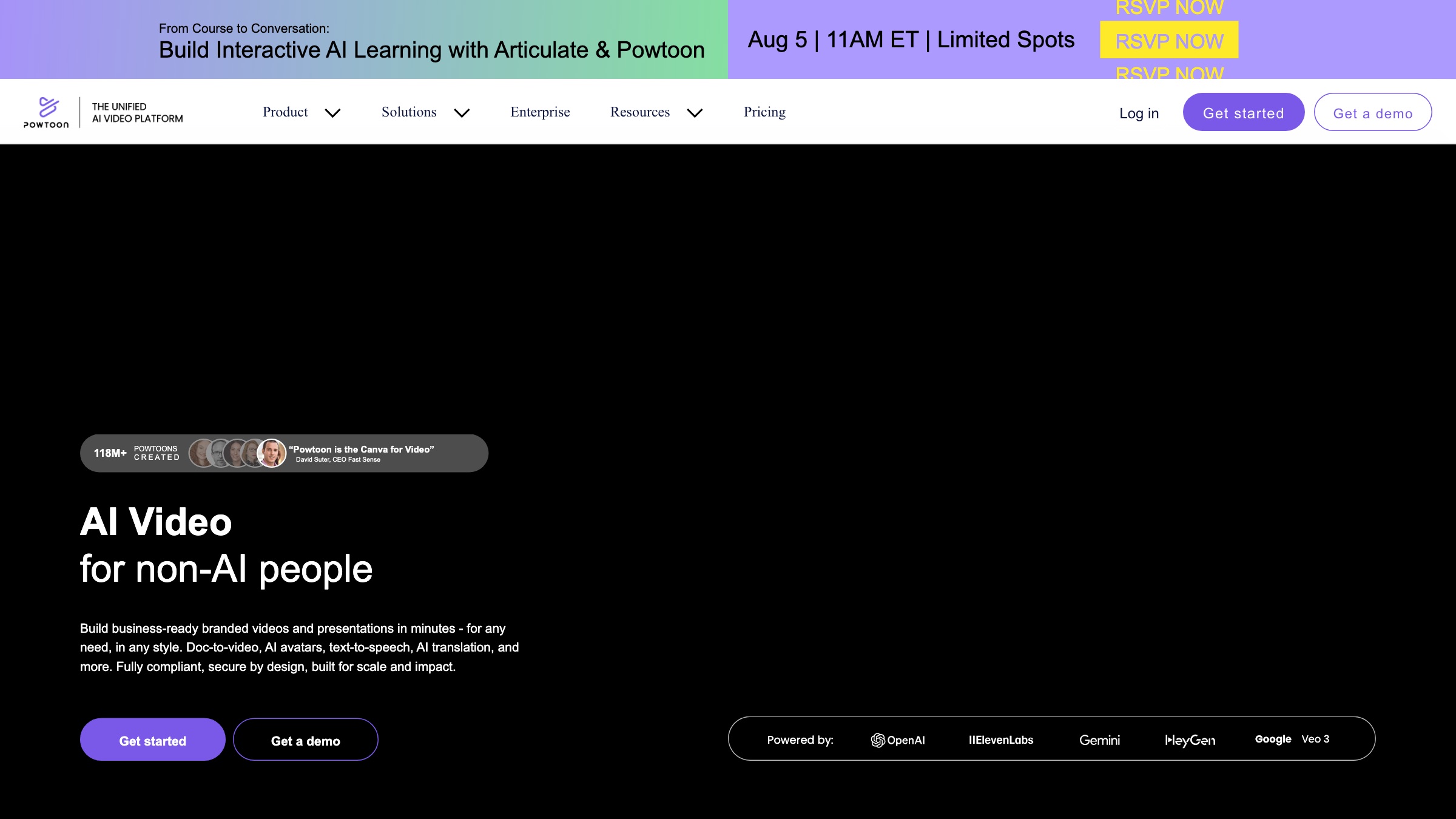
Powtoon is template-first animation. You pick a look, swap in your content, and it handles the motion, which makes it fast for someone with no design background. That same template dependence is its ceiling, because a lot of Powtoon videos end up looking like other Powtoon videos. For a quick internal deck-turned-video, that is an acceptable trade.
Best for: Non-designers who need an animated explainer done today from a template.
9. Animaker
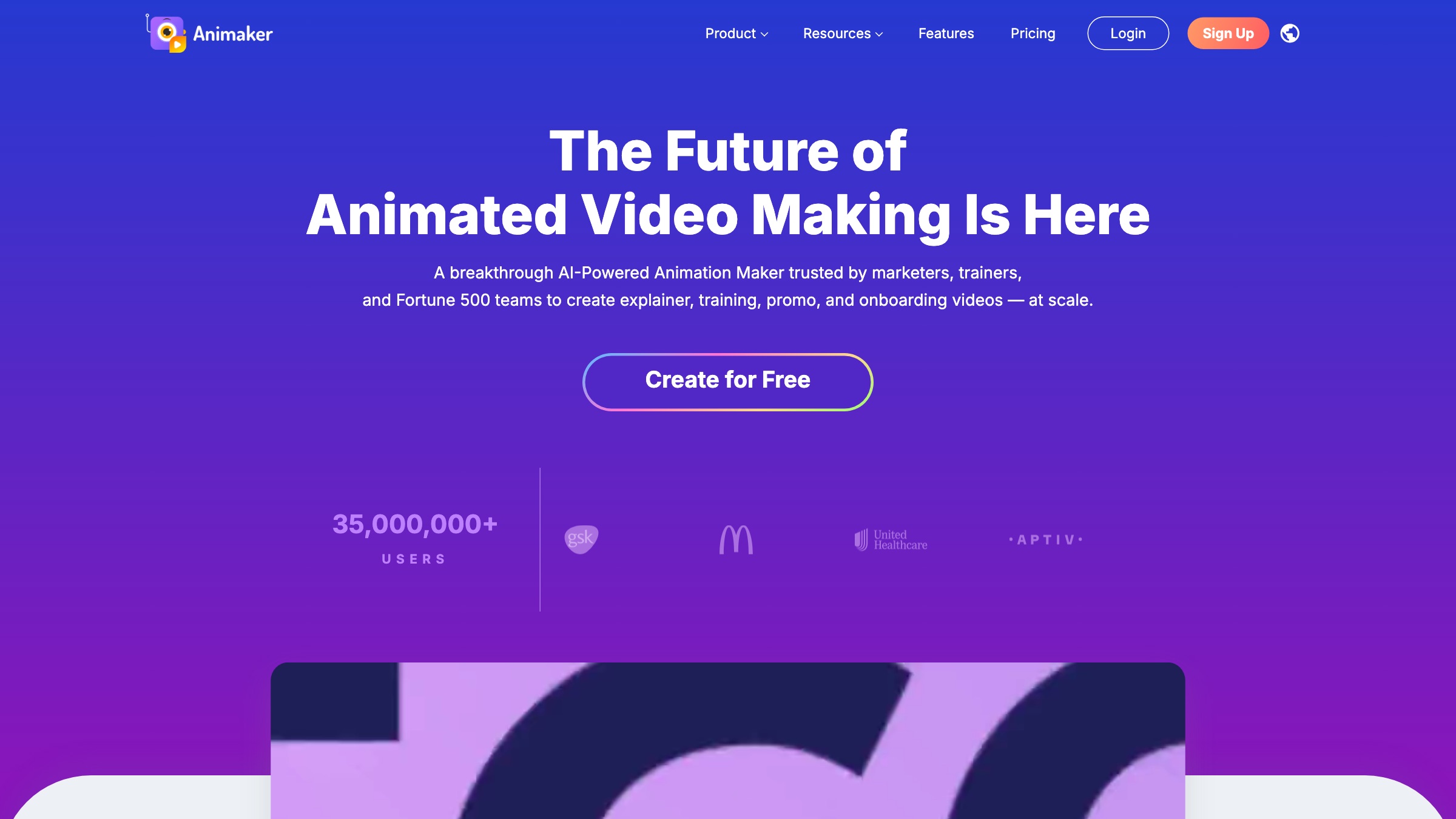
Animaker is a drag-and-drop animation maker with a big character builder and a large stock library. It aims squarely at people who want animated video without touching After Effects. The interface throws a lot at you at once, so give yourself an hour to get comfortable, but the range of what you can assemble once you do is wide.
Best for: DIY creators who want customizable animated characters without professional software.
10. VideoScribe
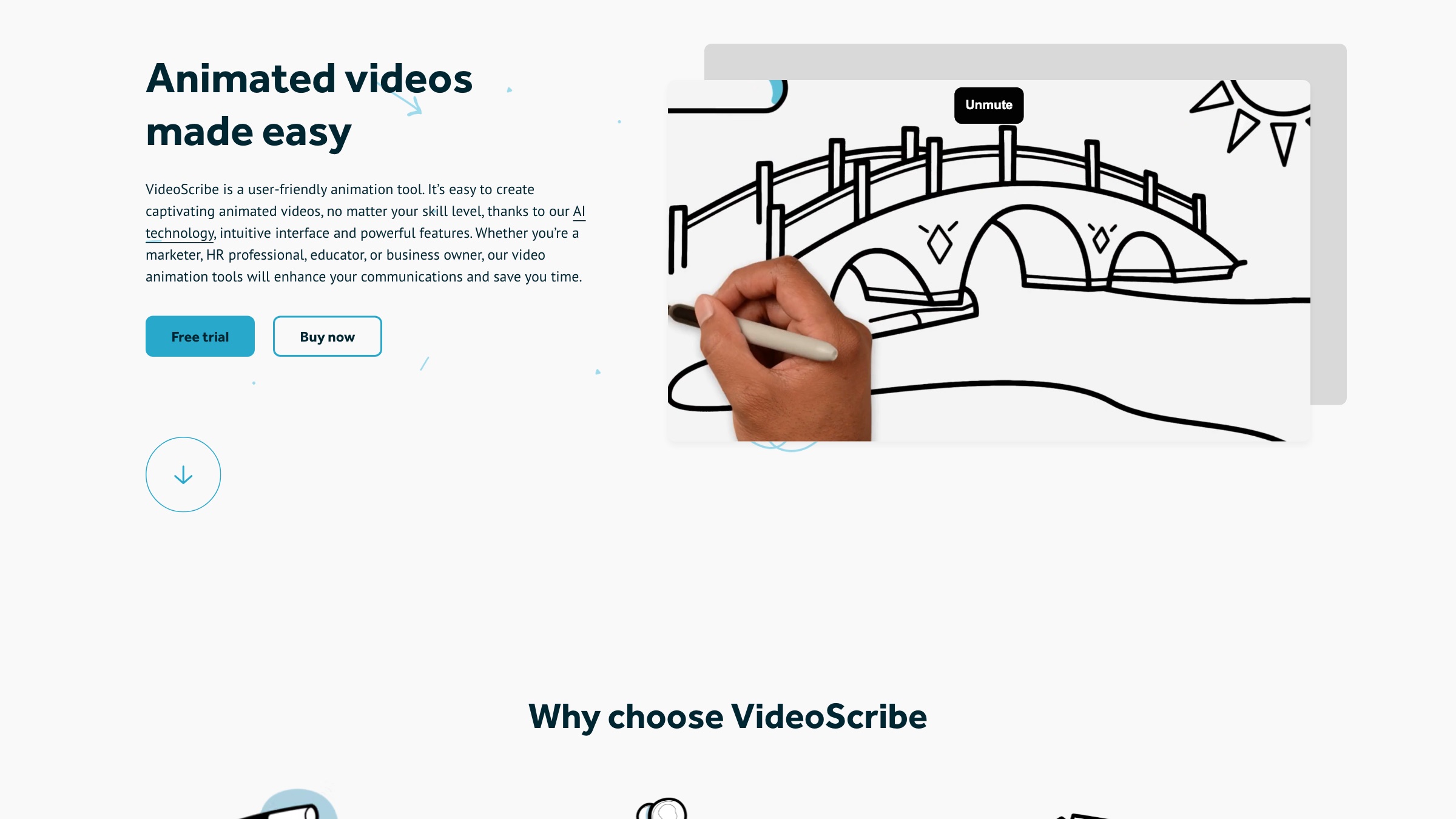
VideoScribe does one thing: the whiteboard-hand style where drawings appear as if a hand is sketching them. It is a specific look, and when it fits a concept it fits beautifully, especially for breaking down an idea step by step. When it does not fit, no amount of tweaking will make it right, so know before you start whether the scribe aesthetic serves your topic.
Best for: Concept explainers and lessons that suit the hand-drawn whiteboard style.
11. Wondershare Filmora
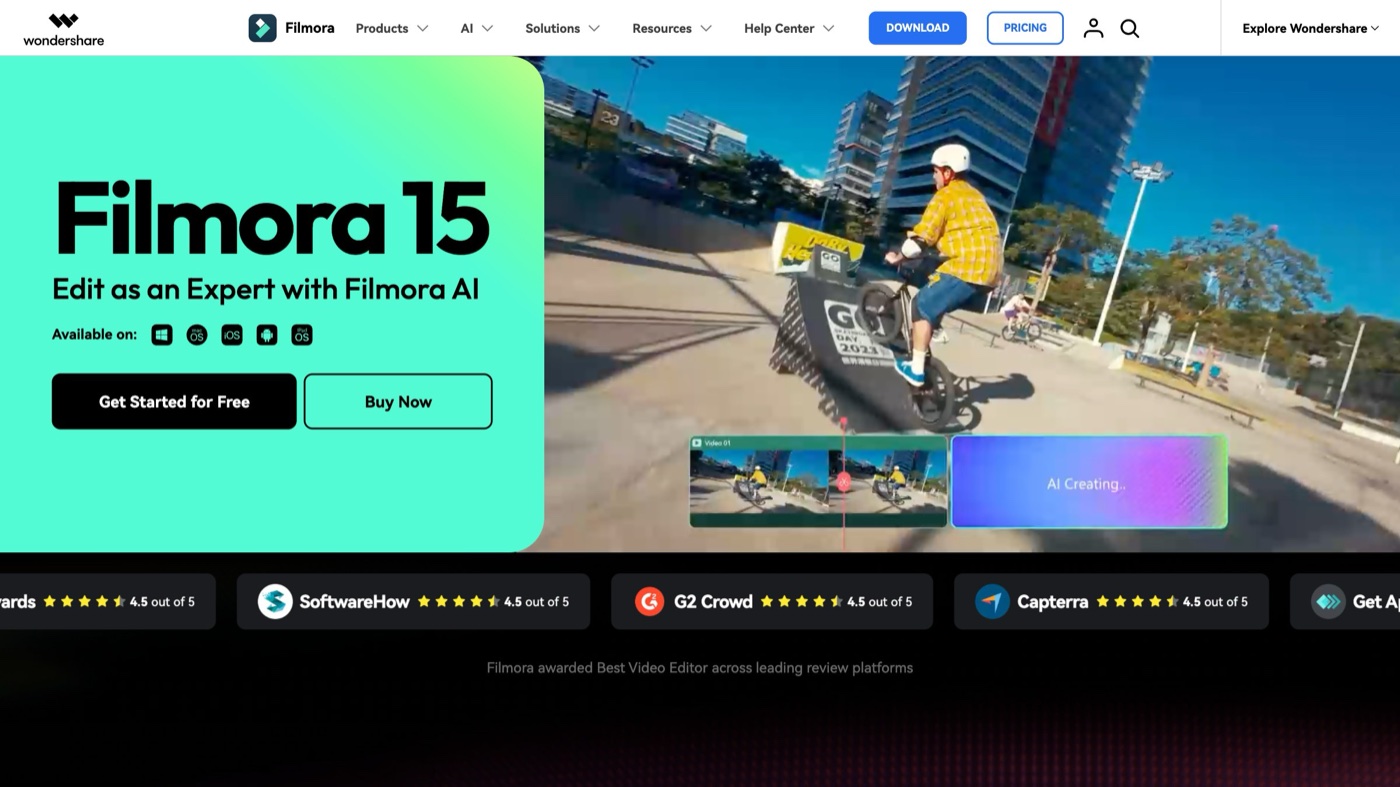
Filmora is a consumer video editor with a friendly face and a deep bag of effects, transitions, and stock media. It is not built specifically for education, but if your lesson is really edited footage rather than a screen capture, it gives you real timeline control without the intimidation of a professional NLE. Its screen-recording companion covers the tutorial case too.
Best for: Edited live-action or footage-based lessons where you want effects and timeline control.
12. Descript
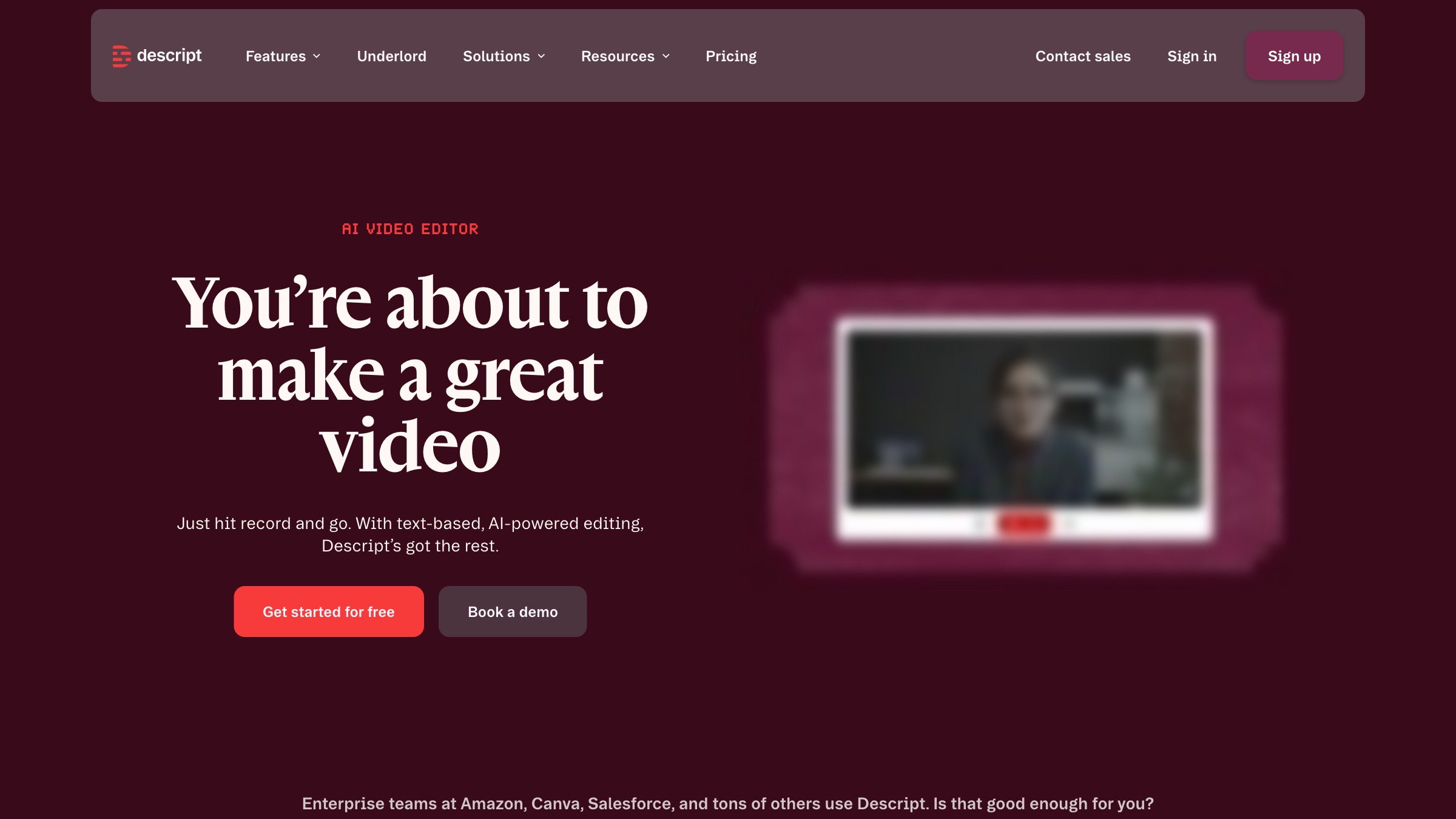
Descript edits video by editing the transcript, which sounds gimmicky until you use it and never want to go back. Delete a sentence of text and the footage goes with it, cut filler words in one click, and record your screen right inside the app. For talking-head lessons and course sections where you fumble a few takes, it is the fastest way to a clean cut I know of.
Best for: Talking-head and voice-led lessons where transcript-based editing saves real time.
13. Canva
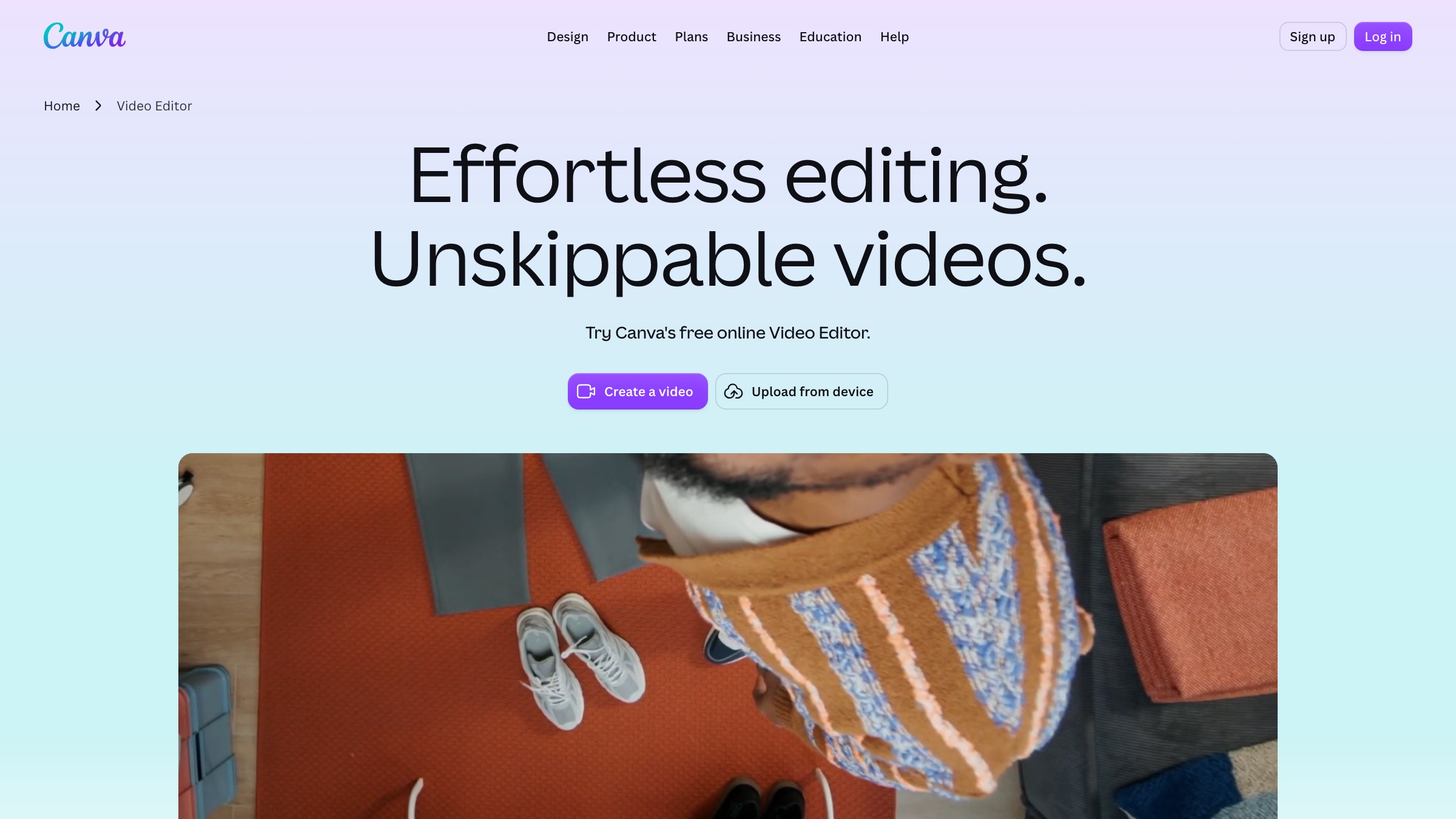
Canva grew a capable video editor on top of its design tool, and for a lot of teams that is enough. Templates, brand assets, stock, and simple timeline editing all live where your team already makes graphics, so there is no new tool to adopt. It will not replace a real editor for anything complex, but for tidy slide-style lessons and short social explainers it punches above its weight.
Best for: Teams already in Canva who want presentable video without learning new software.
14. Clipchamp
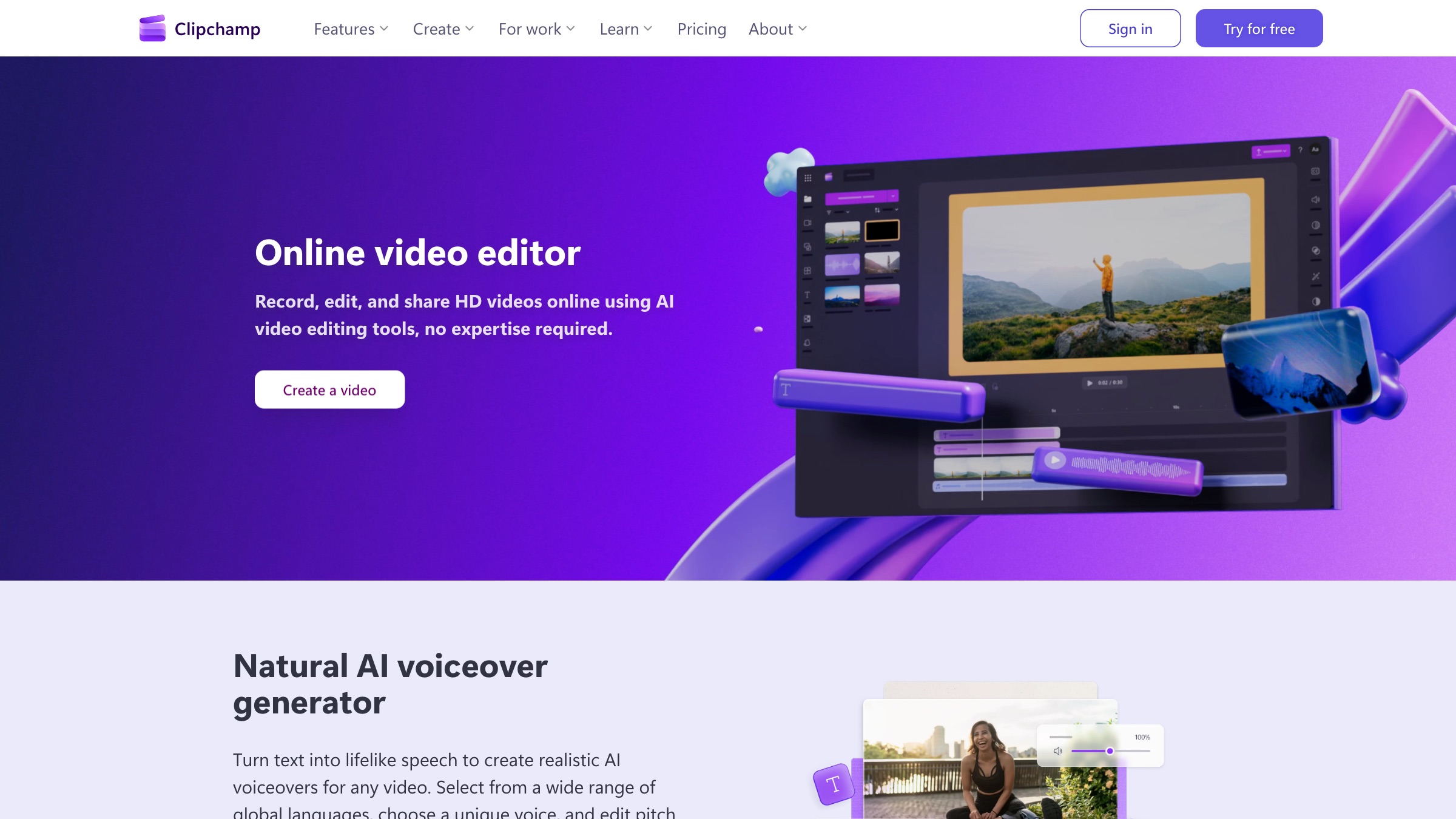
Clipchamp is Microsoft’s browser-based editor, bundled into Windows and tied into the Microsoft ecosystem. It records your screen and webcam, offers templates and stock, and runs entirely in the browser with no install. It is squarely a starter tool rather than a power tool, but if you are inside Microsoft 365 already, it is a sensible place to begin.
Best for: Windows and Microsoft 365 users who want a no-install editor for simple lessons.
15. Prezi Video
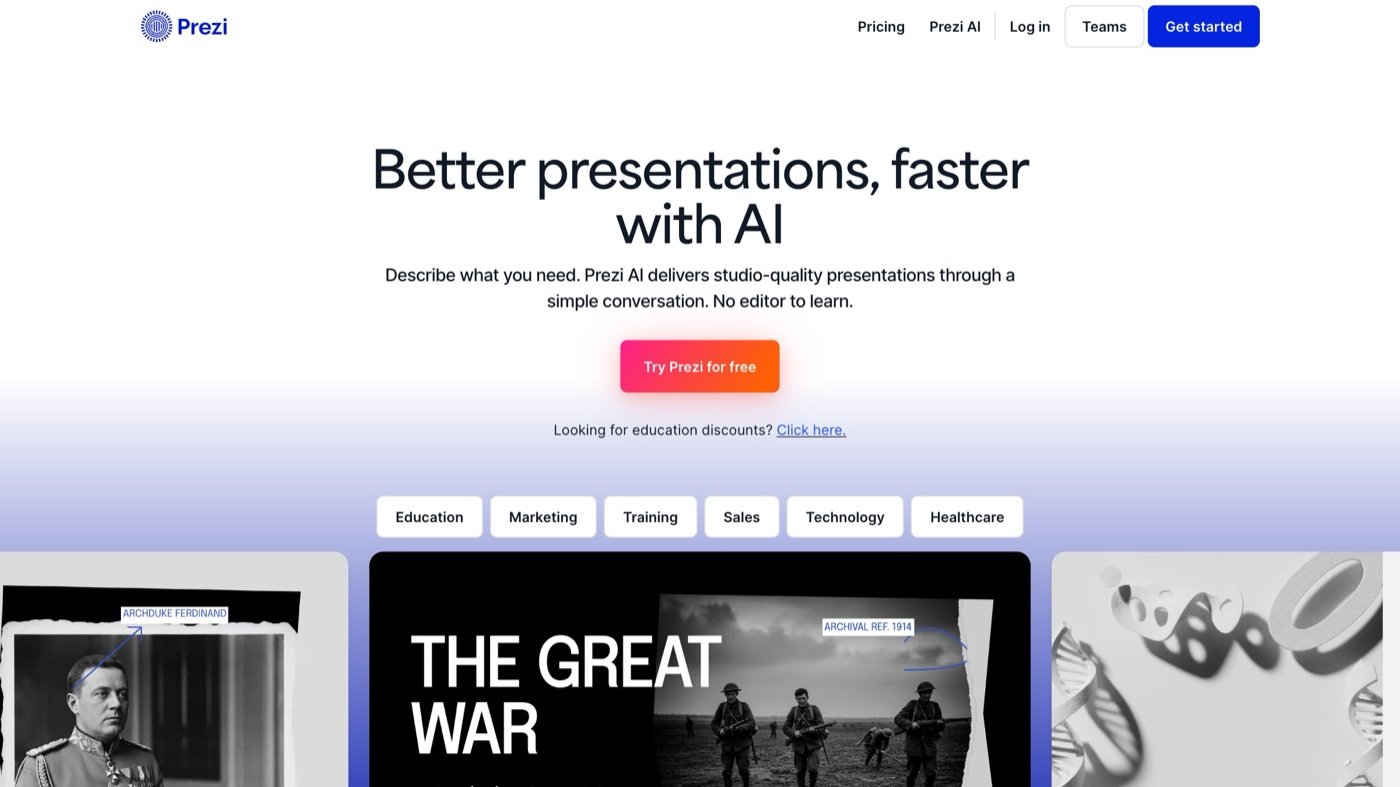
Prezi Video puts your visuals on screen next to you while you present, so you stay on camera instead of disappearing behind a slide. It is a nice format for a lecturer or a subject expert who wants presence, and it plugs into live conferencing tools too. It rewards presenters who are comfortable on camera, because the whole point is that you are in the frame.
Best for: Instructors who want to stay on camera while visuals appear beside them.
16. iSpring Suite
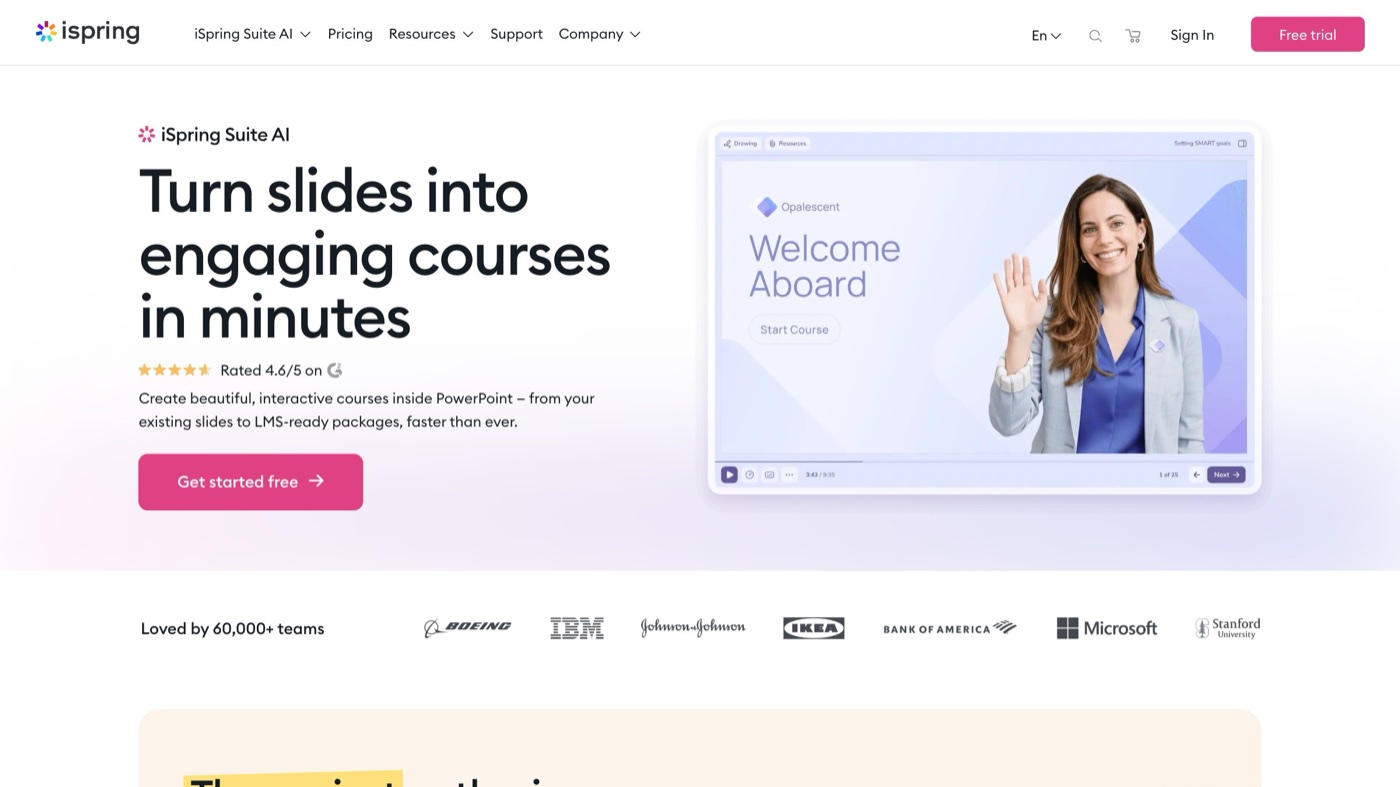
iSpring Suite is course authoring built on top of PowerPoint. If your team already lives in slides, it turns that familiarity into interactive e-learning with quizzes, video lectures, and SCORM output for your LMS. It is a step into proper instructional design rather than a video editor, and for organizations standardized on PowerPoint, that low barrier is the entire appeal.
Best for: PowerPoint-based teams building SCORM courses without leaving slides behind.
17. Articulate 360
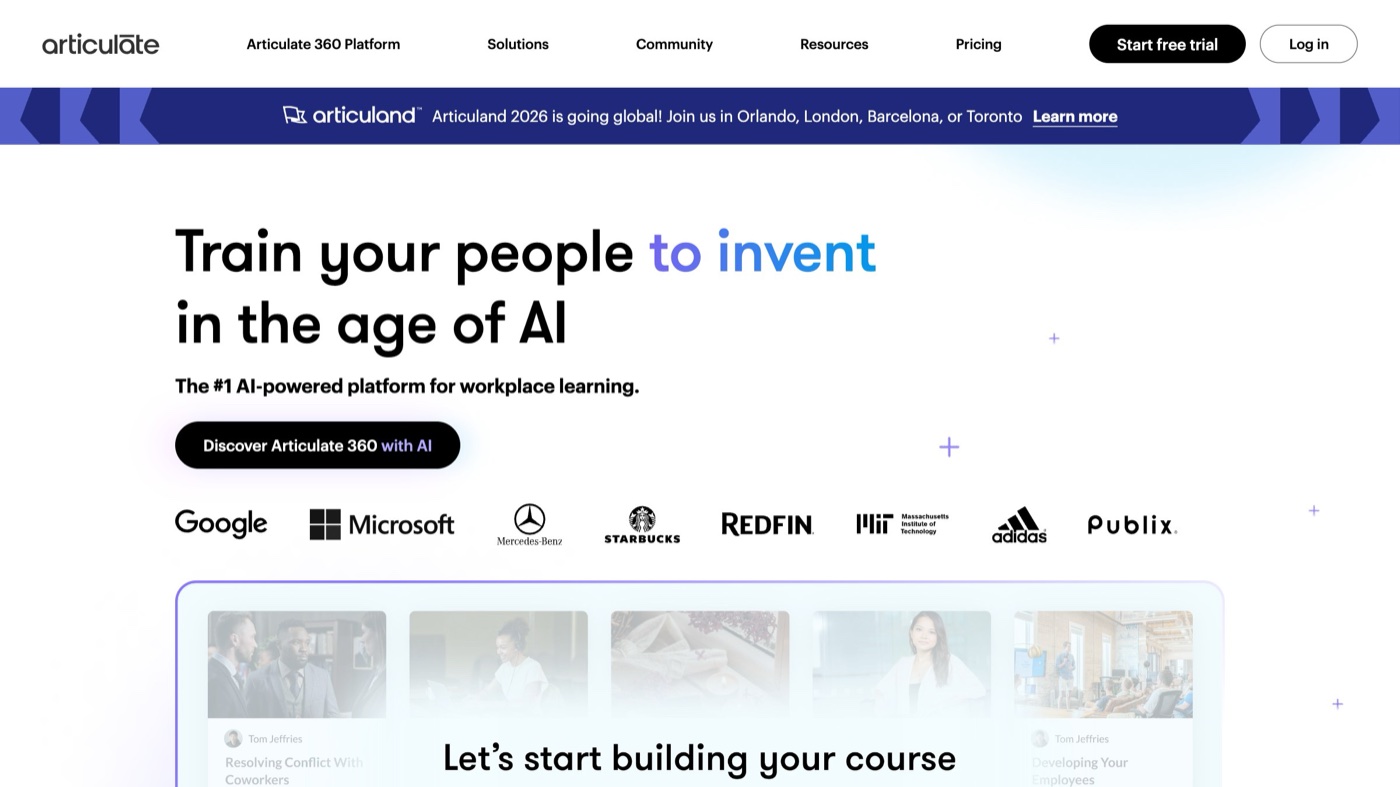
Articulate 360 is the heavyweight of e-learning authoring, bundling Storyline for deep custom interactions and Rise for fast responsive courses. This is where serious instructional designers work when a lesson has to branch, assess, and track completion across a real learner population. It asks for more of your time and money than anything else here, and for full course programs it earns it.
Best for: Instructional designers and L&D teams building full interactive course programs.
If you learn better by watching someone actually make one of these, this walkthrough of building lecture videos from a tablet is a good primer on the recording-and-narrating workflow that underpins half the tools above.
| Tool | Type | Best format | Learning curve | Best for |
|---|---|---|---|---|
| Camtasia | Screen recorder plus editor | Polished software tutorial | Medium | Detailed tutorials with editing control |
| Panopto | Video platform | Lecture capture at scale | Medium | Schools and L&D teams hosting at scale |
| Loom | Screen recorder | Quick async walkthrough | Very low | Fast informal walkthroughs |
| ScreenPal | Screen recorder plus editor | Captioned classroom lesson | Low | Educators wanting more than Loom |
| Synthesia | AI avatar | Localized training | Low | Frequently-updated multi-language training |
| Colossyan | AI avatar | Interactive presenter video | Low | L&D wanting avatars plus assessments |
| Vyond | Animation | Character-driven explainer | Medium | Scenario-based training with characters |
| Powtoon | Template animation | Template-based explainer | Low | Non-designers needing an explainer today |
| Animaker | Animation | Custom animated characters | Medium | DIY creators avoiding pro software |
| VideoScribe | Whiteboard animation | Hand-drawn concept explainer | Low | Lessons suiting the scribe style |
| Wondershare Filmora | Video editor | Edited footage lesson | Low | Live-action lessons wanting effects |
| Descript | Transcript editor | Talking-head lesson | Low | Voice-led lessons with fumbled takes |
| Canva | Design plus video | Slide-style lesson | Very low | Teams already working in Canva |
| Clipchamp | Browser video editor | Simple no-install lesson | Very low | Windows and Microsoft 365 users |
| Prezi Video | Presenter video | On-camera visuals beside you | Low | Instructors staying on camera |
| iSpring Suite | Course authoring | SCORM course from slides | Medium | PowerPoint teams building SCORM courses |
| Articulate 360 | Course authoring | Full interactive course | High | Designers building full course programs |
Picking the right one
Start with the format, not the feature list. If you are showing software, a screen recorder wins and Loom or Camtasia will cover almost everything. If you need the same lesson in eight languages, an AI avatar tool earns its place. If the concept only lands with characters or motion, look at the animation set. And if you are building a graded, trackable course rather than a single video, the authoring suites are a different category entirely and worth the bigger commitment.
The mistake I see most is buying a heavy tool for a light job, then never finishing anything because the software got in the way. For the majority of educational video, most viewers just want a clear answer to a real question, and the fastest tool you will actually use beats the powerful one you dread opening. Pick the smallest thing that fits the format, make one video this week, and upgrade only when a real limit stops you.
Frequently asked questions
For a first video with no learning curve, Loom is the easiest. You record your screen and webcam and get a shareable link in minutes, with only light editing to worry about. Canva and ScreenPal are close behind if you want a bit more control over captions and simple edits without a steep ramp.
No. Most educational video is a software walkthrough, a lesson recap, or a how-to, and a screen recorder like Loom or ScreenPal handles those well. Save the heavier tools like Camtasia, Vyond, or Articulate 360 for when you actually need editing depth, animation, or full interactive courses. The tool you will actually use beats the powerful one you avoid opening.
A video tool produces a single finished video, whether that is a screen capture, an animation, or edited footage. A course authoring tool like iSpring Suite or Articulate 360 builds full interactive lessons with quizzes, branching, and SCORM output that plugs into a learning management system to track completion. If you only need one explainer, use a video tool. If you are running a graded training program, you need authoring.