
The 12 Best SVG to PNG Tools for Flawless Conversions in 2026


Converting a Scalable Vector Graphic (SVG) to a Portable Network Graphic (PNG) is a fundamental task for any marketing or creative team. While SVG files offer infinite scalability, PNGs are essential for web compatibility, social media assets, and email campaigns where a fixed-size, transparent raster image is required. The challenge isn't whether the conversion can be done, but which tool does it most efficiently for your specific workflow. Finding the right solution means less time spent on tedious file management and more time on creative execution.
This guide provides a comprehensive comparison of the best SVG to PNG tools available, tailored for professional use cases. We cut through the noise to evaluate everything from powerful desktop design applications like Adobe Illustrator and Figma to convenient web-based converters and robust command-line utilities for batch processing. Each review includes a direct assessment of its strengths, weaknesses, and ideal scenarios, helping you choose the perfect tool whether you're a solo founder or leading an enterprise creative department. Beyond simple conversion, other image manipulation tasks can also significantly impact productivity; for instance, using dedicated picture annotation software can streamline feedback and AI training data workflows. This curated list will help you select the most effective converter for your specific project needs.
1. Adobe Illustrator
For creative teams and marketing departments where precision, scalability, and brand consistency are non-negotiable, Adobe Illustrator is the gold standard among SVG to PNG tools. It moves beyond simple conversion, offering an enterprise-grade vector editing environment for creating and exporting pixel-perfect PNGs.
Illustrator's strength lies in its robust export workflows. The Export for Screens feature is a game-changer for teams managing large-scale asset libraries, allowing you to export multiple artboards or assets to various sizes and formats (like 1x, 2x PNGs for different screen resolutions) simultaneously. This is ideal for producing extensive icon systems or social media graphic variations in a single, automated batch process.
Key Strengths & Use Cases
- Best For: Professional creative teams, enterprise marketing departments, and anyone needing high-fidelity, batch exports.
- Unique Feature: Deep integration with Adobe Creative Cloud allows for seamless workflows using shared libraries, fonts, and color profiles, ensuring brand consistency across all assets.
- Pricing: Illustrator is available through an Adobe Creative Cloud subscription, starting at $22.99/month.
- Pro Tip: Utilize the "Slices" tool to define specific export regions within a single artboard, giving you granular control over what gets converted to PNG without having to separate elements manually. You can also further enhance its capabilities with third-party add-ons; you can explore some of the best plugins and extensions for Illustrator here.
Website: https://www.adobe.com/products/illustrator.html
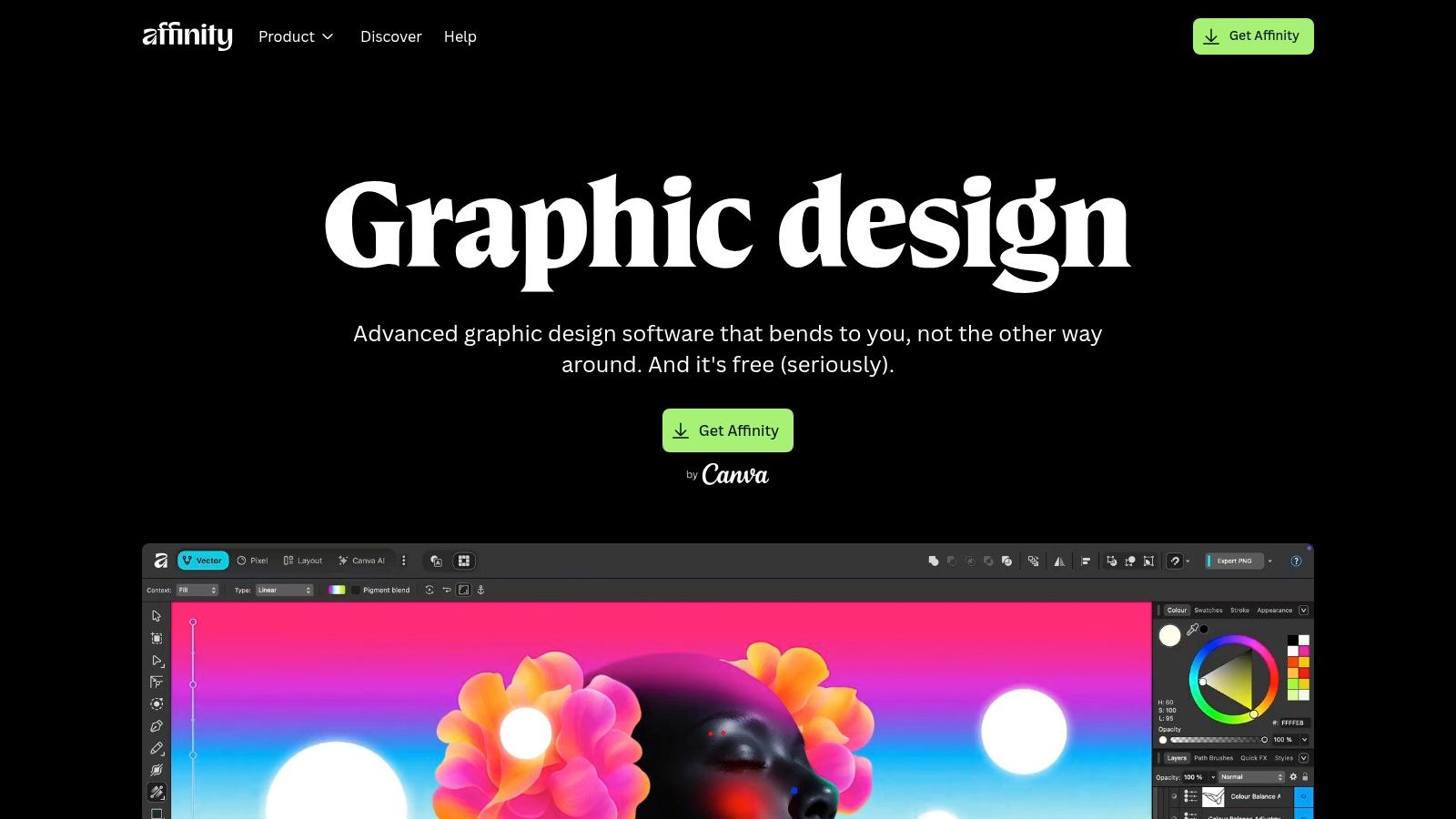
2. Affinity Designer
For freelancers, startups, and marketing teams seeking a professional-grade alternative without recurring subscriptions, Affinity Designer is a powerful contender among SVG to PNG tools. It offers a robust, one-time purchase vector design suite that combines vector and raster editing in a single, fluid interface, eliminating the need to switch between applications for minor pixel-based adjustments.
Its dedicated Export Persona is specifically engineered for production workflows, allowing designers to define slices and export multiple assets to PNG at different resolutions (like 1x, 2x, and 3x for web and app UIs) in one go. This streamlined process makes it an incredibly efficient choice for generating comprehensive icon sets or UI elements from a master SVG file.
Key Strengths & Use Cases
- Best For: Small to medium-sized businesses, freelancers, and teams looking for a cost-effective, non-subscription alternative to Adobe.
- Unique Feature: The unified vector and raster workspace (Personas) allows for texture and pixel edits on vector objects without leaving the application, streamlining the creation of rich, detailed PNGs.
- Pricing: A one-time purchase of $69.99 for the desktop version (macOS/Windows) or $18.49 for the iPad app.
- Pro Tip: In the Export Persona, create a slice for each icon or asset you need. Then, use the layer visibility controls to create different states (e.g., hover, active) and export them as separate PNG files with custom suffixes, all from the same source file.
Website: https://affinity.serif.com/en-us/designer/
3. Inkscape
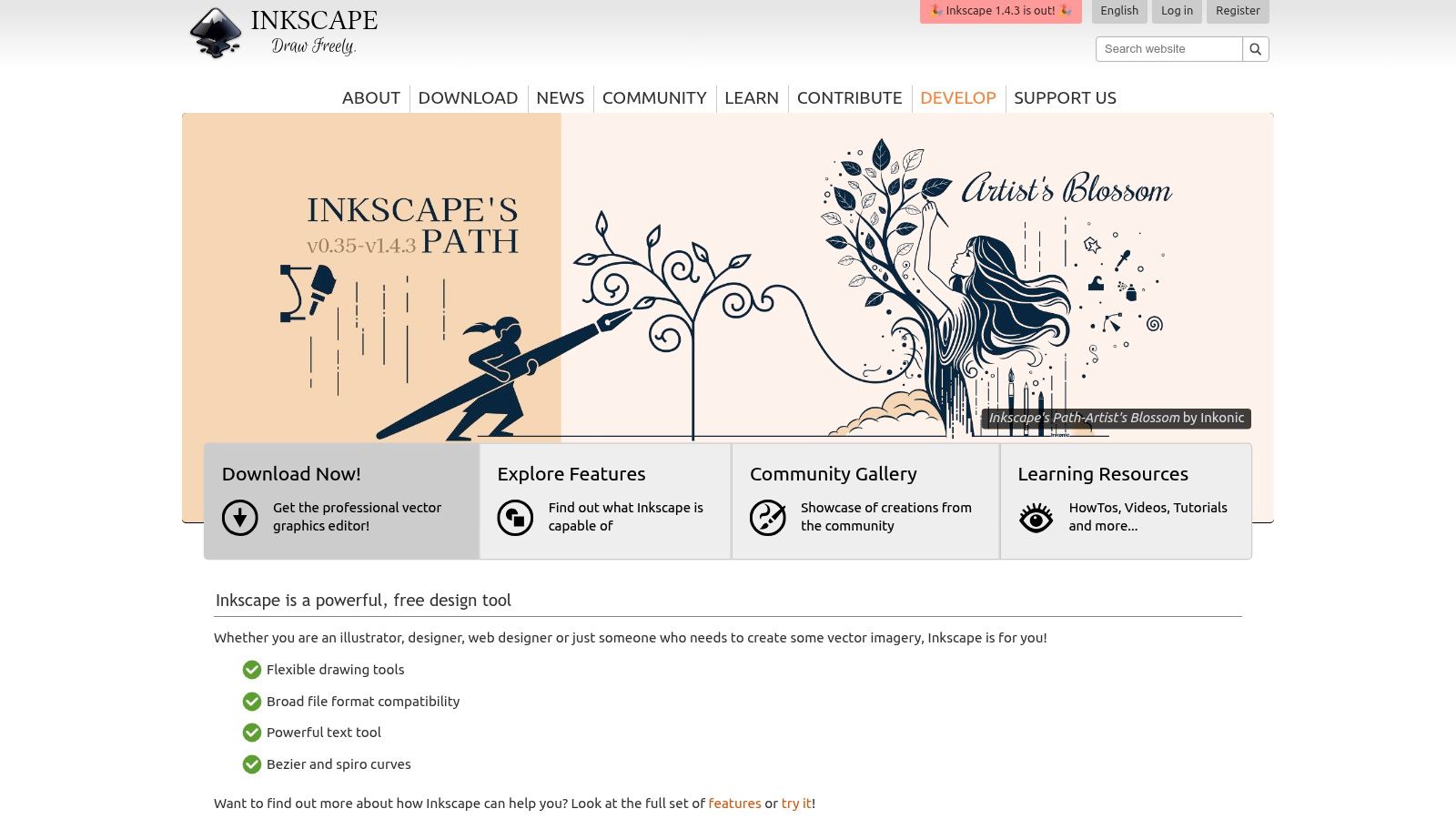
For developers, automated build pipelines, and users seeking a powerful, no-cost solution, Inkscape is a standout open-source vector graphics editor. It serves as a formidable free alternative to paid software, providing robust tools for both manual and automated SVG to PNG conversion without any subscription fees.
Its command-line interface (CLI) is a significant differentiator, enabling developers to script batch conversions on a server or within CI/CD pipelines. This makes it an invaluable asset for systematically processing large sets of assets, such as icon libraries, without manual intervention.
Key Strengths & Use Cases
- Best For: Developers automating asset pipelines, open-source advocates, and budget-conscious teams needing a full-featured vector tool.
- Unique Feature: Powerful command-line support for headless batch processing, allowing you to specify output dimensions, DPI, and background color for automated server-side conversions.
- Pricing: Completely free and open-source for both personal and commercial use.
- Pro Tip: Use the
--export-area-pagecommand-line flag to ensure your exported PNG matches the exact dimensions of your document canvas, or use--export-area-drawingto crop the output tightly to the artwork itself. This control is essential when generating consistent assets for icon libraries and design systems.
Website: https://inkscape.org
4. Sketch
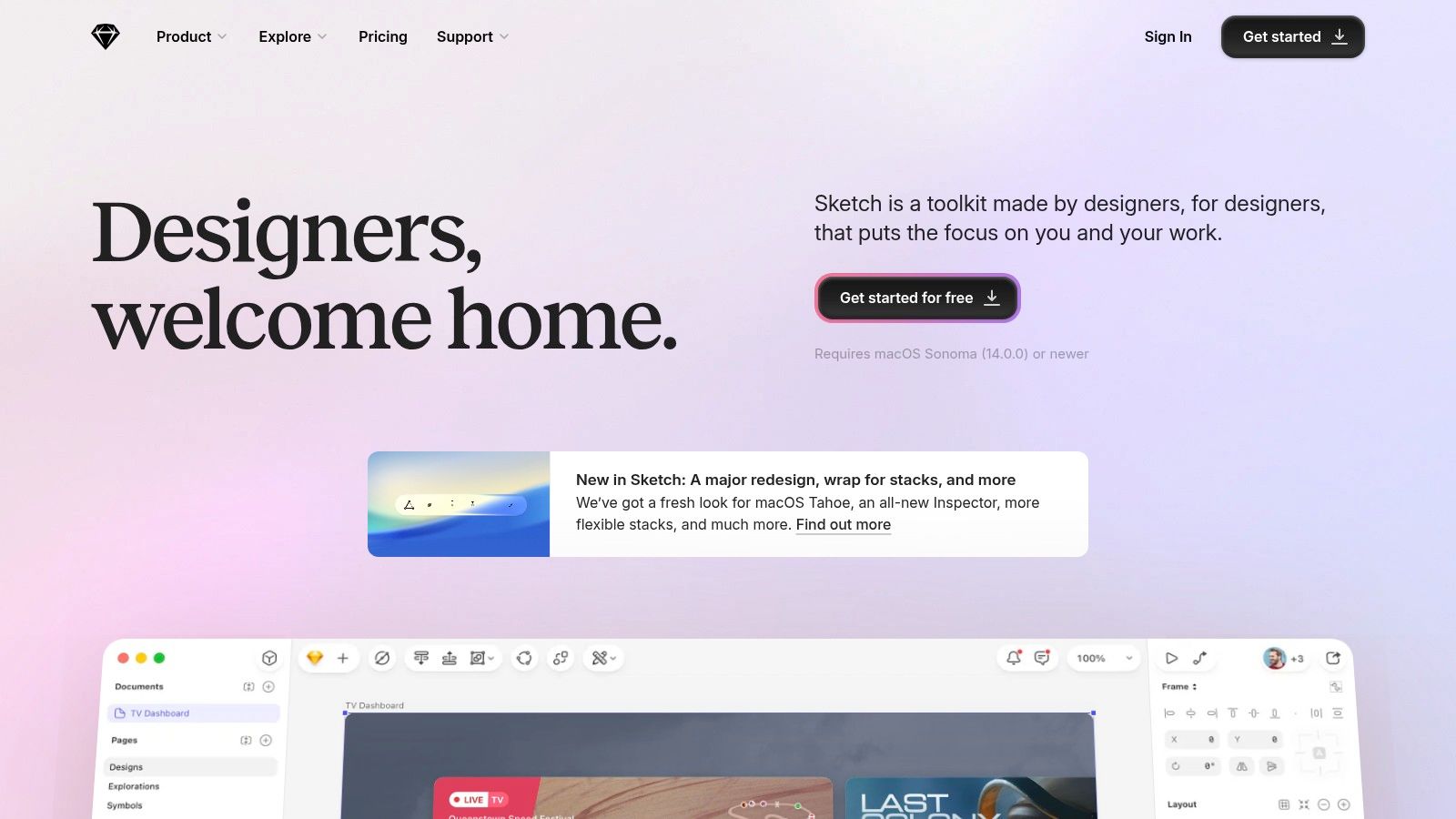
For Mac-centric design and product teams, Sketch offers a streamlined, native environment for vector work and is a highly efficient SVG to PNG tool. It excels in UI/UX workflows, where creating and exporting assets for different screen densities is a daily task. The platform is built around a lightweight and intuitive interface that prioritizes speed and ease of use over the exhaustive feature sets of its competitors.
Its core export functionality is both simple and powerful. You can quickly drag layers or artboards out as PNGs or use the "Make Exportable" feature to define presets, such as 1x and 2x resolutions, for one-click exporting. This makes it an excellent choice for teams needing a fast, no-fuss method to get production-ready assets out the door.
Key Strengths & Use Cases
- Best For: Product design teams, UI/UX designers, and developers working exclusively within the Apple ecosystem.
- Unique Feature: The command-line interface, sketchtool, allows for the complete automation of asset exports. Developers can integrate it into build scripts to programmatically export SVGs to multiple PNG scales (
--formats=png --scales=1,2) without ever opening the app. - Pricing: A Standard subscription for the Mac app is priced at $12 per editor/month or $120 per editor/year.
- Pro Tip: Configure your export presets in the "Make Exportable" panel at the component level. When you build complex UIs using these components (Symbols or Components), all your export settings are inherited, allowing you to export an entire screen's assets with pre-defined scales and formats in a single action.
Website: https://www.sketch.com
5. Figma
For cross-functional teams where collaboration and accessibility are paramount, Figma has become the go-to platform among SVG to PNG tools. As a browser-based design tool, it eliminates installation barriers, allowing marketing, engineering, and design teams to inspect, comment, and export assets directly from a shared link.
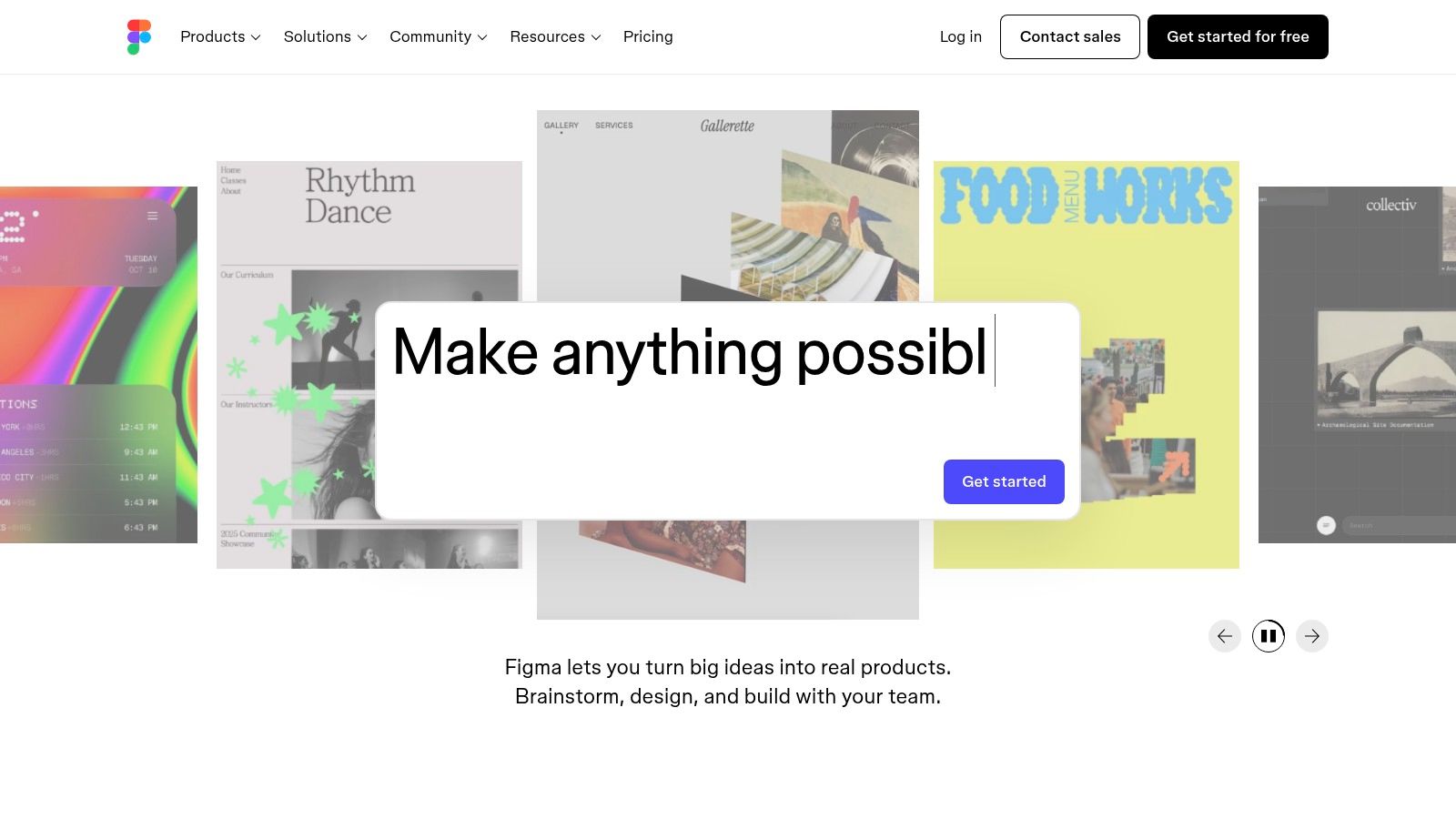
Figma’s strength lies in its frictionless export process. Users with view access can select any frame, component, or slice and export it as a PNG at various scale factors (like 1x, 2x, 3x) without needing a paid seat. This is perfect for developers grabbing icons for a build or a social media manager pulling a graphic for a last-minute post, democratizing asset access across the organization.
Key Strengths & Use Cases
- Best For: Design and marketing teams in startups and enterprises needing a collaborative, browser-first design and handoff tool.
- Unique Feature: Its real-time, multiplayer collaboration allows multiple stakeholders to work within the same file simultaneously, streamlining the feedback and asset approval cycle before conversion.
- Pricing: Figma offers a robust free tier. Paid plans with advanced features start at $12 per editor/month.
- Pro Tip: Use the "Slice" tool over complex backgrounds to define precise export boundaries for an asset. This ensures your PNG has the exact dimensions you need, independent of other layers. Figma’s powerful component and library features also work well with tools like the various color palette generators for Figma to maintain brand consistency.
Website: https://www.figma.com
6. Canva
For marketers and social media managers who need quick, accessible design tools without a steep learning curve, Canva is a go-to platform. It serves as an excellent SVG to PNG tool by integrating conversion directly into its user-friendly, drag-and-drop design environment, making it perfect for creating marketing assets on the fly.
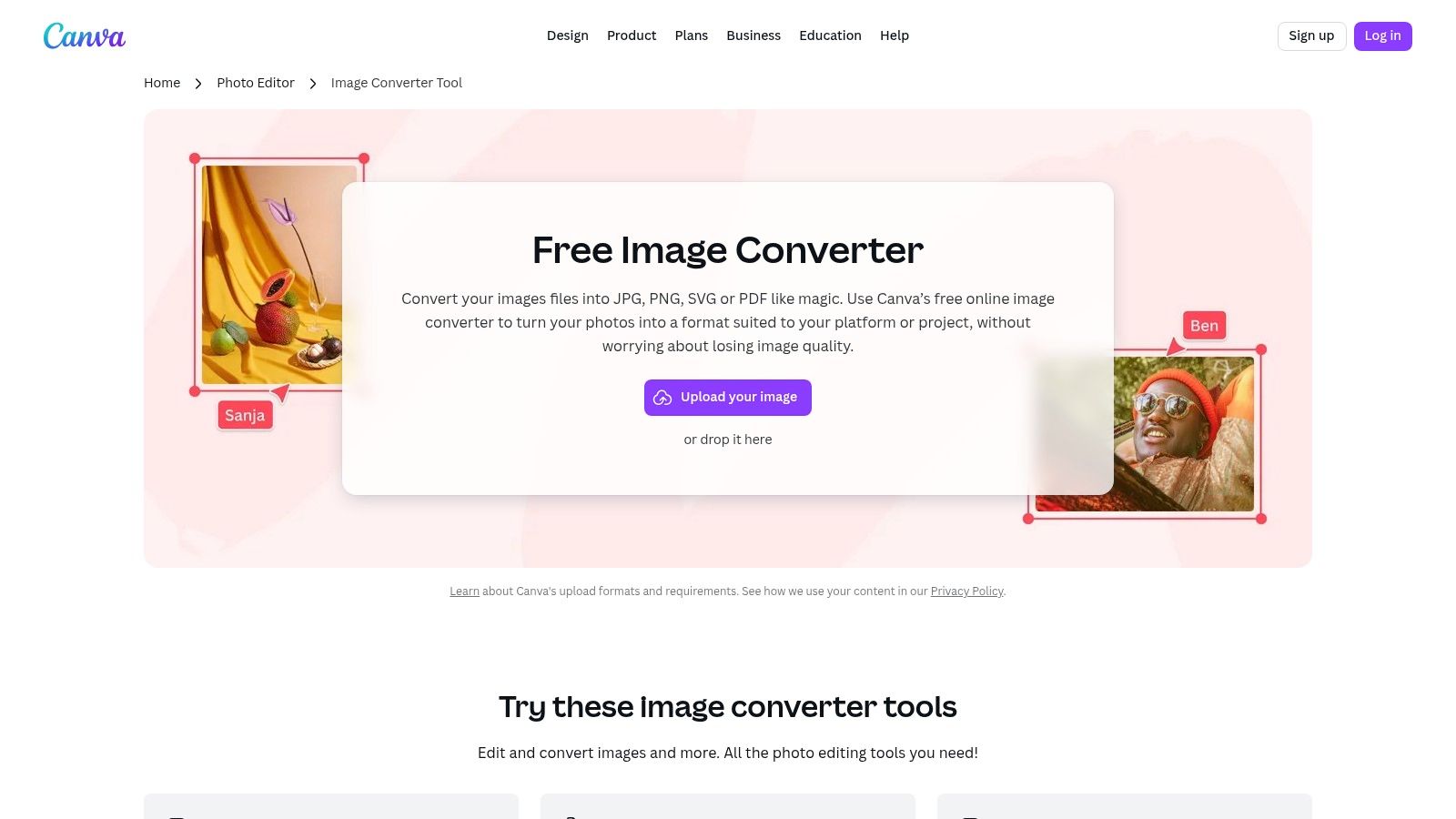
Canva's strength is its simplicity and cloud-based nature. Users can upload an SVG, place it within a design template, and export the entire composition as a high-quality PNG with a transparent background. This workflow is ideal for quickly adding a logo to a social media post or preparing an icon for a presentation without needing specialized software.
Key Strengths & Use Cases
- Best For: Non-designers, marketing teams, and anyone needing fast, one-off conversions for social media or web content.
- Unique Feature: Its direct integration with a massive library of templates and design elements allows users to convert an SVG and immediately use it in a polished, professional-looking design.
- Pricing: A robust free plan is available that includes PNG exports. Canva Pro, which offers more advanced features, starts at $14.99/month.
- Pro Tip: When exporting, use the "Transparent background" option (a Pro feature) to ensure your PNG logo or icon has no solid color behind it, making it versatile for any design. To elevate your skills, you can explore ways to use Canva like a pro here.
Website: https://www.canva.com/features/image-converter/
7. Photopea
For users who need more than a simple conversion and require image editing capabilities without installing desktop software, Photopea is an outstanding browser-based tool. It acts like a powerful, free version of Photoshop, allowing you to open an SVG, make raster-level adjustments like adding text or removing backgrounds, and then export it as a high-quality PNG.
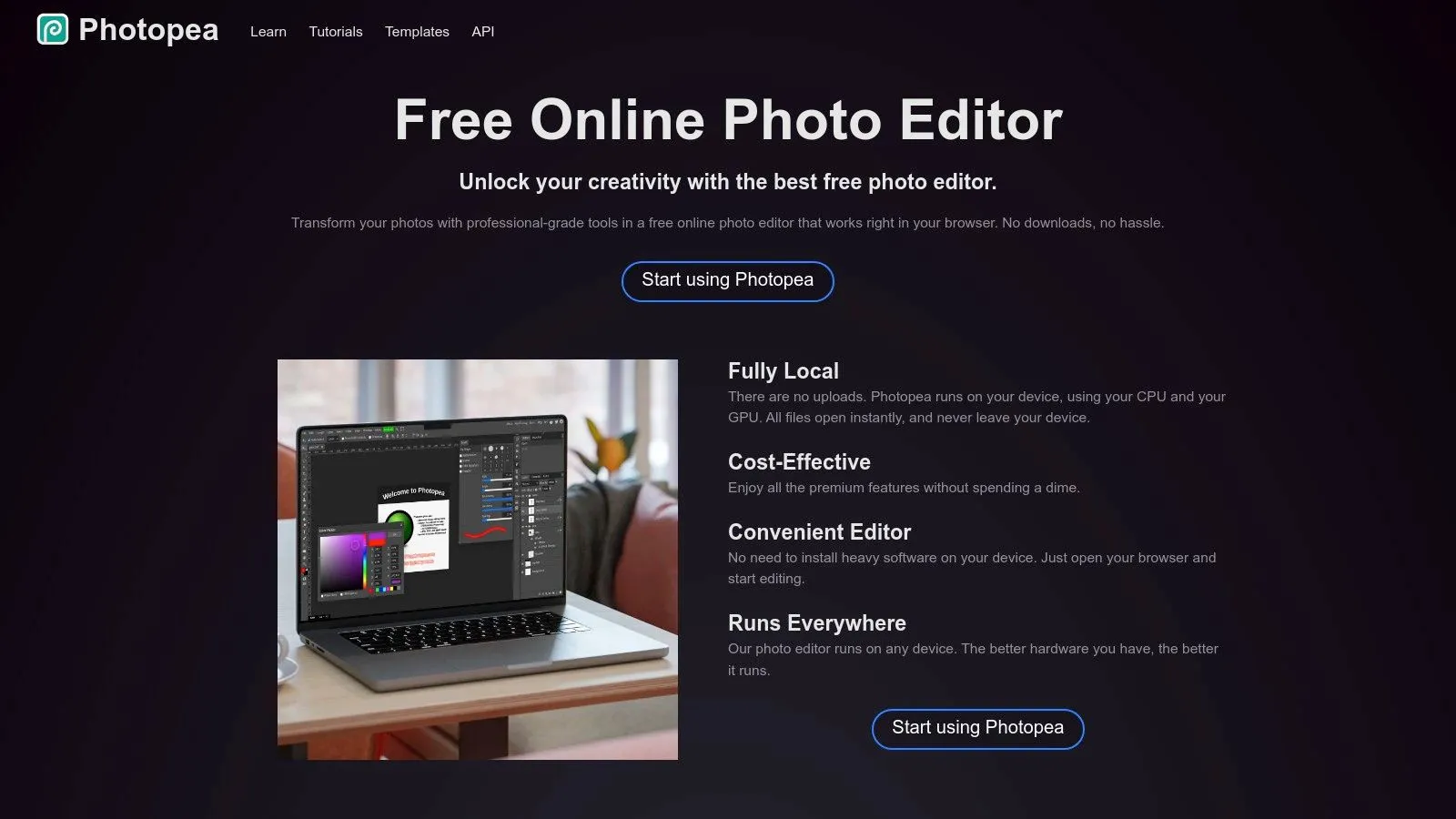
This platform excels when your workflow involves compositing an SVG onto a raster background or making quick tweaks that go beyond vector manipulation. Its familiar, layer-based interface is intuitive for anyone with experience in traditional image editors, making it one of the most versatile SVG to PNG tools for on-the-fly creative tasks.
Key Strengths & Use Cases
- Best For: Marketers and designers needing to composite SVGs with other images or perform quick raster edits before exporting to PNG.
- Unique Feature: A comprehensive, Photoshop-like editing environment that runs entirely in the browser, offering advanced features like layer masks, blend modes, and filter effects.
- Pricing: Free with ads. A premium plan is available to remove ads and gain more history steps, starting at $5 per 30 days.
- Pro Tip: After importing your SVG, right-click its layer and select "Rasterize" to unlock all of Photopea’s pixel-based editing tools, such as the eraser or brush, for detailed modifications before exporting.
Website: https://www.photopea.com
8. CloudConvert
For teams needing a powerful, API-driven solution for programmatic conversions, CloudConvert stands out among SVG to PNG tools. It bridges the gap between simple online converters and complex server-side libraries, offering a developer-friendly platform that integrates directly into production workflows, dashboards, or content management systems.
Its core strength is its robust API, which allows for fully automated conversion pipelines. You can programmatically send an SVG, specify output resolution and quality, and have the resulting PNG sent directly to an S3 bucket or webhook. This makes it an ideal backend service for applications that handle user-uploaded vector assets or for marketing teams that need to automate the generation of raster images from a single SVG source.

Key Strengths & Use Cases
- Best For: Developers building automated media pipelines, and marketing teams needing to integrate file conversions into their internal tools or CMS.
- Unique Feature: ISO 27001 certification and robust data security posture, making it a reliable choice for enterprise environments where data handling is a primary concern.
- Pricing: Offers a free tier with up to 25 conversions per day. Paid plans are available as subscriptions (starting at $9.00/month) or flexible credit packages for API usage.
- Pro Tip: Use the API’s "engine" and "engine_version" parameters to lock in a specific conversion engine. This ensures consistent output quality for your PNGs over time, even as CloudConvert updates its underlying software. CloudConvert is also a strong option for basic image adjustments; you can explore other top-tier free image resizing tools here.
Website: https://cloudconvert.com/svg-to-png
9. Convertio
For non-technical users and marketing professionals who need a quick, no-fuss solution for occasional file conversions, Convertio is a standout choice. It operates as a powerful web-based file converter that simplifies turning an SVG into a PNG through a clean, drag-and-drop interface. It's the digital equivalent of a Swiss Army knife for file formats, designed for speed and convenience over deep customization.
Convertio's main advantage is its ability to pull files directly from cloud storage like Google Drive and Dropbox, or even from a URL. This eliminates the need to download and re-upload files, streamlining the workflow for teams that manage their assets in the cloud. It is one of the most straightforward and best SVG to PNG tools for one-off tasks where time is of the essence.

Key Strengths & Use Cases
- Best For: Individuals and small teams needing quick, occasional conversions without installing software.
- Unique Feature: Direct integration with Google Drive and Dropbox for importing files, making it incredibly efficient for cloud-based workflows.
- Pricing: A free tier is available with limitations on file size and daily conversions. Paid plans start at $9.99/month for increased limits and batch processing.
- Pro Tip: Use the batch conversion feature to upload multiple SVGs at once. While the free plan limits this, even on a basic paid plan, you can convert an entire folder of icons to PNG in a single operation, saving significant time.
Website: https://convertio.co/svg-png/
10. Zamzar
For users who value a long-standing, reputable service that handles more than just image formats, Zamzar is a reliable workhorse among SVG to PNG tools. It's an all-in-one online file converter that has been operating for over a decade, offering a straightforward, ad-free experience for converting individual or multiple files without needing to install any software.
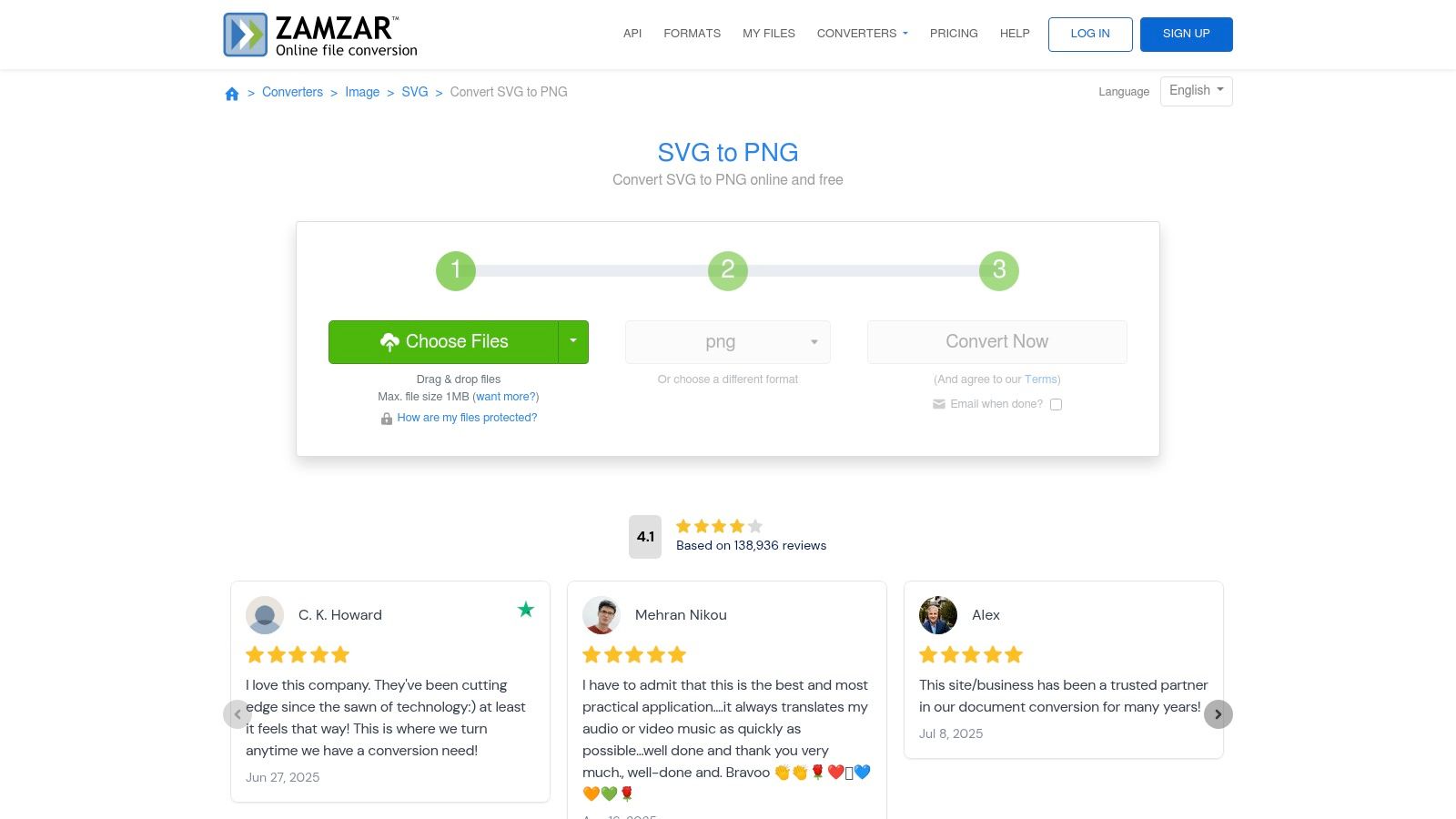
Zamzar's primary appeal lies in its simplicity and versatility. It’s not a design tool, but a dedicated conversion engine. This makes it perfect for non-technical users who just need a quick, no-fuss conversion. The platform also offers email notifications upon completion, which is a convenient touch for larger files that might take a few moments to process.
Key Strengths & Use Cases
- Best For: Individuals and teams needing a dependable, multi-format file converter for occasional SVG to PNG tasks.
- Unique Feature: Its API and desktop app provide a clear upgrade path for users who start with simple web conversions but later need to automate or streamline their workflow.
- Pricing: A free plan is available with a 50 MB file size limit. Paid plans start at $18/month for larger files, faster speeds, and more concurrent conversions.
- Pro Tip: Use the "Convert to" dropdown to see the extensive list of other formats Zamzar supports. If your workflow involves converting SVGs to PNGs and then other assets to formats like DOCX or MP4, you can handle it all in one place.
Website: https://www.zamzar.com/convert/svg-to-png/
11. Online-Convert.com
For teams and individuals who need more granular control than a simple drag-and-drop tool offers, but don't want the complexity of a full graphics editor, Online-Convert.com strikes an excellent balance. It stands out among web-based SVG to PNG tools by offering a suite of optional settings that give you command over the final output.
This platform moves beyond basic conversion by letting you specify image size, change the DPI for print quality, and even apply color filters or select a background color. Its versatile input methods, including direct URL import and cloud storage integration (like Dropbox and Google Drive), streamline the workflow for assets that are already online, saving you the step of downloading and re-uploading.

Key Strengths & Use Cases
- Best For: Users needing quick, web-based conversions with advanced output settings like DPI and color adjustments.
- Unique Feature: The "Optional settings" panel provides a rare level of control for a free online tool, allowing users to fine-tune resolution, size, and color without needing any design software.
- Pricing: A free tier is available with ads and limitations on file size and daily conversions. Premium plans start at around $7/month for more files, higher priority, and an ad-free experience.
- Pro Tip: Use the URL import feature to quickly convert SVG logos or icons directly from another website or a CDN. This is especially useful for marketers who need to grab a partner's logo for a presentation slide without having to request the file directly.
Website: https://image.online-convert.com/convert/svg-to-png
12. ImageMagick
For developers and system administrators, ImageMagick is the ultimate backend powerhouse for automated SVG to PNG conversion. This open-source command-line suite is not a graphical tool but a robust engine designed for scripting, batch processing, and integration into server-side workflows or CI/CD pipelines, making it one of the most powerful SVG to PNG tools for technical applications.
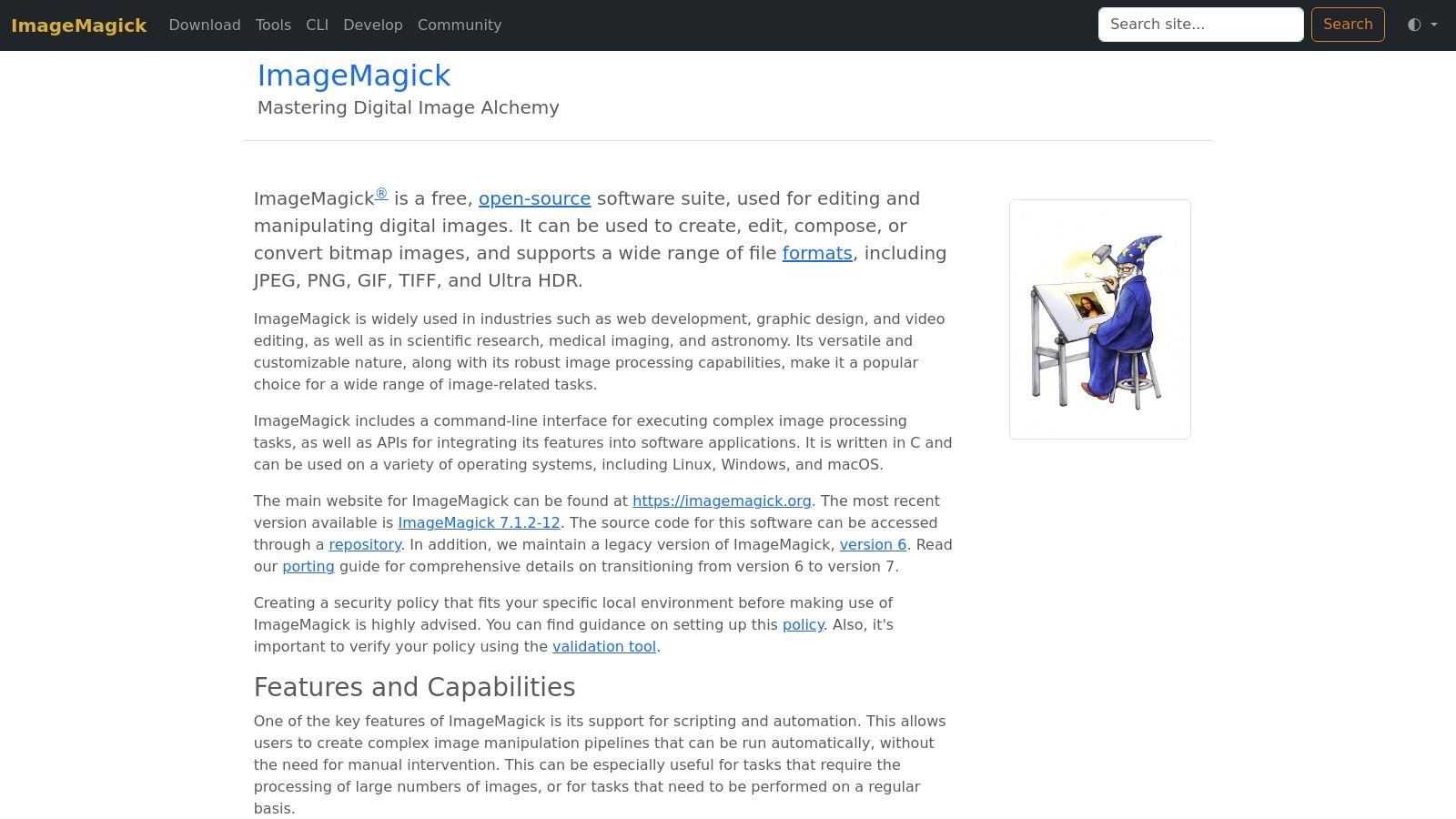
Its core advantage is granular control. You can script conversions for thousands of files, specifying exact DPI, density, color profiles, and transparency settings without any manual intervention. This headless capability makes it ideal for generating user-uploaded avatars, processing large asset libraries, or automating marketing materials on a server, handling tasks that are impractical for manual design software.
Key Strengths & Use Cases
- Best For: Developers, system administrators, and anyone needing to automate image processing in a server or development environment.
- Unique Feature: Unmatched scripting and automation capabilities. It can be called from virtually any programming language (Python, PHP, Node.js) to build custom image manipulation pipelines.
- Pricing: Completely free and open-source (FOSS).
- Pro Tip: When converting, use the
-densityflag before reading the SVG file to control the output resolution. For example,magick -density 300 input.svg output.pngwill render the PNG at 300 DPI, ensuring high-quality results for print or high-resolution displays.
Website: https://imagemagick.org
Top 12 SVG-to-PNG Tools Comparison
Final Thoughts
Navigating the landscape of SVG to PNG conversion reveals a fundamental truth: the "best" tool is rarely a one-size-fits-all solution. Instead, it's a dynamic choice that hinges entirely on your specific workflow, technical expertise, and project scale. As we've explored, the journey from a scalable vector to a crisp raster image is paved with diverse options, each excelling in a particular context.
Matching the Tool to Your Team's Needs
For marketing and creative directors at startups and enterprises alike, the decision-making process should be rooted in team structure and existing software stacks.
- For Teams Deeply Embedded in Design Ecosystems: If your creative team already operates within the Adobe Creative Cloud or the Affinity suite, leveraging the powerful export engines of Illustrator or Affinity Designer is the most logical and efficient path. These tools offer unparalleled control over resolution, color profiles, and anti-aliasing, ensuring brand consistency and the highest quality output for campaign assets.
- For Agile, Collaborative, and Remote Teams: Cloud-based platforms like Figma and Canva are clear winners. Their strength lies not just in conversion but in their collaborative nature, allowing for real-time feedback and streamlined workflows that are essential for fast-moving marketing departments. Figma, in particular, excels at handling complex design systems that need to be output as PNGs for various digital platforms.
- For Quick, One-Off Conversions: When you just need a single SVG converted without the overhead of a full design application, dedicated online converters like CloudConvert and Convertio are invaluable. They are the go-to solutions for founders or marketing managers who need a quick PNG for a presentation or social media post without involving a designer.
Embracing Automation and Scalability
The real game-changer for scale-ups and enterprise teams is automation. This is where command-line interface (CLI) tools like ImageMagick truly shine. By integrating such a tool into your development pipeline or content management system, you can automate the conversion of entire libraries of SVG assets, such as icons or illustrations. This not only saves hundreds of hours but also eliminates the potential for human error, ensuring every PNG is generated to the exact specifications required.
Ultimately, selecting from the best SVG to PNG tools is an exercise in strategic alignment. It's about evaluating whether you need granular control, collaborative ease, or programmatic power. Once you have created these pixel-perfect assets, the next critical step is ensuring they are handed off effectively to your technical teams. For a deeper dive into this crucial part of the workflow, exploring best practices for streamlining designer-to-developer handoff processes can prevent miscommunication and ensure your visuals are implemented flawlessly. Your final choice should empower your team to work faster, smarter, and with greater consistency.
Tired of manually converting and managing your brand's visual assets? Moonb automates your entire creative workflow, from design variations to asset distribution, ensuring brand consistency at scale. Let Moonb handle the tedious tasks so your creative team can focus on what they do best: creating.