12 Best Video Format Converters (2026 Tested)
Twelve video format converters tested for 2026, from HandBrake and FFmpeg to CloudConvert. Compare formats, speed, and current pricing to pick the right one.

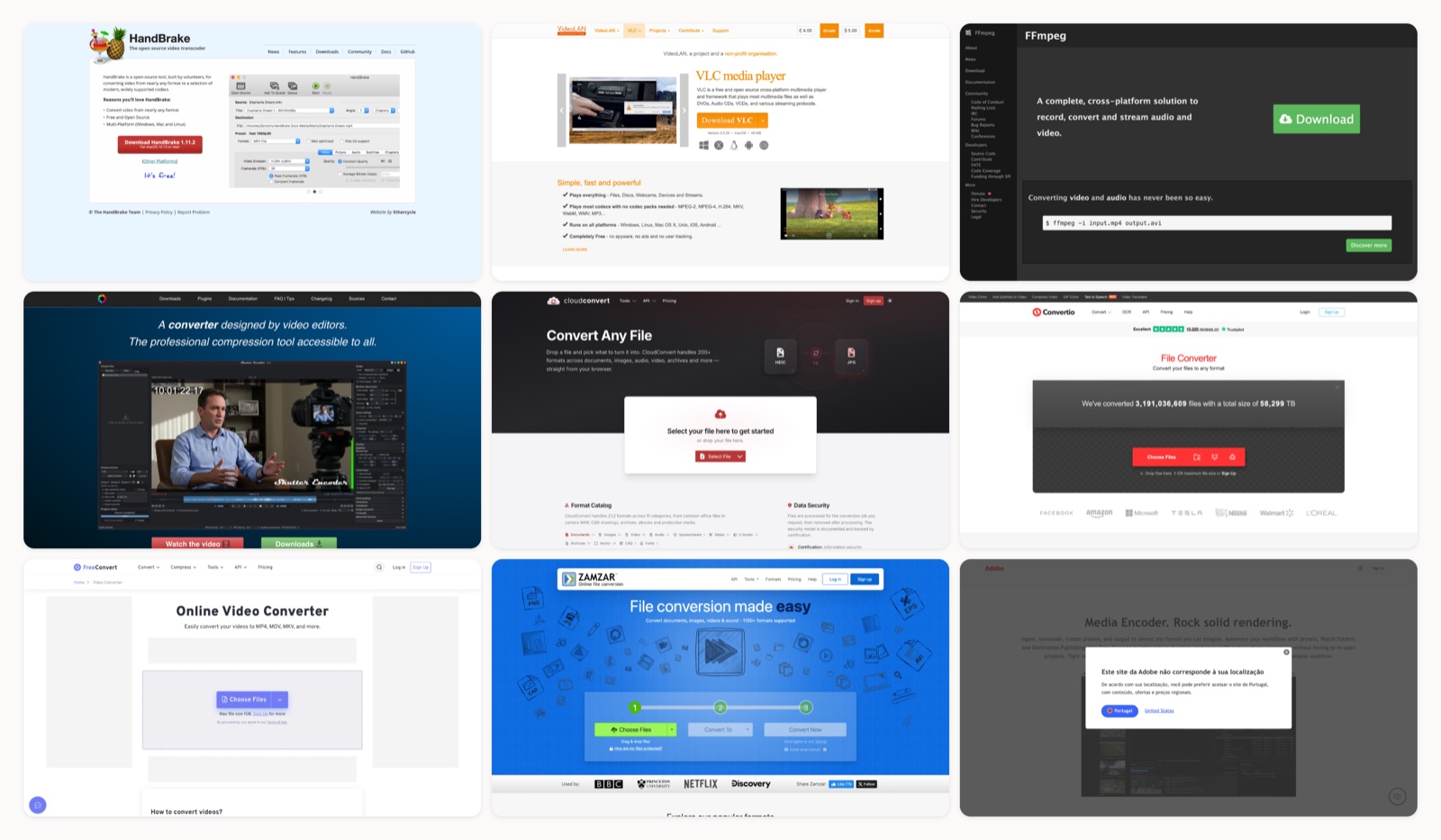
If you just need a video in a different format, install HandBrake and you are set for the vast majority of jobs. It is free, it runs on Windows, Mac, and Linux, and it converts to MP4, MKV, or WebM at a quality most people cannot fault. That single answer covers most of the people who land on a page like this one. I have sorted the rest by the one job each tool beats HandBrake at, since that is the only reason I reach past it.
The rest have a reason one tool will not cover: a locked-down work laptop where nothing installs, a folder of 200 clips that has to run overnight, a Premiere export you want queued in the background, or ProRes masters that consumer converters refuse to touch. Those situations are why this list runs to twelve tools instead of one. I convert client footage almost every week, usually because someone sent a file in whatever their phone or an old camera happened to record, so what follows is what each tool is actually good at, what it costs in 2026, and the one limitation I would want to know before opening it.
Before you convert: the container is not the codec
Most conversion headaches trace back to mixing up two things. The container is the file-format wrapper you see, like .mp4, .mov, or .mkv. The codec is how the video inside is compressed, usually H.264, the more efficient HEVC, or the newer royalty-free AV1 from the Alliance for Open Media. A .mov and a .mp4 can hold the exact same H.264 video, and changing only the container (a step called remuxing) takes a second and loses nothing. Changing the codec re-compresses every frame, which takes real time and shaves a little quality each pass.
Knowing which one you need saves you from waiting an hour for a job that should have been instant. When a platform rejects your upload, the codec is the usual culprit, not the extension. Mozilla’s web video codec guide is a clear reference if you want the specifics, and our own breakdown of the best video formats covers which one to target for each place you might post. If you are not even sure what is inside a file, one of the tools for analyzing video will read out the codec, bitrate, and frame rate before you touch a converter.
1. HandBrake
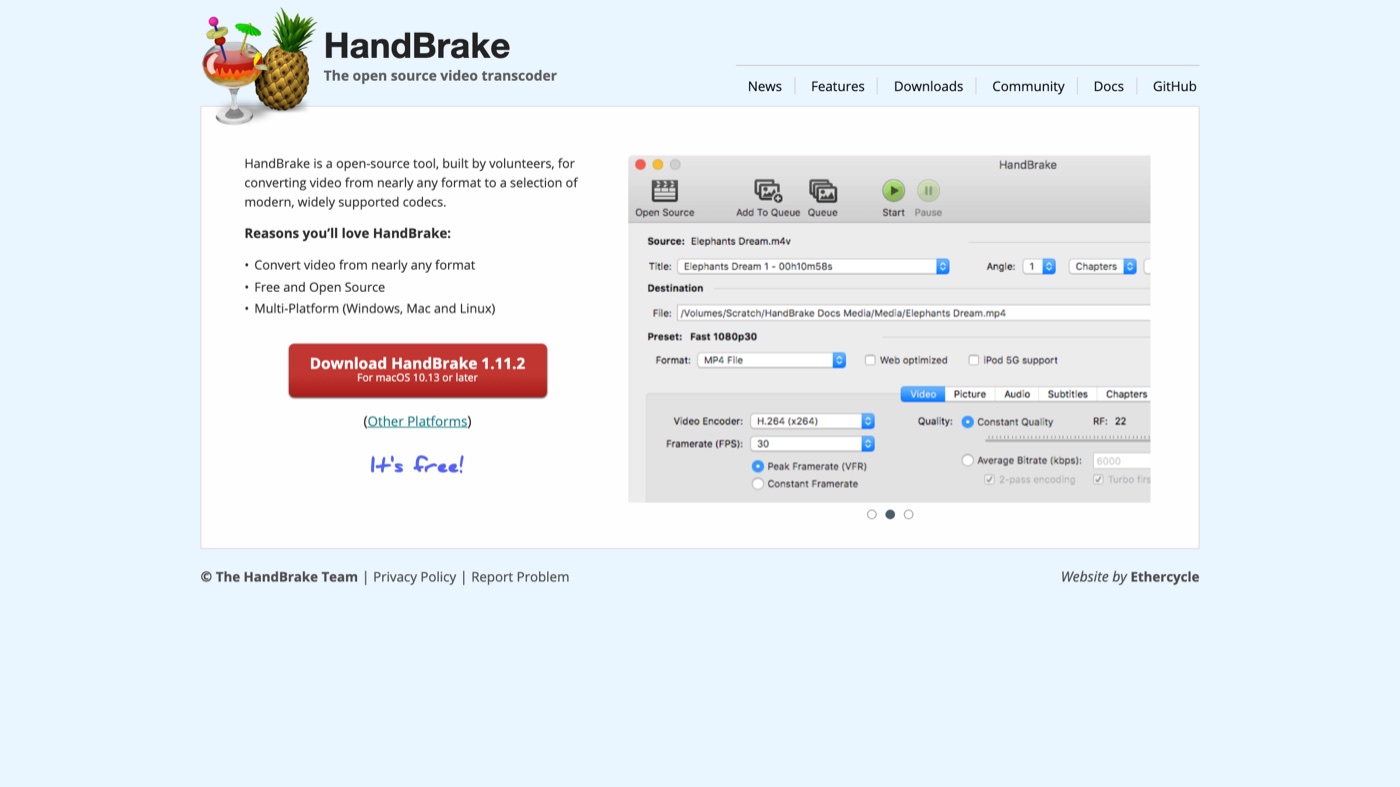
- Best for: People who want a dependable desktop converter for batch jobs and precise quality control.
- Pricing: Free and open source.
- Why it stands out: It is actively maintained, uses hardware acceleration on Intel, NVIDIA, and AMD chips, and encodes to H.264, H.265, and AV1. The batch queue and long list of device presets mean you can point it at a whole folder and walk away.
- Worth knowing: It only writes MP4, MKV, and WebM, so if a client needs a MOV or an AVI you are out of luck. The interface also throws a lot of settings at first-time users.
2. VLC Media Player
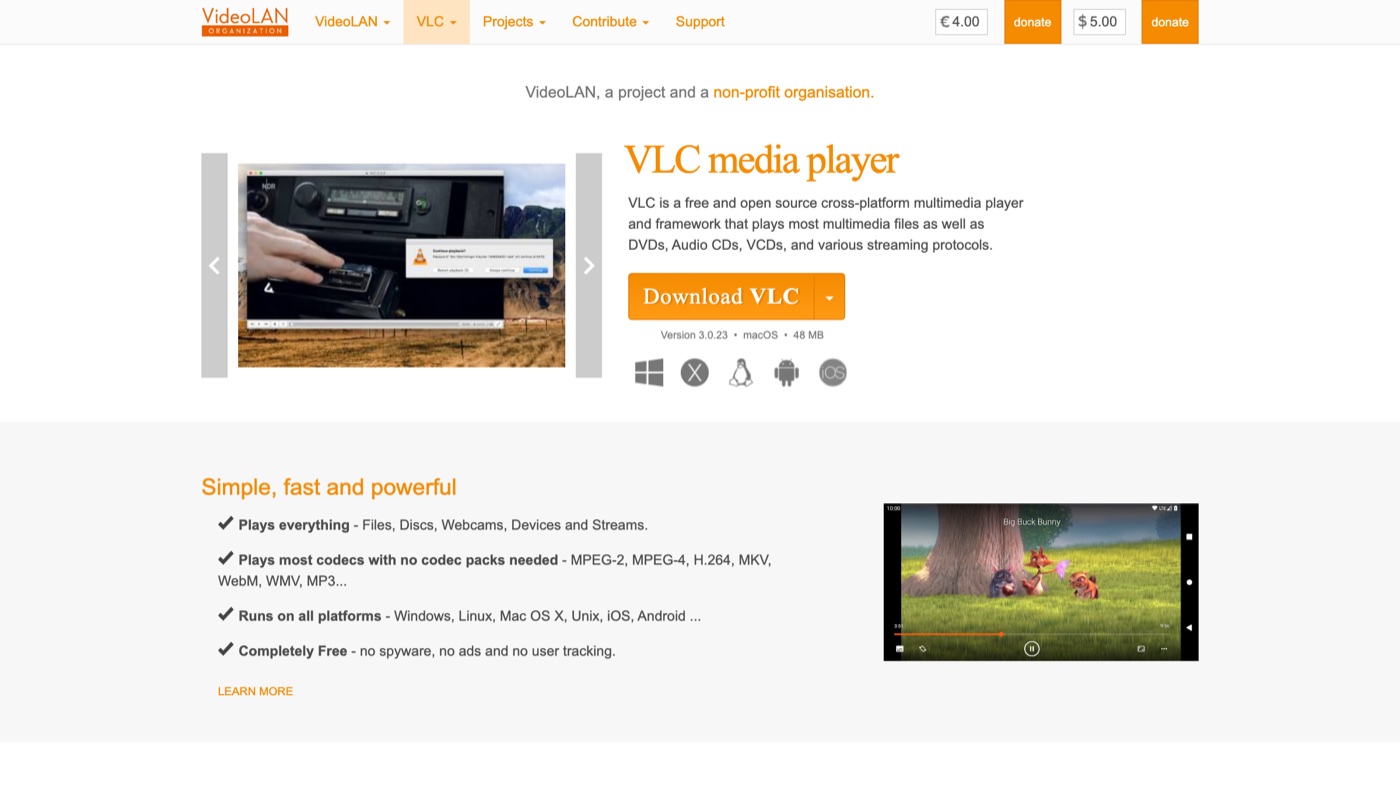
- Best for: Anyone who already has VLC and wants an occasional conversion without installing something new.
- Pricing: Free and open source.
- Why it stands out: The player almost everyone already has on their machine can also convert. Media then Convert/Save handles format changes, it opens practically any file you throw at it, and it runs on every platform.
- Worth knowing: The conversion menu is buried and awkward, the output profiles are limited, and it slows to a crawl on large files. Use it for one file, not two hundred.
3. FFmpeg
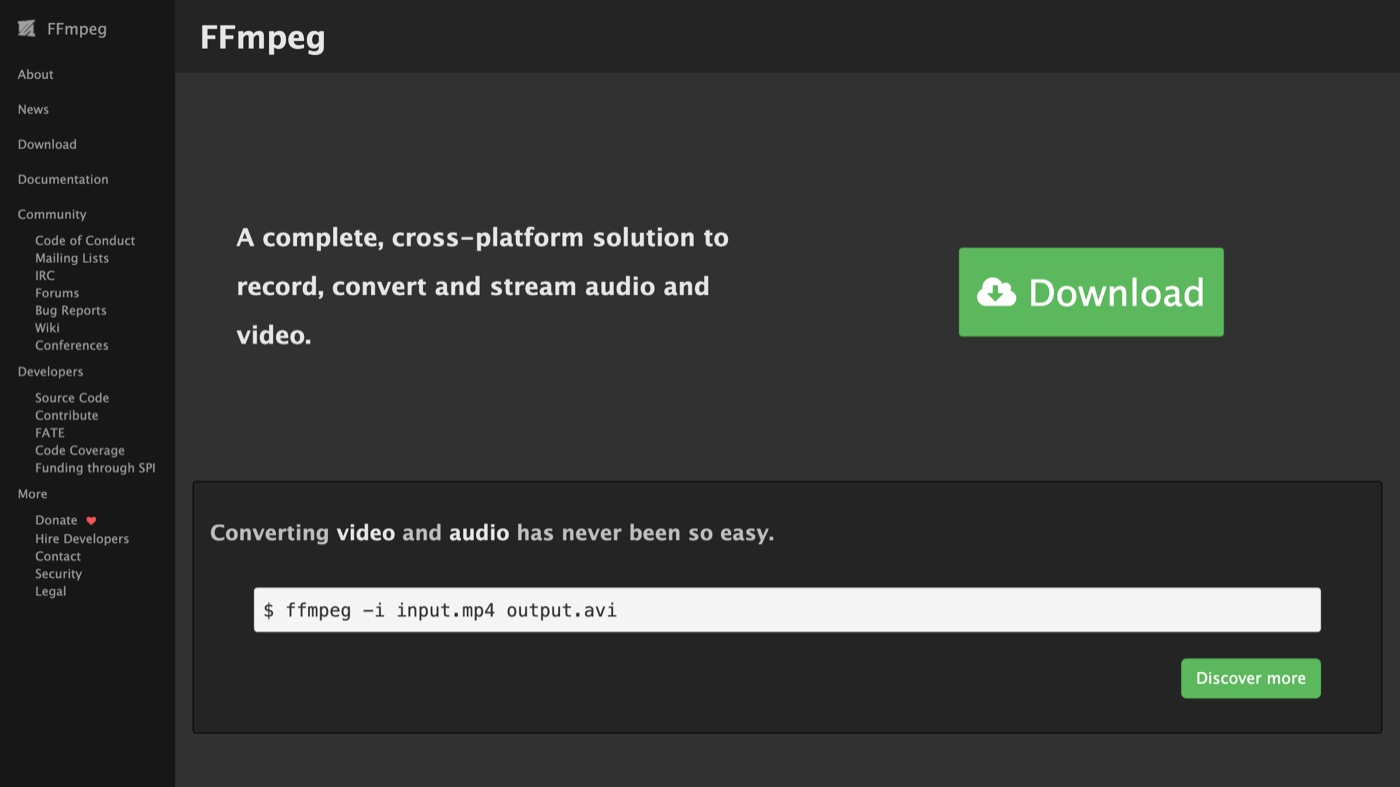
- Best for: Developers and anyone automating conversions inside a script or an app.
- Pricing: Free and open source.
- Why it stands out: It is the engine sitting under most of the other tools here, and running it directly gives you control over every codec, filter, and parameter. Wire it into a script and it will process thousands of files with no clicking involved.
- Worth knowing: It is command line only, the learning curve is real, and one wrong flag can downgrade quality without an error message.
4. Shutter Encoder
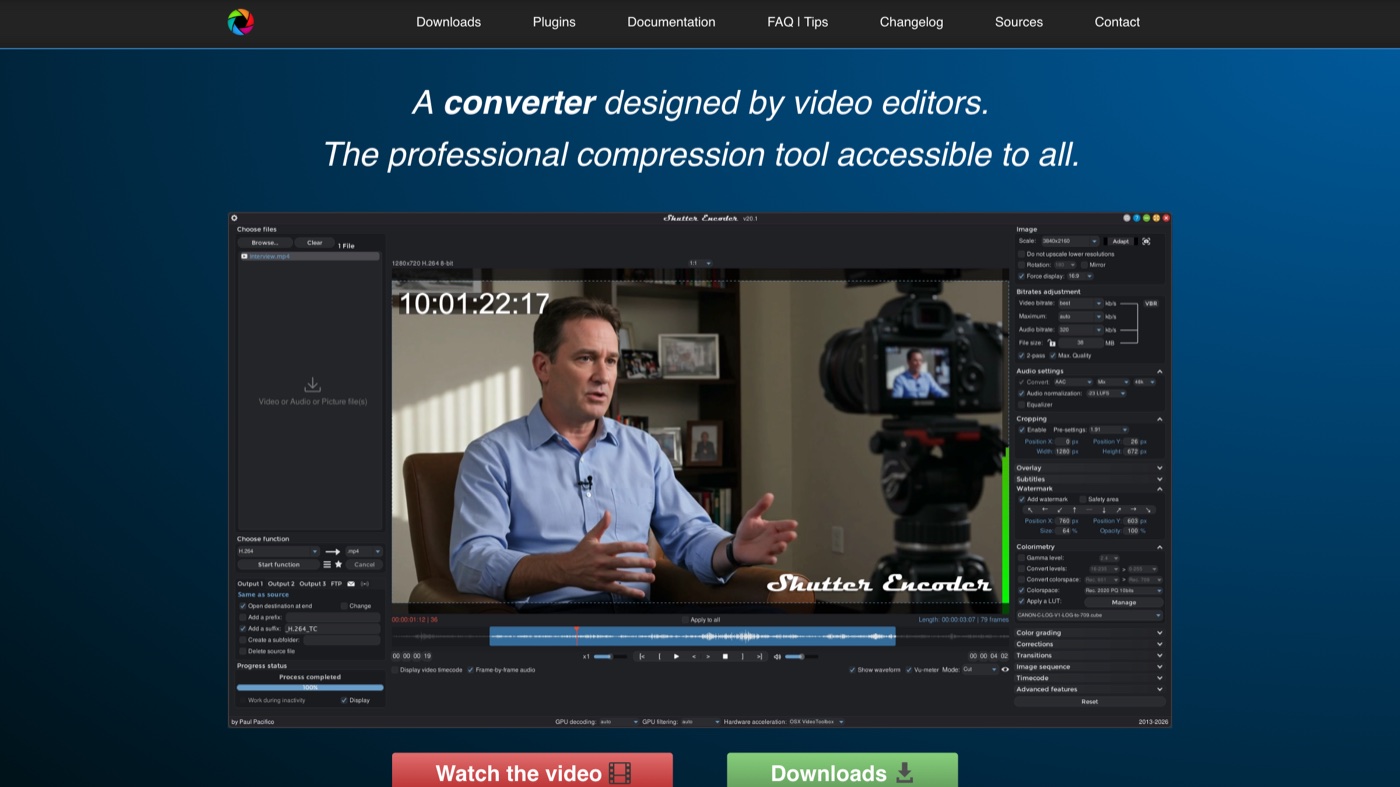
- Best for: Editors who want FFmpeg’s power with an actual interface, including professional codecs.
- Pricing: Free and open source, with donations welcome.
- Why it stands out: Built by a video editor on top of FFmpeg, it exports to ProRes, DNxHR, H.264, H.265, and AV1, handles audio and subtitles, and is recommended by Avid for Media Composer work. It has passed version 20 and more than three million downloads, so it is not going anywhere.
- Worth knowing: The dense layout takes a session or two to learn, and because it is one person’s project, help comes from the community rather than a support desk.
5. CloudConvert
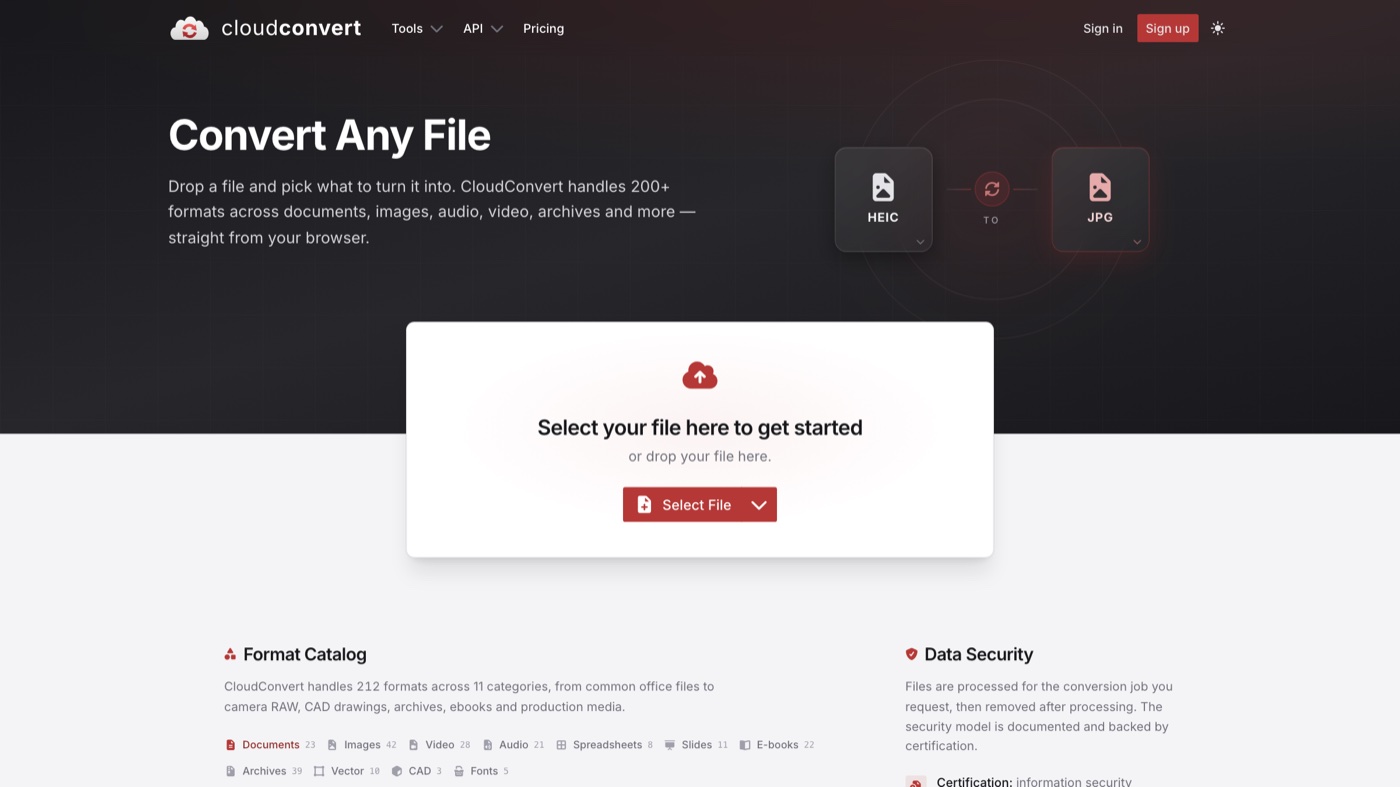
- Best for: Teams that want browser conversions plus an API to automate them.
- Pricing: Free for 10 conversions a day, with credit packs and monthly options beyond that.
- Why it stands out: It supports more than 200 formats, runs on cloud servers with GPU acceleration, connects straight to Google Drive, Dropbox, and Amazon S3, and pairs the web app with a solid developer API.
- Worth knowing: The daily free cap is only ten conversions, and because pricing runs on processing minutes, a stack of large 4K files adds up quickly.
6. Convertio
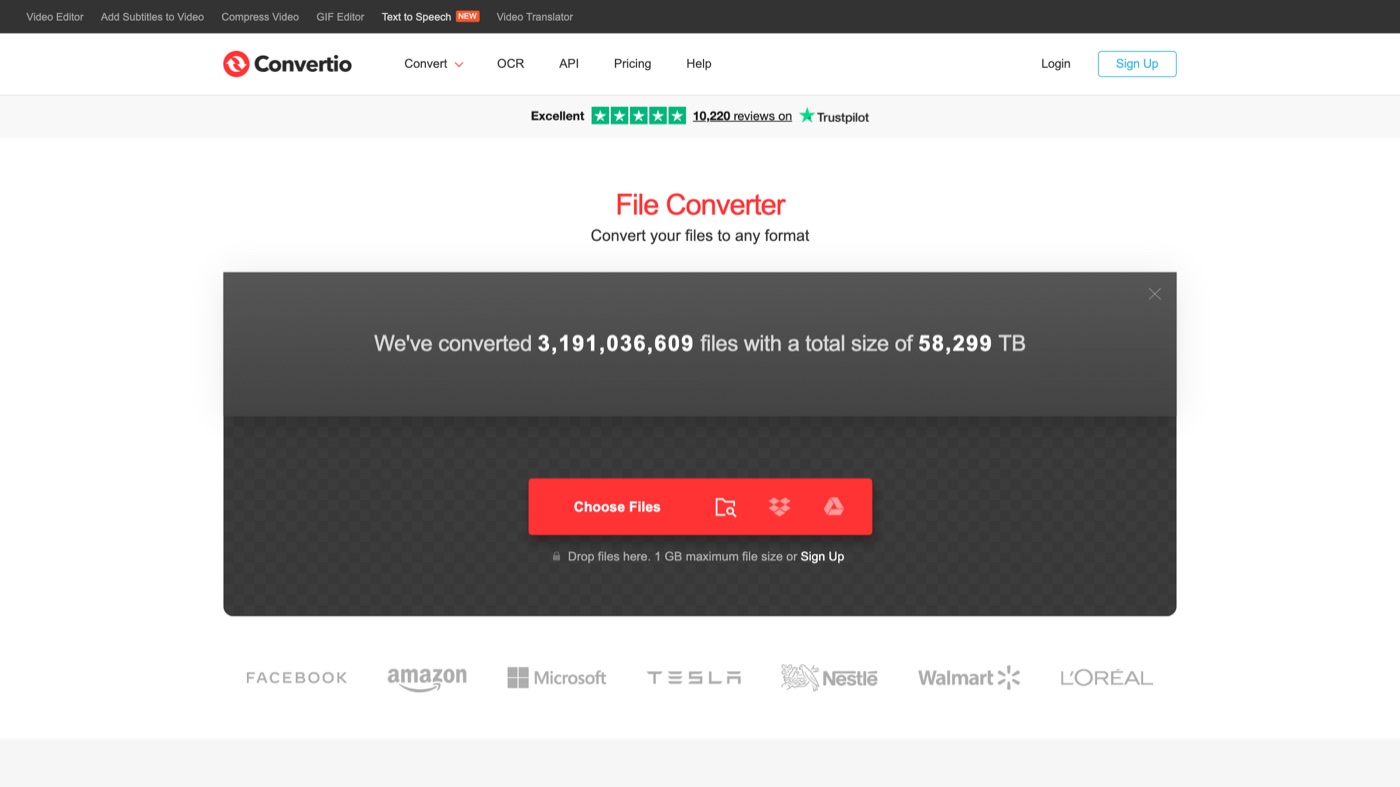
- Best for: Quick one-off conversions on any device, including a phone or a tightly managed work laptop.
- Pricing: Free tier available, with paid options from $14.99 a month.
- Why it stands out: More than 300 formats, drag and drop, adjustable codec, bitrate, and resolution, and files deleted from its servers after 24 hours. Everything runs in the browser, so nothing loads your own CPU.
- Worth knowing: The free tier caps files at 100 MB and around ten conversion minutes a day, so a long or high-resolution clip hits a wall fast.
7. FreeConvert
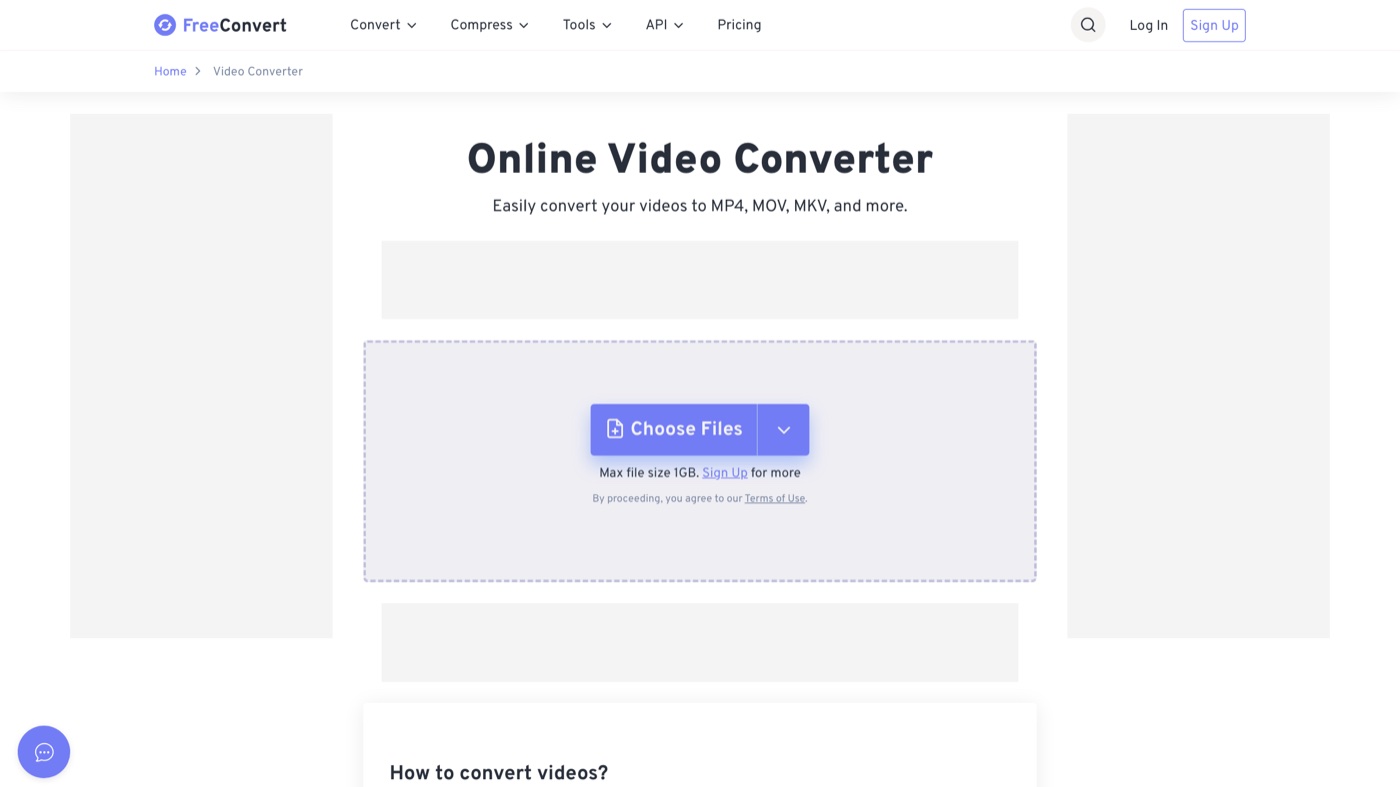
- Best for: People who want a straightforward online converter with a roomier free size limit.
- Pricing: Free up to 1 GB per file, with paid tiers for larger files.
- Why it stands out: It handles more than 60 video formats, allows files up to 1 GB without paying (bigger than most browser tools), offers device presets and advanced codec and bitrate controls, and encrypts uploads before auto-deleting them.
- Worth knowing: Large files sit in a queue on the free tier, ads come with it, and the biggest jobs need a paid upgrade.
8. Zamzar
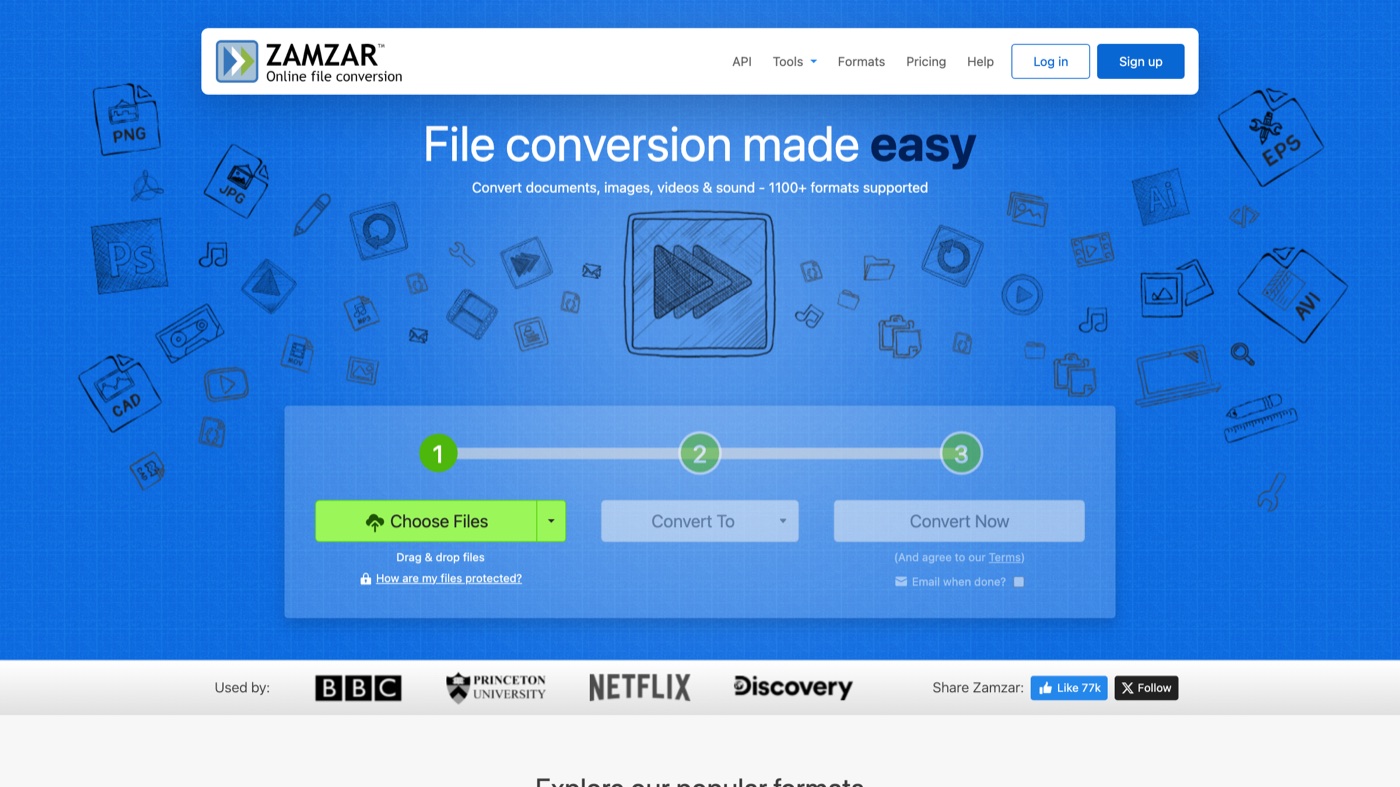
- Best for: Non-technical users and developers who both want a mature converter with a clean API.
- Pricing: Free for 2 conversions a day, with paid tiers from around $9 a month.
- Why it stands out: It has been running for more than twenty years, reads over 1,100 file types, and offers a simple web tool alongside a credit-based API with storage integrations for S3, FTP, and SFTP.
- Worth knowing: Two files a day on the free tier is tight, and a single long video can burn through a chunk of credits.
9. Adobe Media Encoder
- Best for: Editors already working in Premiere Pro or After Effects who need reliable, high-quality exports.
- Pricing: Bundled with Premiere Pro or After Effects; those single-app options run about $37.99 a month. It is not sold on its own.
- Why it stands out: A background queue and parallel encoding let you keep editing while renders run, watch folders automate repeat jobs, and it supports professional codecs like ProRes and HEVC with presets for every platform.
- Worth knowing: You cannot buy it standalone, so it only makes sense if you already pay for Creative Cloud.
10. Wondershare UniConverter
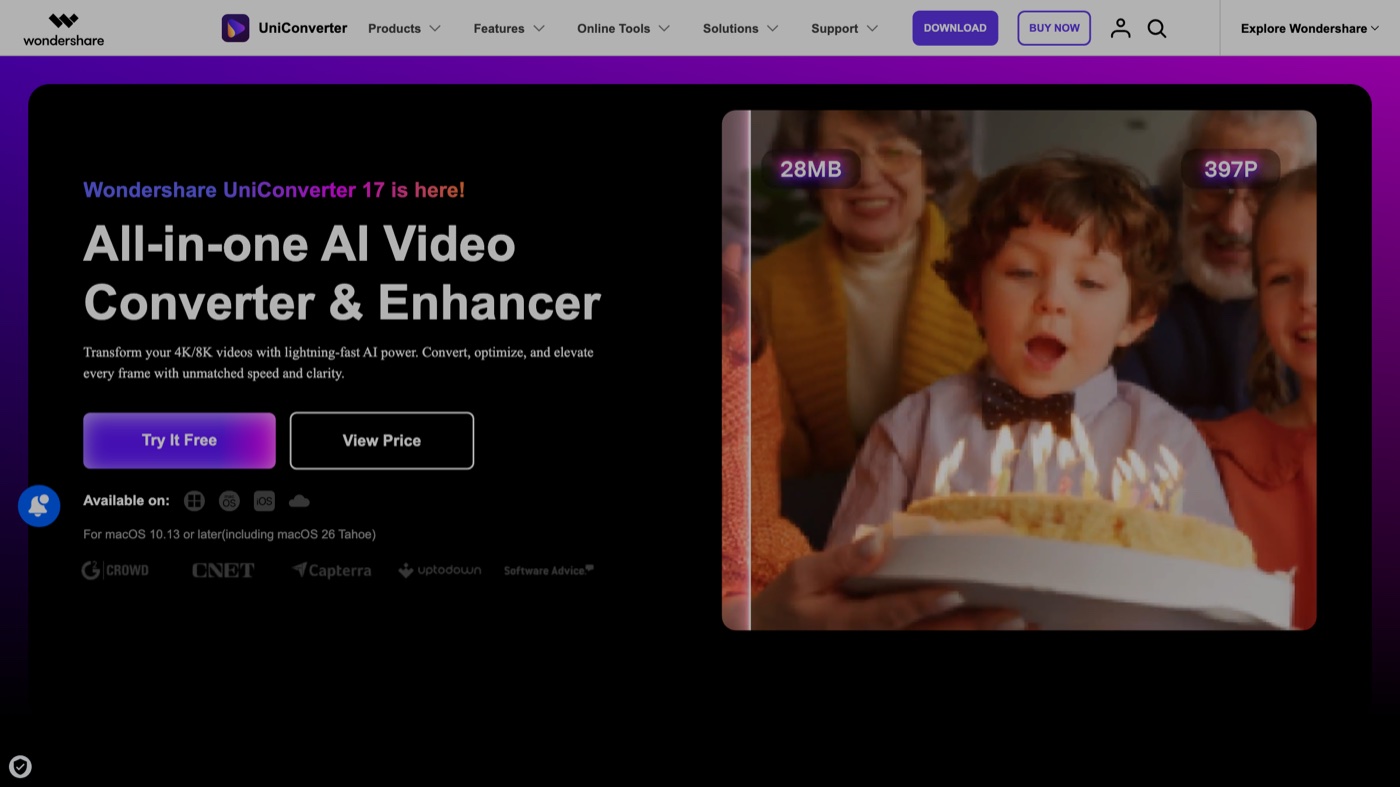
- Best for: Teams that want fast conversion plus light editing and AI extras in one place.
- Pricing: One-time license around $59.95, or an annual license from about $39.99 a year.
- Why it stands out: GPU acceleration, more than 1,000 formats, batch profiles, a built-in compressor, and AI tools for subtitles and enhancement make it a genuine all-rounder rather than a plain converter.
- Worth knowing: Some AI features run on a credit system, and the free version watermarks output and caps clip length.
11. Movavi Video Converter
- Best for: Beginners who want a clean, fast tool with device presets and a little trimming.
- Pricing: One-time license around $54.95, or an annual license from about $19.95 a year.
- Why it stands out: Its SuperSpeed mode remuxes files without re-encoding, so changing a container like MKV to MP4 is near-instant and lossless. It reads more than 180 formats, keeps the interface simple, and adds light editing and AI upscaling.
- Worth knowing: The trial version stamps a watermark on files, and it lacks the granular control that power users get from HandBrake or FFmpeg.
12. VideoProc Converter AI
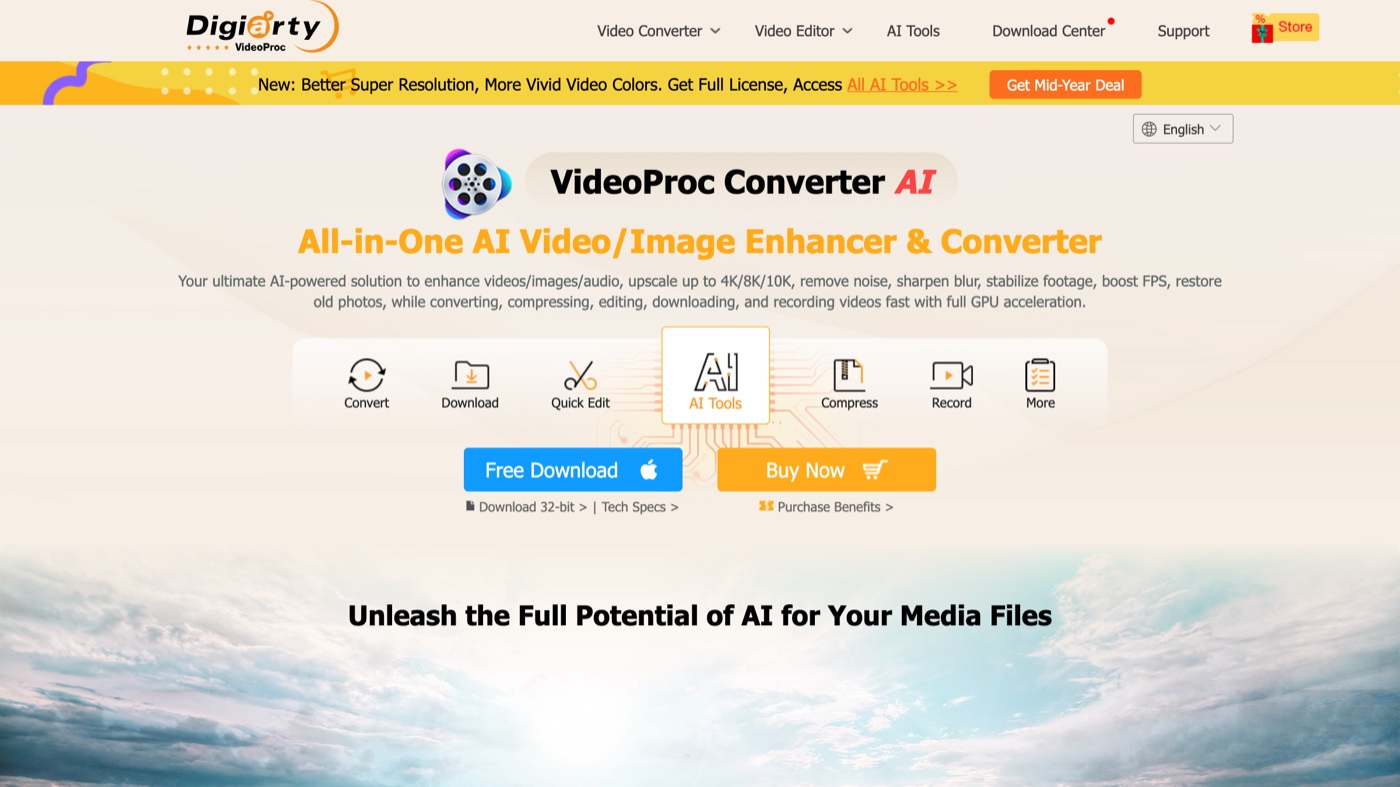
- Best for: People working with 4K or 8K footage who want maximum speed and AI restoration.
- Pricing: One-time license from about $45.95 for one computer.
- Why it stands out: Full GPU acceleration across Intel, NVIDIA, AMD, and Apple Silicon makes big files move fast, and it reads more than 370 input codecs. On top of conversion it offers AI super resolution, frame interpolation, and stabilization for rescuing old clips.
- Worth knowing: It is a desktop app for Windows and Mac, so real-world speed depends on your hardware, and the trial caps output.
| # | Tool | Best for | Pricing | Limitation |
|---|---|---|---|---|
| 1 | HandBrake | A dependable free desktop converter for batch jobs and quality control | Free and open source | Only writes MP4, MKV, and WebM, so it cannot export MOV or AVI, and the interface is dense for first-timers. |
| 2 | VLC Media Player | Occasional conversions using the player you already have | Free and open source | The conversion menu is buried and clunky, profiles are limited, and it is slow on large files. Not built for batch work. |
| 3 | FFmpeg | Developers automating conversions inside scripts or apps | Free and open source | Command line only, with a steep learning curve, and a wrong flag can downgrade quality without any error. |
| 4 | Shutter Encoder | Editors wanting FFmpeg's power with a real interface and pro codecs | Free and open source, donations welcome | The dense layout takes a session to learn, and support is community-based rather than a help desk. |
| 5 | CloudConvert | Teams wanting browser conversions plus an API to automate them | Free for 10 conversions a day, then credit packs or monthly options | The free daily cap is only ten, and per-minute pricing means large 4K jobs add up fast. |
| 6 | Convertio | Quick one-off conversions on any device, phone included | Free tier, paid options from $14.99 a month | The free tier caps files at 100 MB and about ten conversion minutes a day, so long or high-res clips hit a wall. |
| 7 | FreeConvert | A straightforward online converter with a roomier free size limit | Free up to 1 GB per file, paid tiers for larger files | Large files queue on the free tier, ads are present, and the biggest jobs need a paid upgrade. |
| 8 | Zamzar | Non-technical users and developers wanting a mature converter with an API | Free for 2 conversions a day, paid tiers from around $9 a month | Two files a day on the free tier is tight, and a single long video burns through credits. |
| 9 | Adobe Media Encoder | Editors already in Premiere Pro or After Effects needing reliable exports | Bundled with Premiere Pro or After Effects, around $37.99 a month; not sold standalone | You cannot buy it on its own, so it only makes sense if you already pay for Creative Cloud. |
| 10 | Wondershare UniConverter | Teams wanting fast conversion plus light editing and AI extras | One-time license around $59.95, or annual from about $39.99 a year | Some AI features run on a credit system, and the free version watermarks output and caps clip length. |
| 11 | Movavi Video Converter | Beginners wanting a clean, fast tool with presets and light trimming | One-time license around $54.95, or annual from about $19.95 a year | The trial version watermarks files, and it lacks the granular control power users get from HandBrake or FFmpeg. |
| 12 | VideoProc Converter AI | People working with 4K or 8K footage who want speed and AI restoration | One-time license from about $45.95 for one computer | It is a Windows and Mac desktop app, so speed depends on your hardware, and the trial caps output. |
How to pick the right one
Start with what you can actually run. On a personal machine, install HandBrake and you will rarely reach for anything else. On a work laptop where installs are blocked, a browser tool such as CloudConvert, FreeConvert, or Convertio does the job without admin rights. If you are converting hundreds of files or building conversion into an app, FFmpeg or the CloudConvert and Zamzar APIs are made for exactly that.
Then think about where the video is heading. A file bound for YouTube, LinkedIn, or a website has a target it should match, and Google publishes its recommended upload encoding settings if you want the exact numbers. Reformatting for a vertical feed is its own question, so check the correct vertical video dimensions before you export rather than after. And if all you really need is a few seconds turned into a shareable loop, you can skip this whole list and run our browser-based video-to-GIF tool instead.
When a converter is not what you need
Every tool here changes the wrapper around your video. None of them change what is inside the frame. If your MOV plays fine and a client just needs an MP4, any of these will sort it out in minutes and you can close the tab.
The moment the footage itself needs work, you have stepped past what a converter can do. Recutting a piece, fixing pacing, matching color across shots, or adding motion graphics is editing, and that calls for real editing software rather than a format tool; our roundup of the best video editing software is the better place to start there. And when the work is bigger than any single file, when you need a steady flow of finished video that holds its quality and stays on brand, that is more a people question than a software one. Moonb exists for that gap: a dedicated creative team, led by a Creative Director, that works alongside your marketing team and produces video, design, motion, and animation as an ongoing partnership. A converter is a two-minute fix. Hiring a team is for when two minutes was never the problem.
Frequently asked questions
For a desktop app, HandBrake is the one I reach for first: free, open source, and reliable across MP4, MKV, and WebM. If you cannot install software, CloudConvert or Convertio handle it in the browser, and if you are comfortable with a command line, FFmpeg gives you total control. VLC is worth remembering too, since most people already have it installed and it can convert in a pinch.
It depends on what you change. Swapping only the container, for example MOV to MP4 while keeping the same H.264 video inside (remuxing), loses nothing and takes seconds. Re-encoding into a different codec re-compresses every frame and shaves a little quality each time, so keep the bitrate high or use a near-lossless preset, and avoid converting the same file back and forth repeatedly.
MP4 with the H.264 codec is the safe universal default and plays almost everywhere. If the destination supports them, HEVC or AV1 give you smaller files at the same quality, and WebM suits the web. Always match the target platform's spec, since a rejected upload is usually a codec issue rather than the file extension.