How to Import Music Into PowerPoint: A 2026 Guide
Add music to PowerPoint the right way in 2026: import steps for Windows and Mac, playback settings, file formats, common fixes, and licensing.

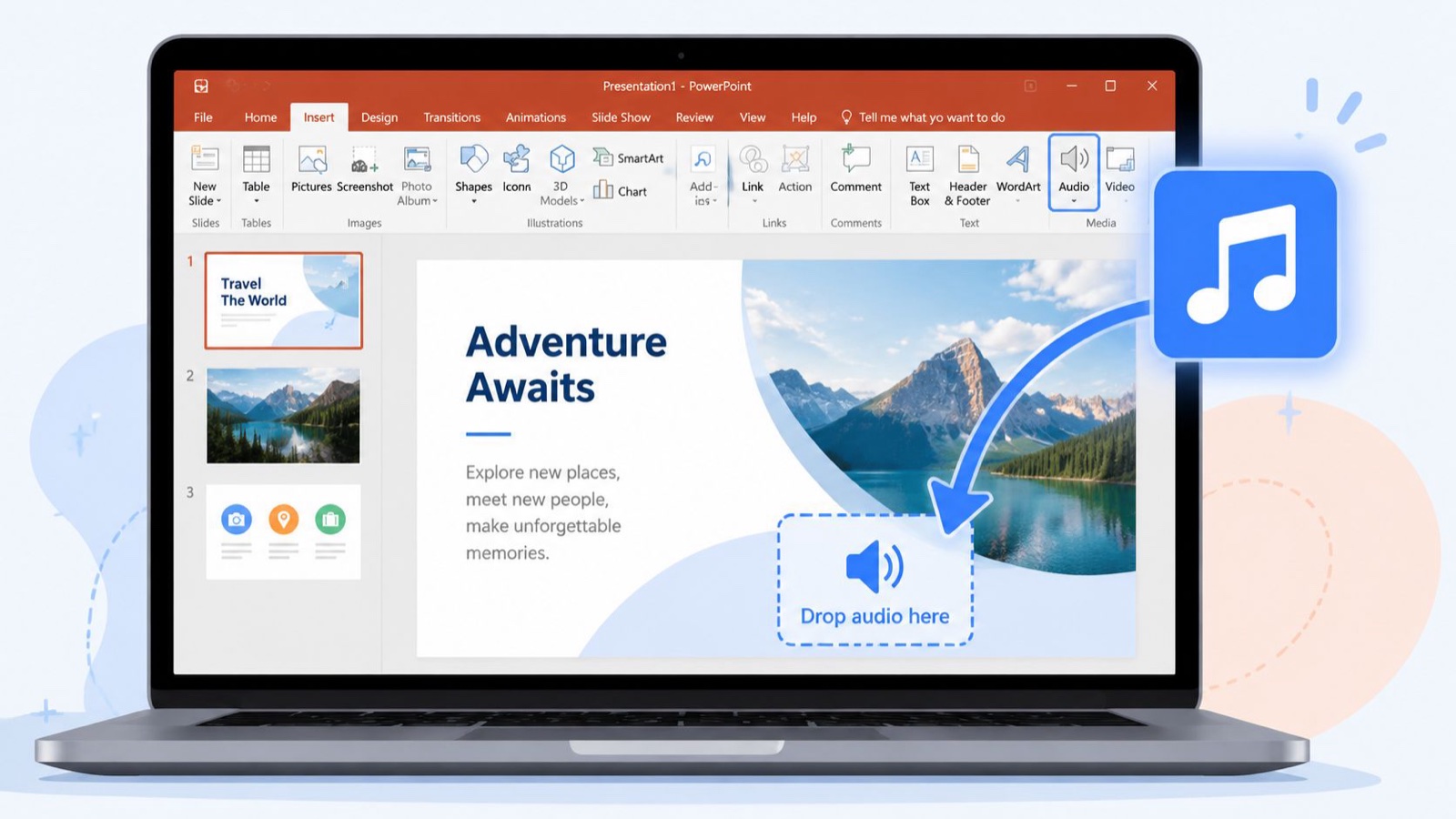
You have probably been here. The deck looks sharp, the slides are on brand, the story lands, and then the audio turns into a mess. A song fires half a second too early. The music cuts out every time you advance, and the speaker icon sits in the corner of the slide like an accident.
That part matters more than people expect. Audio changes how a presentation feels. It can make a sales deck feel calm and sure of itself, or make a product walkthrough feel finished instead of rushed. If you build decks for launches, training, or investor updates, sound is part of the experience, not an add-on.
Plenty of teams also reuse deck content in recorded formats. So the choices you make inside PowerPoint can shape what happens later, when someone turns the slides into a screen recording or a short video. Setting the audio up well pays off twice: once in the live room, once in post.
Why Good Audio Matters in Your Presentation
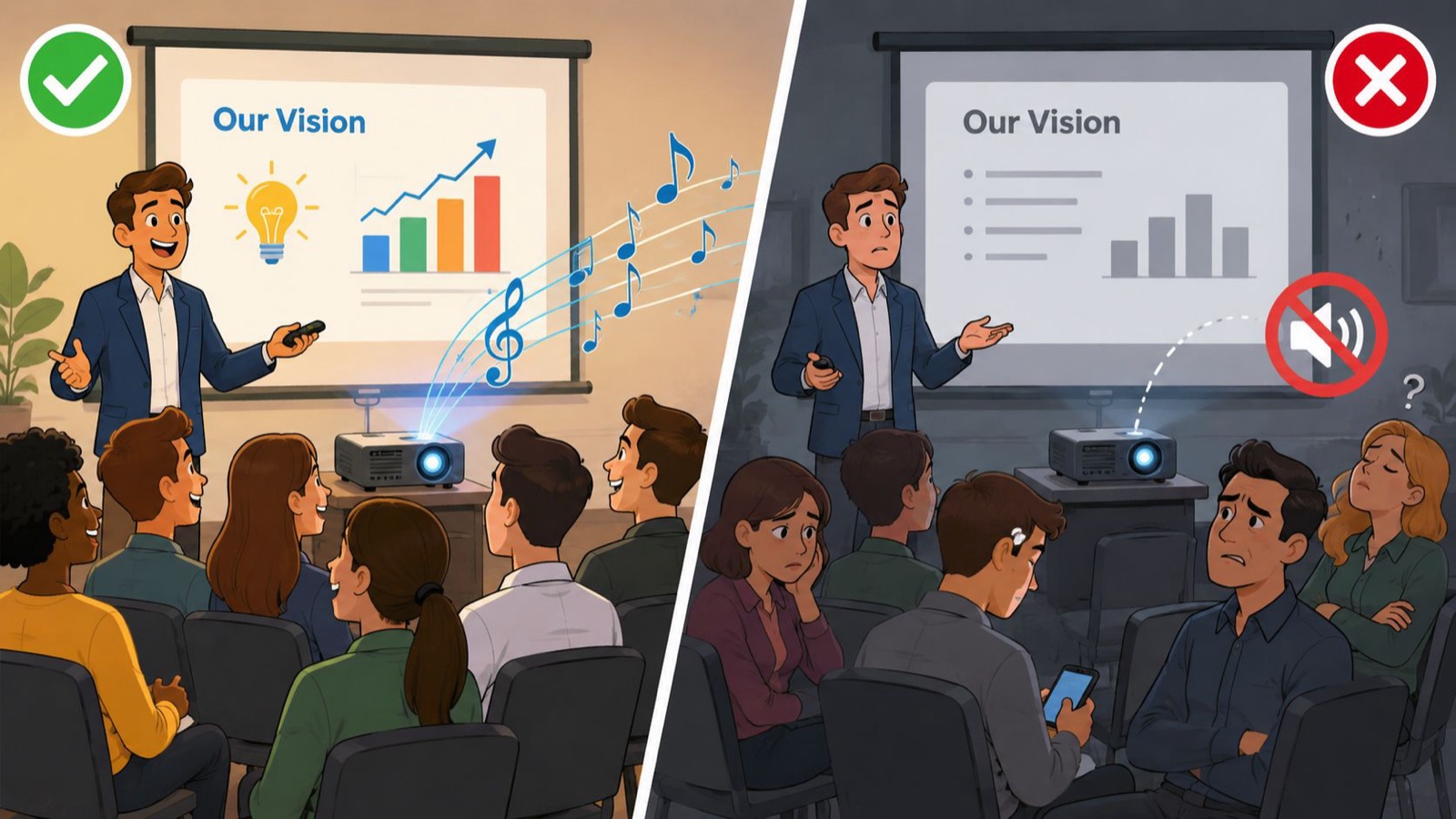
A silent presentation is not always a problem. Sometimes it is the right call. Awkward silence usually is not intentional though, and bad music timing is worse, because everyone in the room notices it at the same moment.
Marketing and brand teams hit this constantly. Someone drops a track in at the end of the process, clicks through a few slides, and assumes it is fine. Then the deck opens in a boardroom or over a video call, and the music restarts on every slide or buries the voiceover. The content is still correct. It just does not feel finished.
Audio Sets the Tone Fast
People read design cues in an instant, and they do the same with sound. A soft ambient bed puts the room in a different mood than an energetic pop track, and either one sends a message before the presenter reaches the first point.
That is why I give audio the same attention as layout and typography. If you are already refining structure and story, the soundtrack deserves a few deliberate choices too. Teams that get this right tend to build stronger decks overall, because they treat a presentation as a full piece of communication rather than a stack of slides. If you are tightening the whole thing, this presentation deck guide pairs well with what follows.
Practical rule: if the music pulls attention to itself instead of supporting the message, it is doing too much.
Where Music Actually Helps
Music works best when it has a job. In practice that usually means one of these:
- Setting the room: Intro slides, event walk-ins, and opening title frames often benefit from light background music.
- Carrying a recorded deck: If the presentation will be exported or shared to watch later, music helps hold the pacing.
- Smoothing transitions: One track running across several slides feels more polished than dead stops between sections.
It works less well when the presenter talks the whole way through and the music was never mixed with narration in mind. That is where most decks come apart. Usually the fix is control over how and when the music plays.
Adding Music to Your PowerPoint Slides
The import step itself is simple. The trick is knowing which version of PowerPoint you are in, and what to expect once the file lands on the slide.
Modern PowerPoint handles MP3, WAV, and M4A. You add a file from Insert > Audio > Audio on My PC, and MP3 is usually the easiest place to start because it plays back reliably and travels well between machines.
On Windows
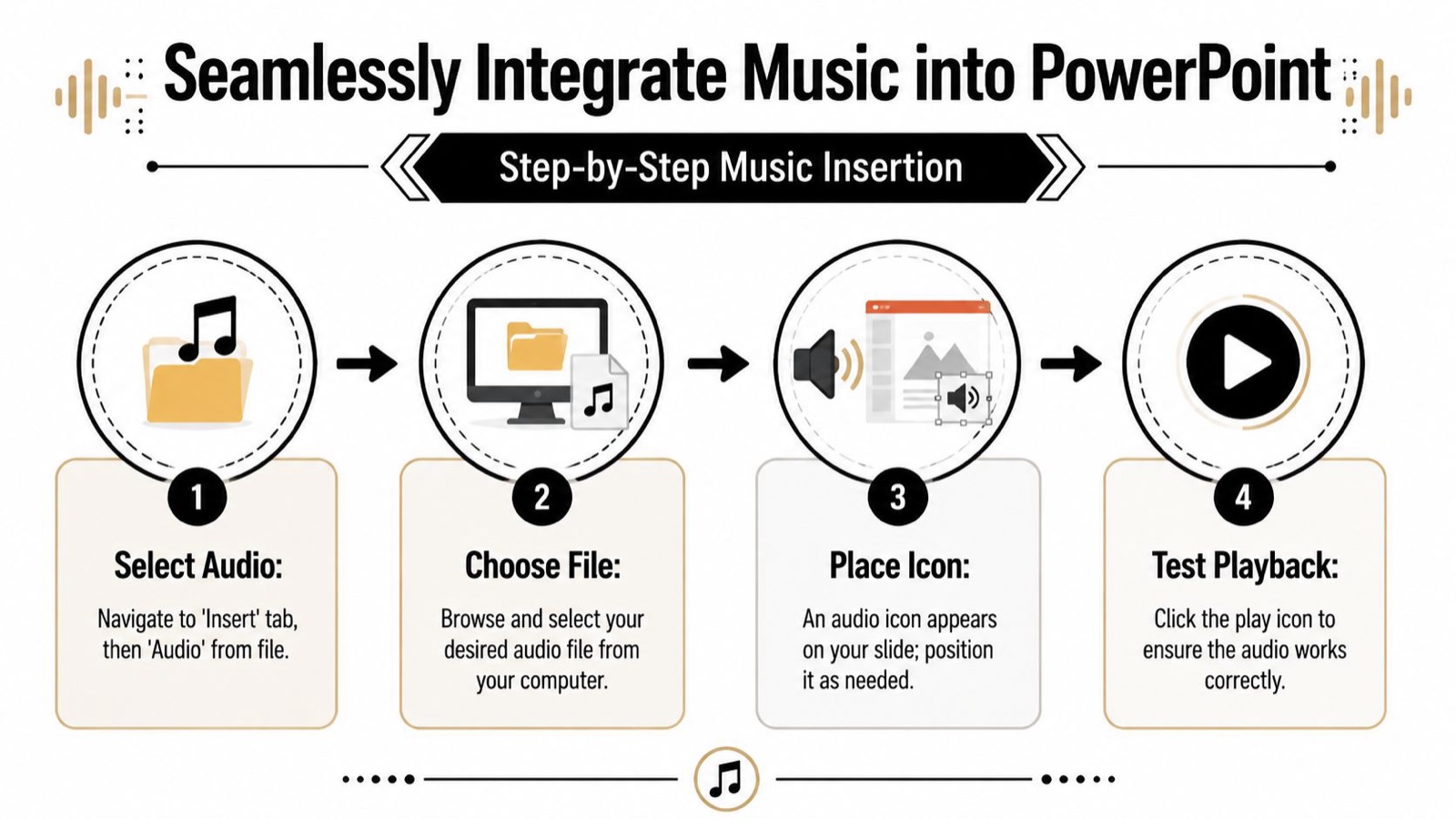
The Windows path is the clearest. Open the Insert tab, click Audio in the Media group, and choose Audio on My PC to browse for your file. The track drops onto the slide as a clickable speaker icon.
Do not stop once the icon appears. That icon is only the starting point. You still have to decide whether the track begins on click or automatically, and whether it stays on one slide or runs across the deck.
A simple Windows workflow:
- Pick the start slide: Insert the file on the slide where you want the music to begin.
- Use a local file: Pull from your computer, not a cloud folder that might not sync right before a meeting.
- Test immediately: Click the speaker icon and preview the file before you move on.
On Mac
PowerPoint on Mac follows a similar flow, even if the menu wording shifts a little by version. You still insert audio from the ribbon, choose a file from your machine, and place it on the current slide.
The advice is the same. Use a clean file name, keep the audio in the same project folder as the deck while you work, and test playback in slideshow mode rather than in edit view. A clean insert does not guarantee reliable playback. Run it once in presentation mode to be sure.
If you are recording a narrated deck afterward, insert and test the music before you record your screen. Fixing the timing early beats redoing the whole capture later.
If your process includes turning slides into demos or walkthroughs, this software demo presentation guide helps once the deck audio behaves.
On PowerPoint for the Web
The web version is fine for light edits, comments, and reviewing content. It is not the one I would pick for audio-heavy work if you want dependable control.
You may be able to work with existing media there, but when timing, playback behavior, and cross-slide continuity matter, the desktop app is safer. If your team starts in the browser, finalize the audio in the desktop version before the deck goes live.
What to Do Right After You Import
A lot of people import the file and move on. That is where the clunky experience starts. As soon as the speaker icon appears, check three things:
- Placement: Move the icon somewhere easy to find while you edit.
- Naming: If you have several audio items, rename the files outside PowerPoint first so you can keep track.
- Intent: Decide whether this track is background music, a one-slide cue, or part of a narrated sequence.
That small pause saves a lot of cleanup later.
Choosing the Right Audio File Format
Before you think about timing, think about the file itself. Format affects compatibility, file size, and how easy the deck is to pass around your team.
PowerPoint supports MP3, WAV, and M4A, and MP3 is usually the most compatible option. It also keeps files small. An MP3 is a fraction of the size of the same audio in uncompressed WAV, so a deck built on WAV can balloon fast. For presentation work, that size difference is hard to argue with.
Why MP3 Is Usually the Right Call
Most decks do not need studio-grade audio. They need stable playback and a file size that stays manageable as the deck moves between machines.
That is why MP3 is my default for shared work. It keeps the PowerPoint file easy to manage and lowers the chance that someone chokes on oversized media when the deck goes around for review.
When WAV or M4A Makes Sense
WAV still has its place. If you are working from a master deck that stays in-house and audio quality matters more than file size, WAV gives you more headroom. You pay for it with heavier files that are harder to send around.
M4A can work well too, especially if the source file is already in that format. But if a team asks me for the safest handoff format inside PowerPoint, I still point to MP3 first.
Here is the practical comparison.
| Format | Best For | File Size | Compatibility |
|---|---|---|---|
| MP3 | Most business presentations, shared decks, general background music | Smaller | Highest practical compatibility in PowerPoint |
| WAV | Internal master files, cases where a larger uncompressed file is fine | Large | Supported, less convenient for sharing |
| M4A | Existing exported audio, some narration or music workflows | Moderate | Supported in PowerPoint |
A Simple Rule for Teams
Choose the format based on how the deck will move.
- Shared widely: Use MP3.
- Edited heavily in-house: WAV is fine if everyone expects a larger file.
- Already exported as M4A: Keep it if playback tests cleanly.
If file handling is already causing friction, this guide to converting video formats covers the broader media side of presentation work, and our rundown of the best video formats walks through how size and quality trade off.
Getting Your Playback Settings Right
Importing the file is the easy part. Playback settings are what make a presentation feel deliberate.
PowerPoint has built-in audio trimming, which changed the workflow in a useful way. You can cut a track to a specific start and end point inside the app, which helps a lot when you only need a clean section of a song or an ambient bed.
Start With the Playback Tab
Click the audio icon, then open the Playback tab. Most of the useful controls live there.
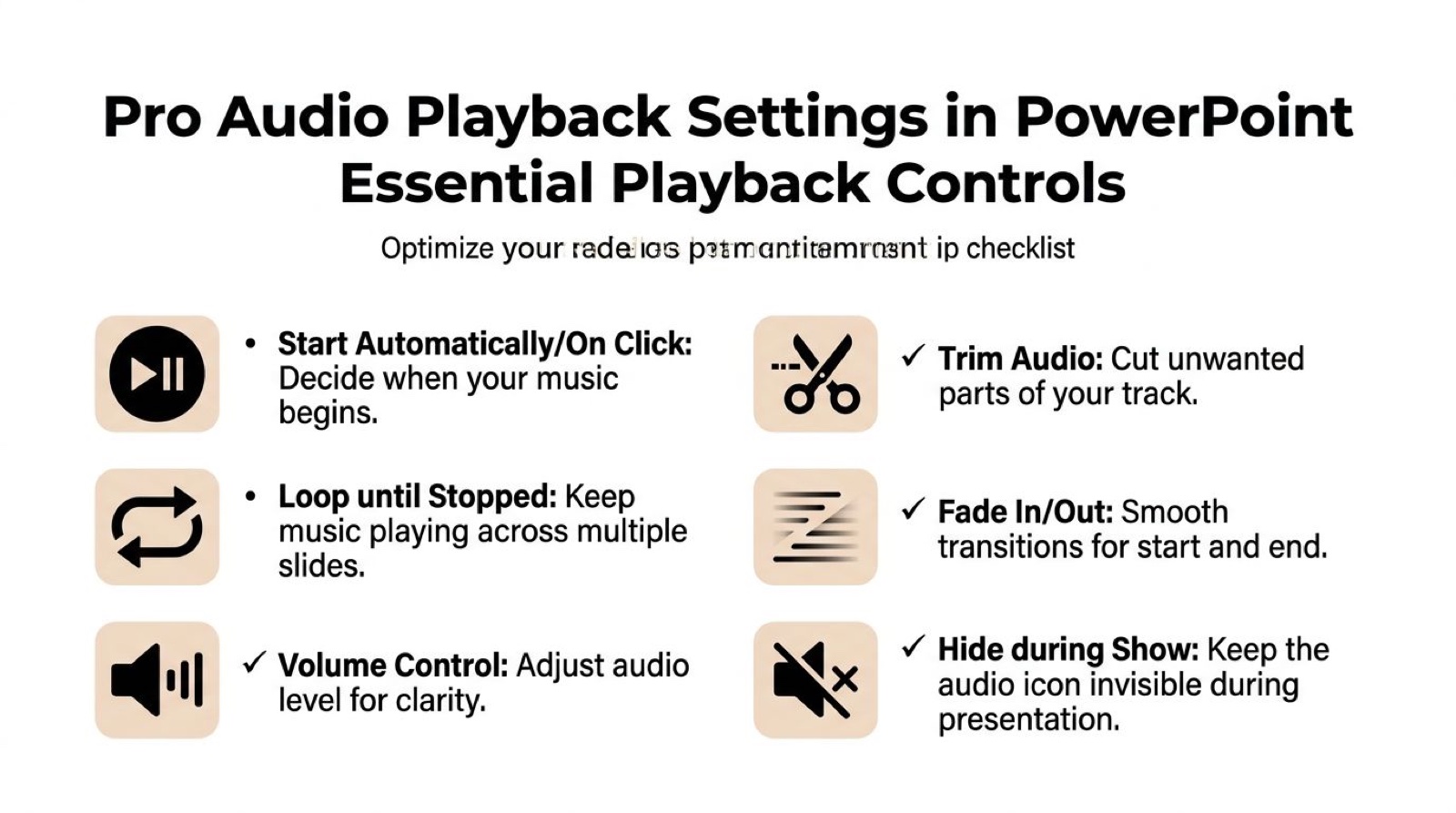
The first decision is how the audio should start. If the music is part of the experience, set it to start automatically. That removes the awkward moment of hunting for a tiny speaker icon in the middle of a live talk.
The second decision is whether it should keep playing as slides change. Play Across Slides is the setting that stops the track from restarting every time you advance.
Use Play in Background for a Fast Setup
If you want one simple option, use Play in Background. Microsoft built it as a shortcut that bundles the settings you usually want for continuous music: it loops the audio, hides the icon during the show, and plays across all slides.
That is ideal for event loops, title sequences, and self-running decks, anywhere the music should feel invisible in the best way.
Quick check: if you can see the speaker icon during the slideshow, go back and fix the playback settings before the deck goes anywhere.
Hide the Icon and Clean Up the Slide
A common visual slip is leaving the speaker icon visible in presentation mode. PowerPoint has a Hide During Show checkbox for exactly this, and it is worth using whenever the icon is not meant to be part of the design.
That keeps the slide looking intentional and avoids the odd moment where viewers notice a stray media symbol sitting over carefully designed content.
Trim the Track Inside PowerPoint
For a lot of decks you do not need the whole song. You might want an intro segment, a gentle loop section, or the part without vocals.
Use Trim Audio and drag the green and red markers to set the start and end. It is quick, and it is often enough for presentation work. Non-lyrical passages usually sit better under spoken content, so trim toward those if narration is coming.
A good workflow for trimmed music:
- Find the clean section: Skip intros that take too long to build.
- Cut around lyrics if needed: Instrumental passages are easier to talk over.
- Preview the exact trim: Do not assume the markers landed where you wanted.
Control How Many Slides the Music Covers
Sometimes you do not want the track running through the whole deck. You want it to stop after the opener, the section break, or the demo block.
For that, open the Animation Pane, double-click the audio item, and use the Effect settings to tell PowerPoint how many slides the audio should keep playing before it stops. That level of control is handy for longer decks with clear sections.
A simple way to choose:
| Setting | Use It When | Result |
|---|---|---|
| Start Automatically | The audience should hear music as soon as the slide appears | No extra click needed |
| Play in Background | You want a one-click setup for continuous music | Loops, hides icon, plays across slides |
| Trim Audio | You only need part of the track | Cleaner pacing |
| Animation Pane slide count | Music should stop after a defined section | More exact control |
Do Not Forget the Room
Even the best PowerPoint settings will not fix bad playback hardware. Before a live talk, test on the actual speakers in the actual room if you can. Small laptop speakers make a balanced track sound thin, and conference room speakers can exaggerate bass or bury narration.
Microsoft’s own guide to playing music across multiple slides is worth a look if you want the official reference for the cross-slide settings.
If you would rather watch the whole flow once before trying it, this walkthrough runs through the background-music setup end to end.
Common Audio Problems and Quick Fixes
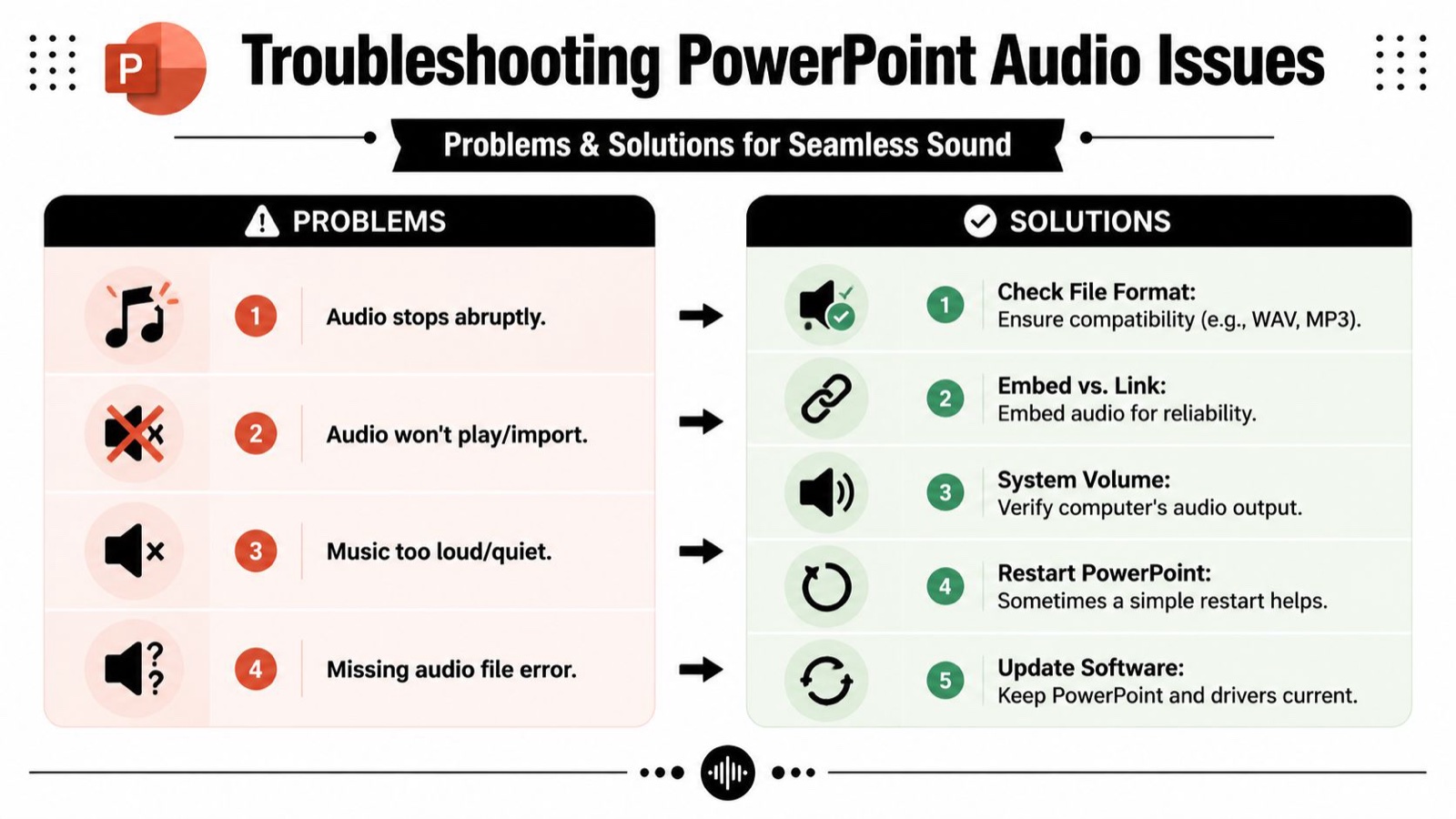
Most PowerPoint audio problems are not dramatic. They are small setup issues that only surface when the deck is under pressure, which is exactly why they are frustrating. Everything looks fine until the rehearsal, the client review, or the talk itself.
The fixes are usually simple once you know where to look.
When the Audio Stops Too Early
This usually means the track is set to play on the current slide only, not across slides. It can also happen when someone assumed a transition setting would carry the audio forward on its own.
Fix it by checking the playback behavior tied to the audio object itself. If the deck has sections, decide up front whether you want continuous playback or a controlled stop point. Do not leave it to chance.
When the File Will Not Play or Import
This often comes down to the file format or the file itself. Corrupt exports happen. Odd codec choices happen. So do files that open fine elsewhere but behave badly in PowerPoint.
Start with the basics:
- Use a supported format: MP3, WAV, or M4A.
- Re-export the file: If playback is inconsistent, make a fresh version from the source audio.
- Test on another machine: That tells you whether the problem is the file or your local setup.
When the Music Is Too Loud or Too Soft
This is less about PowerPoint and more about the source track. If the music feels overpowering, lowering the volume inside PowerPoint helps a little, but it will not fix a badly balanced mix.
That matters even more with narration. If music and voice compete, lowering the music everywhere blunts the whole track. The better move is to bring it down only while someone speaks.
The professional move is to duck the music under the voice, then lift it again when the voice stops.
Audio Ducking Is the Step Most Guides Skip
Audio ducking means the background music automatically drops in volume during speech and rises again when the voice stops. It is standard practice in video and podcast work, and still mostly missing from basic PowerPoint guides.
PowerPoint is not the tool for dynamic ducking. If your presentation pairs voiceover with music, the cleaner approach is to build a pre-mixed track in an audio or video editor first, then import that finished file. You get smoother level changes and clearer narration.
A reliable workflow:
- Mix outside PowerPoint: Build one combined file with narration and music already balanced.
- Keep the music low: Background means background.
- Import the final mix: Treat PowerPoint as the playback container, not the mixing desk.
When the Deck Breaks After You Send It
This one usually shows up as a missing-file error or silent playback on someone else’s machine. The safest habit is to keep the presentation and all of its media in one project folder while you build, then test the exact file you plan to send.
A quick troubleshooting table:
| Problem | Likely Cause | Fast Fix |
|---|---|---|
| Music stops on slide change | Playback is not set across slides | Adjust playback settings for continuity |
| Audio will not import | File format or export issue | Re-export as MP3, WAV, or M4A |
| Narration is hard to hear | Music and voice are competing | Create a ducked pre-mix |
| Missing audio on another device | File handling or packaging issue | Re-test the shared presentation file |
Music Licensing for Business Presentations
This is the part teams skip when they are moving fast, and it is the part that can create the biggest problem later.
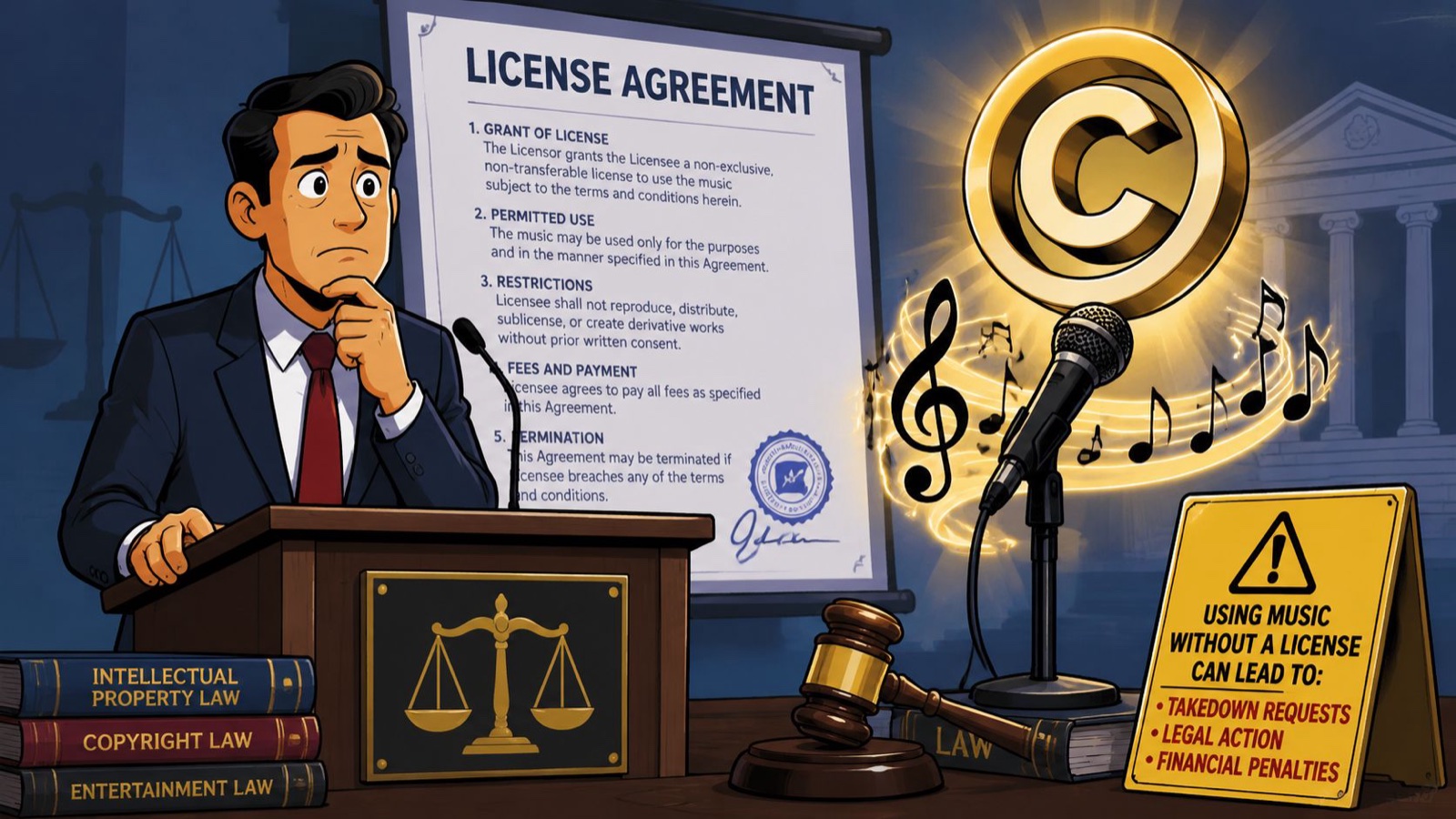
If the presentation is for business use, you cannot assume a song from a personal library is fair game. Internal all-hands decks, sales presentations, investor updates, event screens, and recorded training all sit in a commercial context, and that changes the standard.
Personal Access Is Not Business Permission
Access to a track through a streaming service or an iTunes purchase does not give you the right to use that music in a company presentation. Listening rights and commercial-use rights are different things.
That holds even if the audience is small, and it matters more the moment the deck gets recorded, shared externally, posted online, or reused in marketing.
Use this rule: if the presentation supports a business activity, use music that is clearly licensed for that purpose.
What to Use Instead
The safer route is licensed music from a library that explicitly allows commercial or business use. Read the terms, especially around public performance, client work, social posting, paid media, and recorded distribution.
Watch for vague language like “free for personal use.” That is not enough for brand work. You want terms that clearly permit commercial use in presentations and related content.
A practical checklist:
- Check commercial rights: The license should clearly cover business use.
- Check distribution rules: Make sure recorded decks or posted videos are allowed if you need them.
- Keep the paperwork: Save the license details with the project files.
Why This Matters Beyond Legal Risk
Licensed music also makes the work feel more disciplined. Nobody has to ask later whether the soundtrack is approved, legal reviews go smoother, and archived decks are safer to reuse.
There is a creative upside too. When you pick from the right libraries, you stop trying to force a familiar hit into a place it does not belong, and you start choosing tracks that fit the message and the brand.
If your team ships decks, explainers, and branded presentations on a constant cycle, a dedicated creative team like Moonb can take the design, motion, and audio work off your plate so each one lands on brand and on time.
Frequently asked questions
Select the audio icon, open the Playback tab, and turn on Play Across Slides. Play in Background does the same thing in one click and also loops the track and hides the icon. If the music still stops, confirm the setting is on the audio object itself, not on a slide transition.
MP3 for almost anything shared. It plays back reliably, stays compatible across machines, and keeps the file small. Use WAV only for in-house master decks where quality outweighs file size, and keep M4A if your source is already in that format and it tests cleanly in slideshow mode.
No. Access to a track for personal listening does not include commercial-use rights. Internal decks, sales presentations, and recorded training all count as business use, so choose music licensed for commercial use and save the license details with the project files.